


Backup Internet access with UniFi LTE Pro

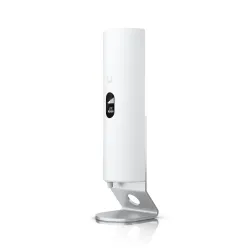
UniFi LTE PRO from the manufacturer Ubiquiti - is a wireless modem-antenna unidirectional LTE Cat 4. UniFi LTE is a great option to protect your UniFi network from sudden Internet outages when your primary ISP fails. Note that channel redundancy is absolutely required in enterprise-class networks, but it's not always possible to run a second cable.
The access point connects via Ethernet port to the UniFi router's redundant WAN port (redundant port must be assigned) via a Gigabit Ethernet port, which is also responsible for powering the device via PoE 802.3 AT. At the same time, the second port can be used to transfer data to other devices as well as power thanks to PoE Passthrough.
The access point connects via Ethernet port to the UniFi router's redundant WAN port (redundant port must be assigned) via a Gigabit Ethernet port, which is also responsible for powering the device via PoE 802.3 AT. At the same time, the second port can be used to transfer data to other devices as well as power thanks to PoE Passthrough.


This model has a LTE category 4 module, operates in the EU region and supports European LTE(1, 3, 7, 8, 20, 28) and WCDMA(1, 8) bands and likewise provides downlink speed up to 150Mbps and uplink speed up to 50Mbps. These numbers aren't very high, but they're enough to provide a small network connection to the Internet when the main broadband is off. Additionally, the UniFi LTE has two radios - a 2.4GHz WiFi service module and a Bluetooth module for configuring the access point with mobile devices, via the UniFi app, which is available for download from GooglePlay and AppStore.
This model is fully integrated with UniFi OS Console and can be configured remotely with other UniFi devices through its interface. Similarly, statistical reports on UniFi LTE performance are also available and can be viewed by the network administrator if required.
This model is fully integrated with UniFi OS Console and can be configured remotely with other UniFi devices through its interface. Similarly, statistical reports on UniFi LTE performance are also available and can be viewed by the network administrator if required.
Specification and features of UniFi LTE Pro
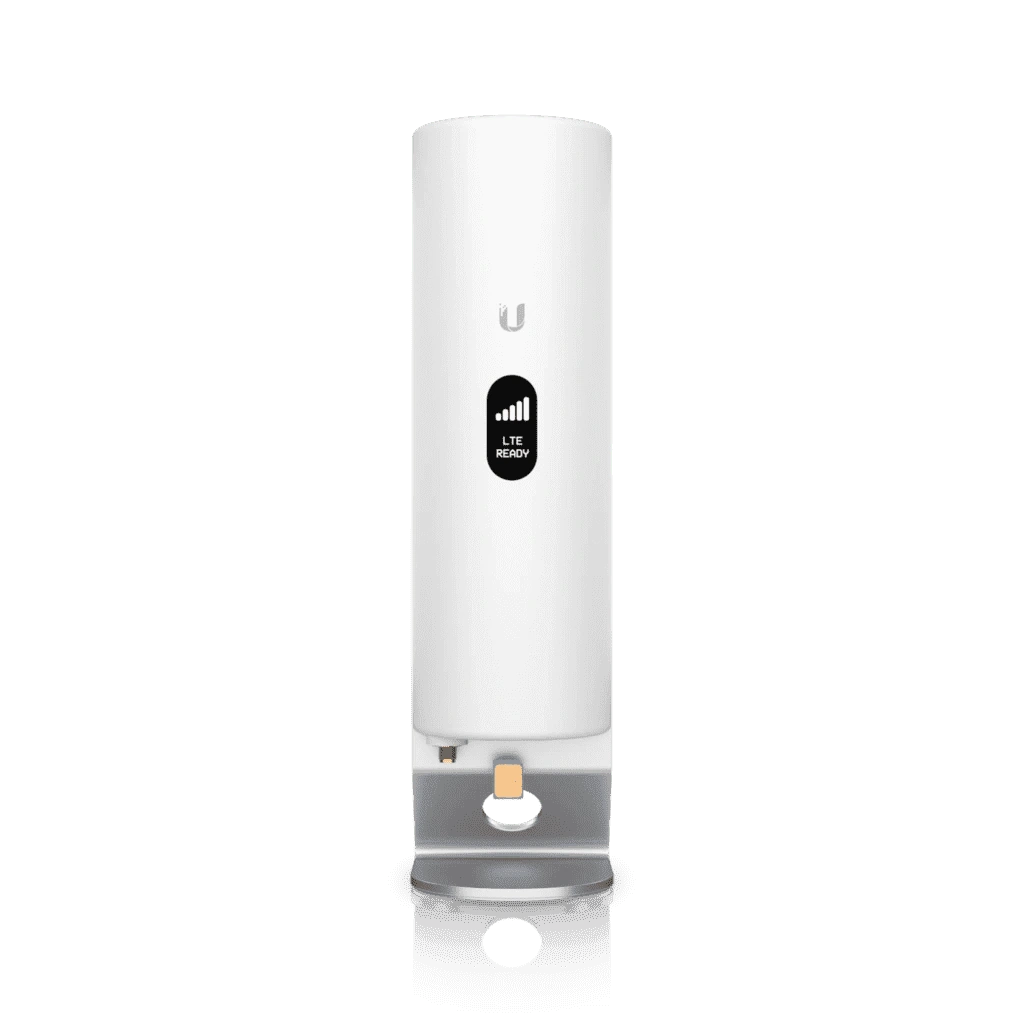
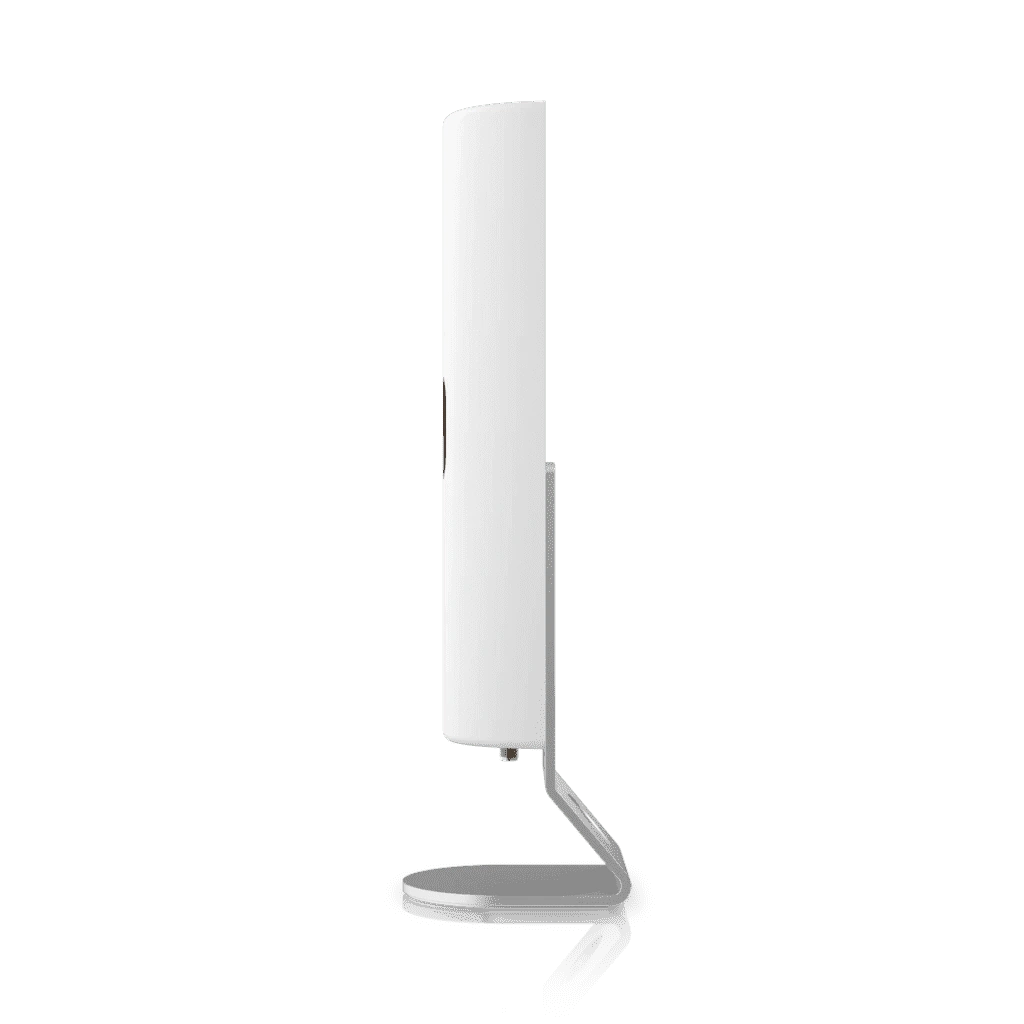
UniFi LTE Pro device is made from polycarbonate in white color with an aluminum bracket. Size 66mm x 202mm x 32mm and weight according to manufacturer 223g after verification 202g and together with handle/stand according to manufacturer 336g after verification 342g.


UniFi LTE Pro includes a 1.54" LCM display, RP-SMA connector for external antenna, two Gigabit Ethernet (10/100/1000/Mbps (RJ45) ports, one secondary (for bridging and can provide passive PoE to the device) and one main (for power supply and should be connected to the LAN and DHCP server). The device also features a built-in nano SIM card slot, and an internally located reset button which performs two functions (the manufacturer recommends keeping the reset button pressed for 5 seconds until the antenna displays information to reset to factory settings, and pressing it once to restart the device).
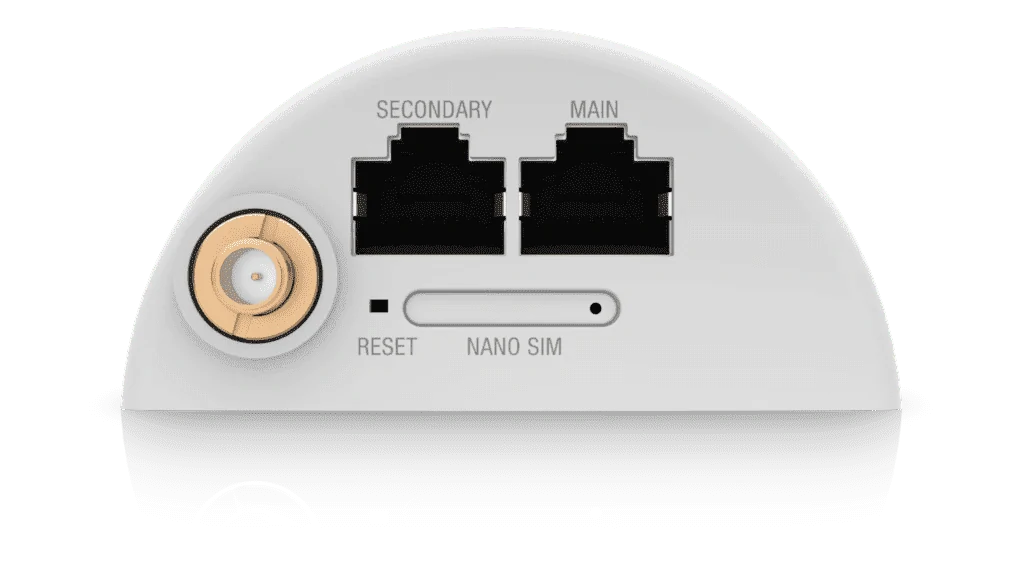
802.3at POE powered device. 128Mb of RAM maximum data rate is 150Mb/s, antenna gain is about 10dBi, maximum power consumption is 8.5W and maximum TX power is 19dBm. The processor used in the device is MIPS 74 Kc at 775 MHz. The modem operates in temperatures of -10 to 60 °C.
Ubiquiti UniFi LTE Pro specification:
Ubiquiti UniFi LTE Pro specification:
Unboxing of UniFi LTE Pro device
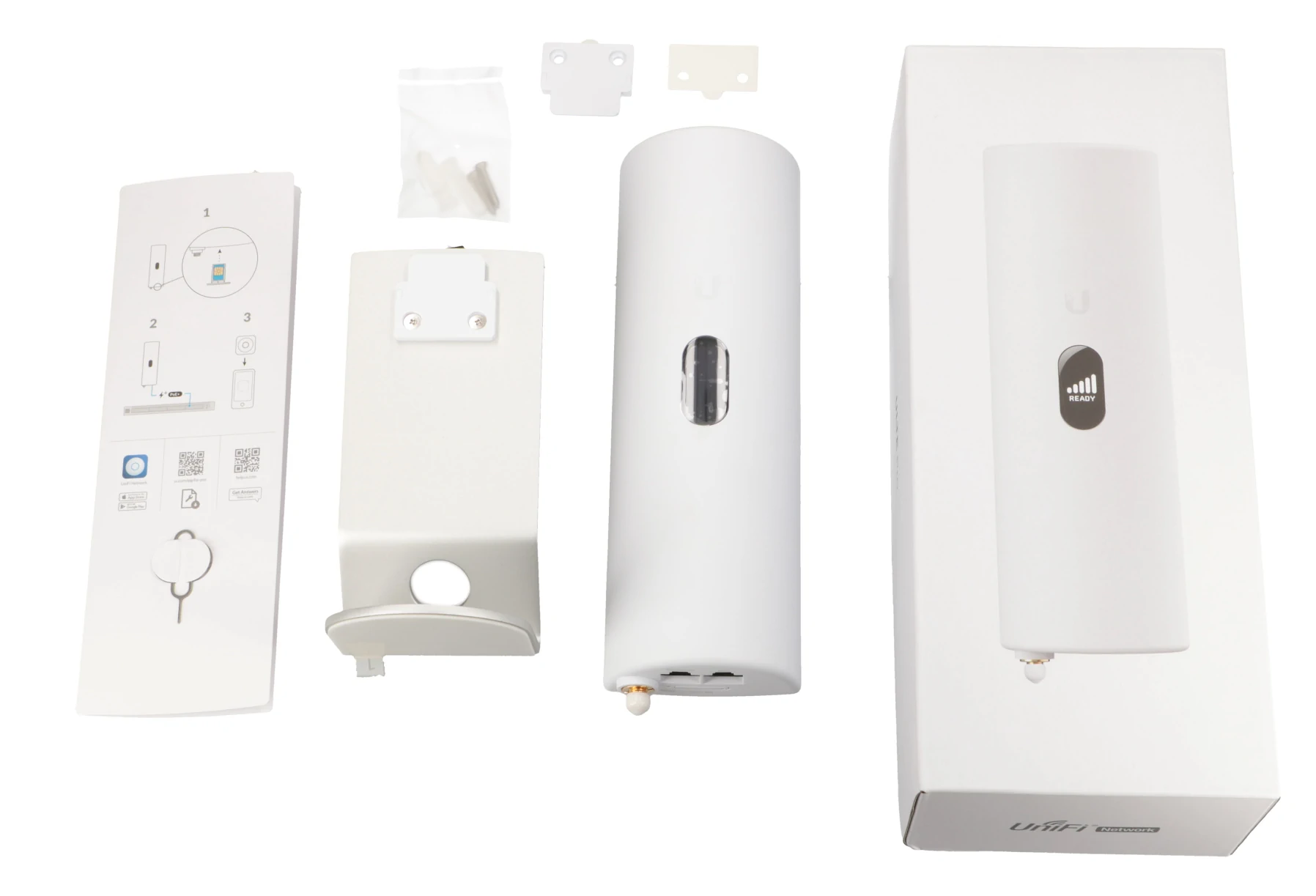
The UniFi LTE Pro comes in a white box with the company logo, a picture of the device and measures 255mm x 106mm x 75mm.
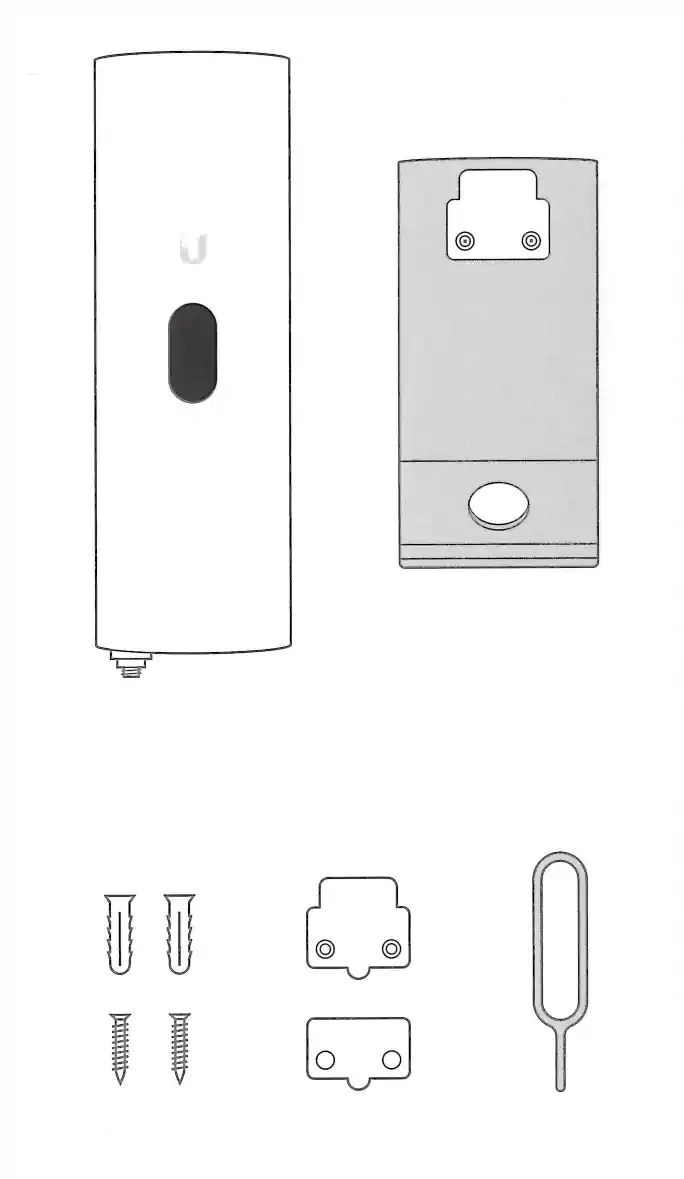
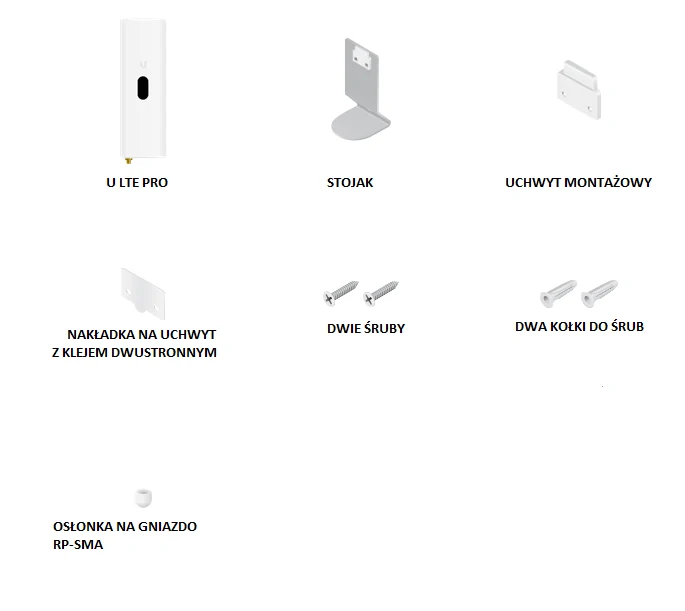
The set includes:
The set includes:
Configuration via mobile app
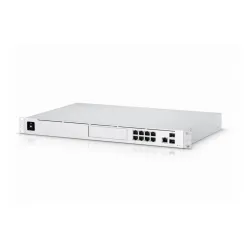
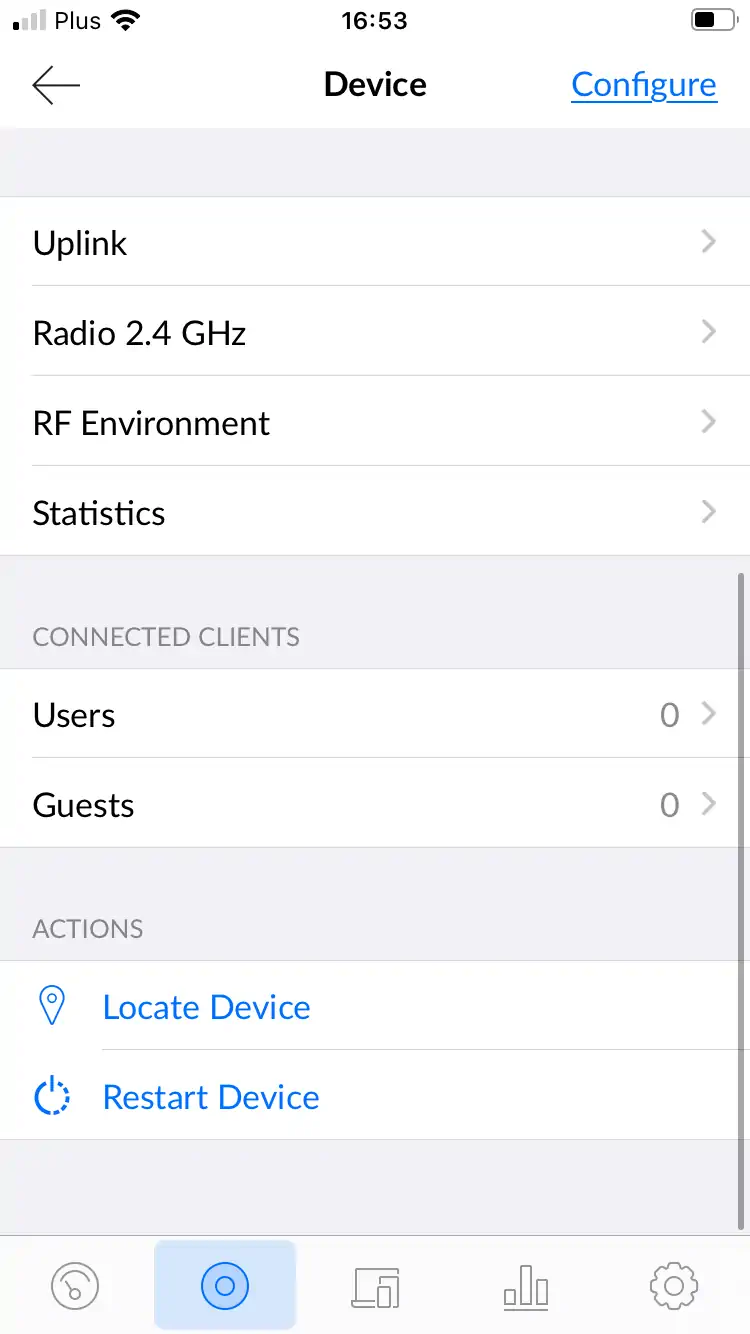
Before the configuration, the LTE Pro modem (the cable is plugged into the MAIN port on the antenna) is connected to the switch (USW), which is connected to UDM Pro Machine.
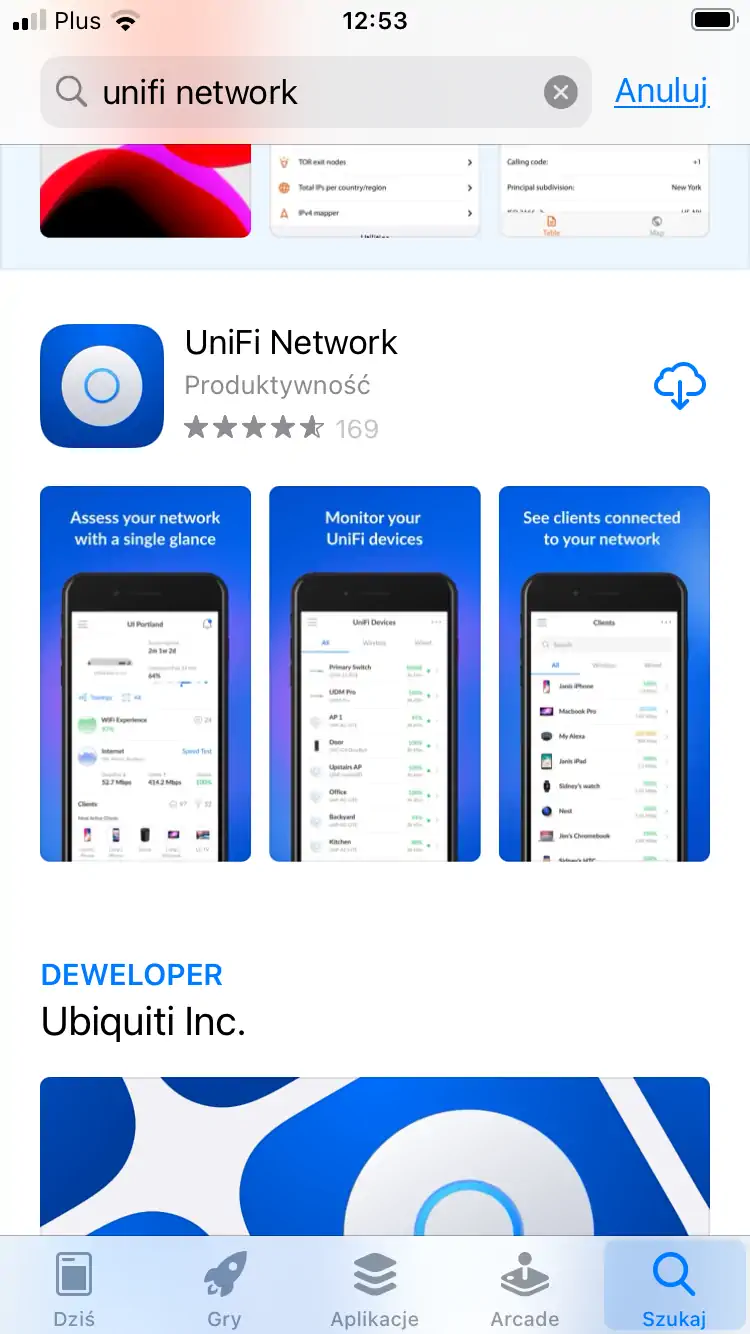
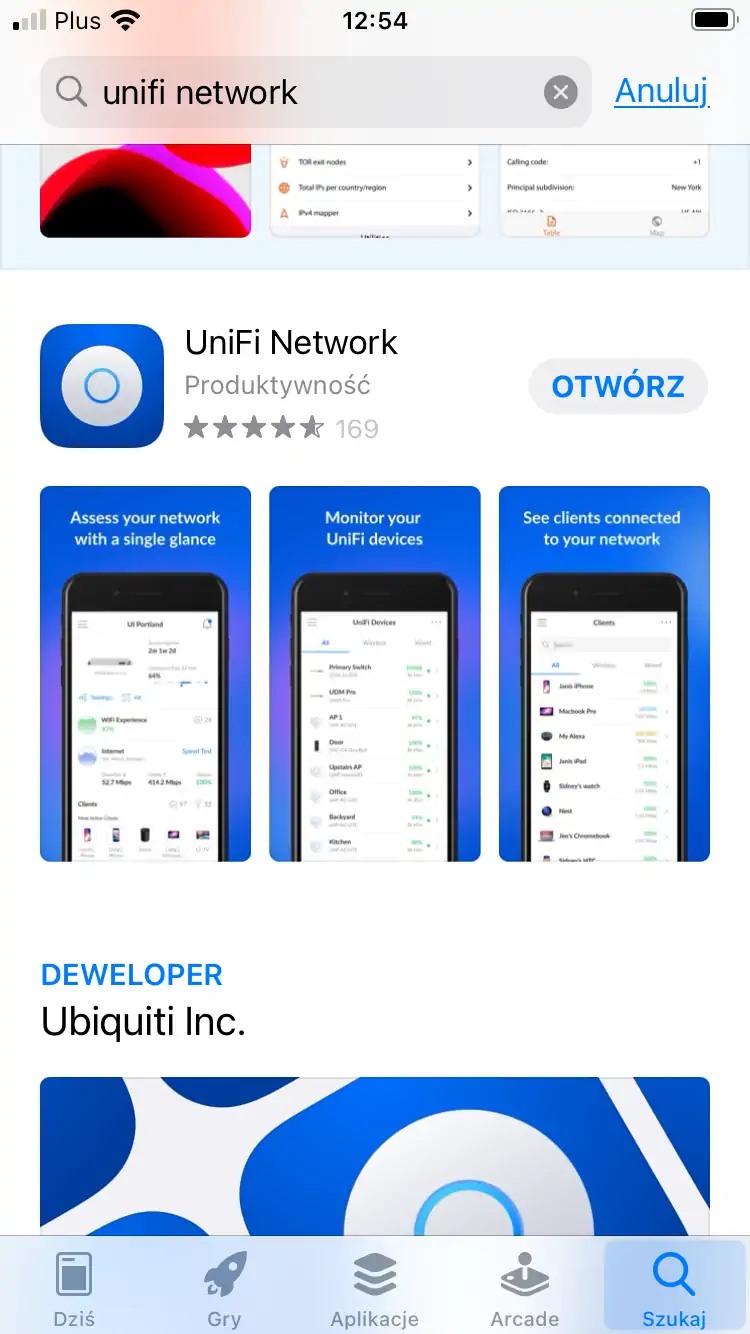
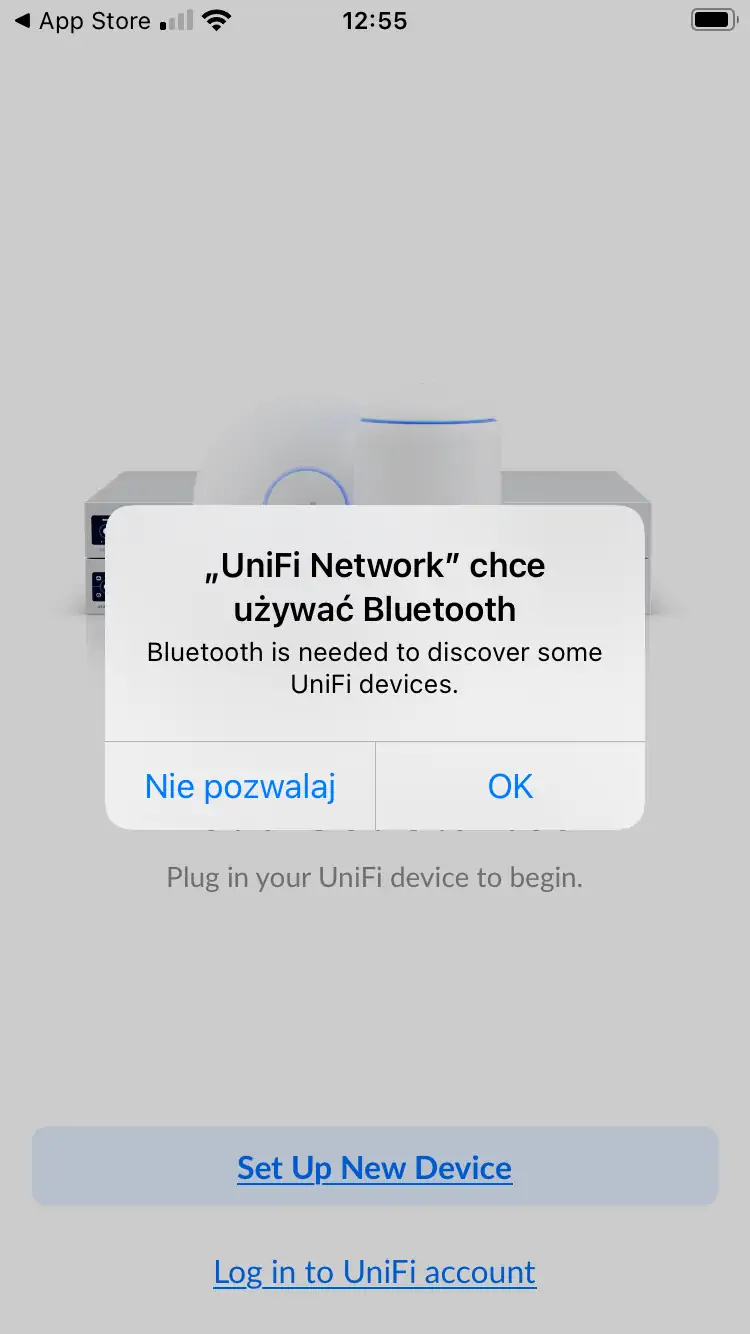
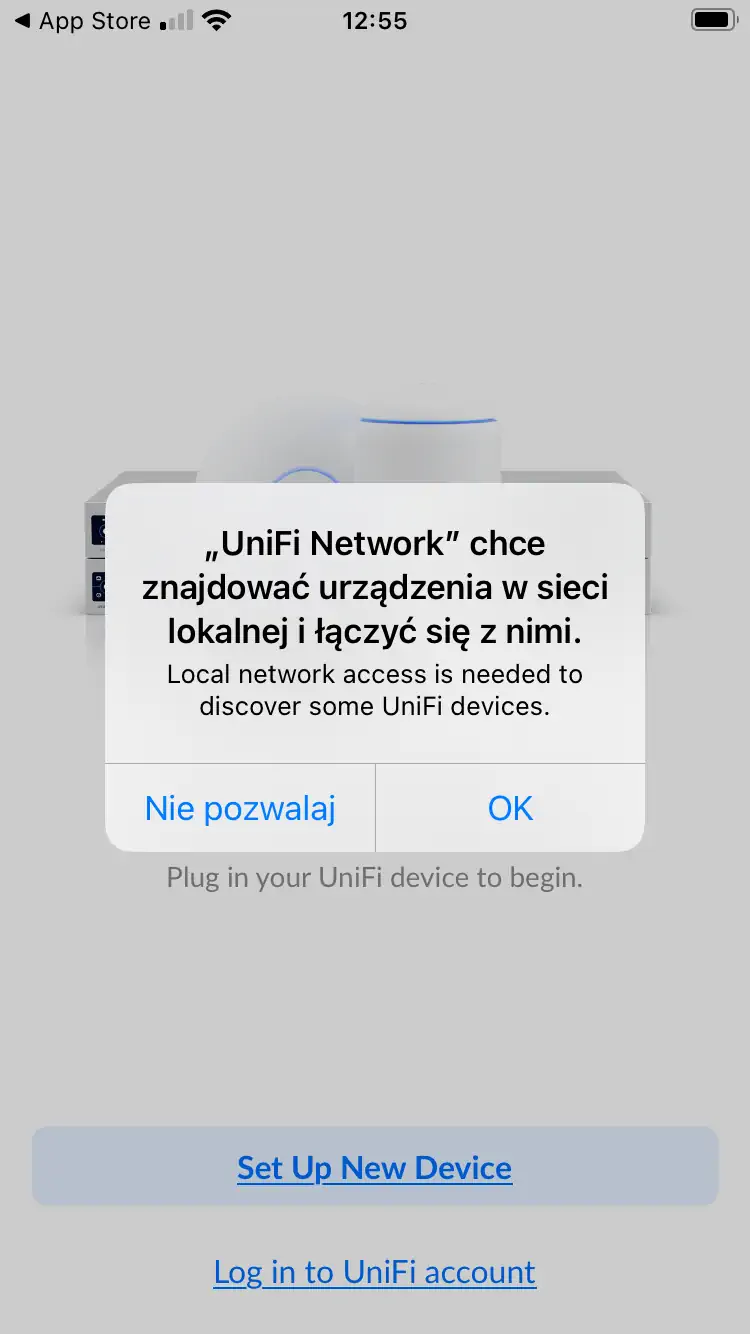
Next we download and install the Unifi Network app from the Google Play store or App store. The first time you run the application, you will be asked about the possibility of connecting via bluetooth and finding network devices and connecting to them (consent is required for proper configuration and operation of connections for the configured device). After agreeing, log into the downloaded app or create an account if you never used this app before.
Next we download and install the Unifi Network app from the Google Play store or App store. The first time you run the application, you will be asked about the possibility of connecting via bluetooth and finding network devices and connecting to them (consent is required for proper configuration and operation of connections for the configured device). After agreeing, log into the downloaded app or create an account if you never used this app before.
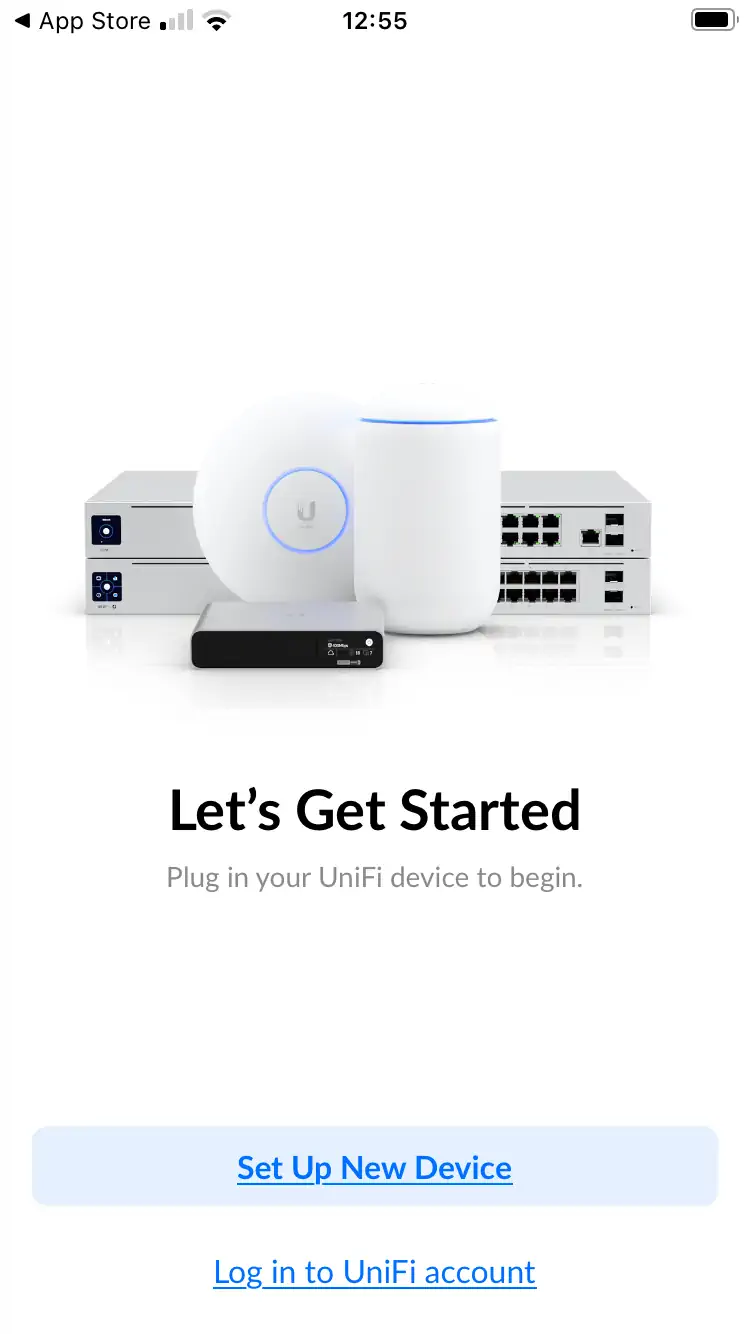
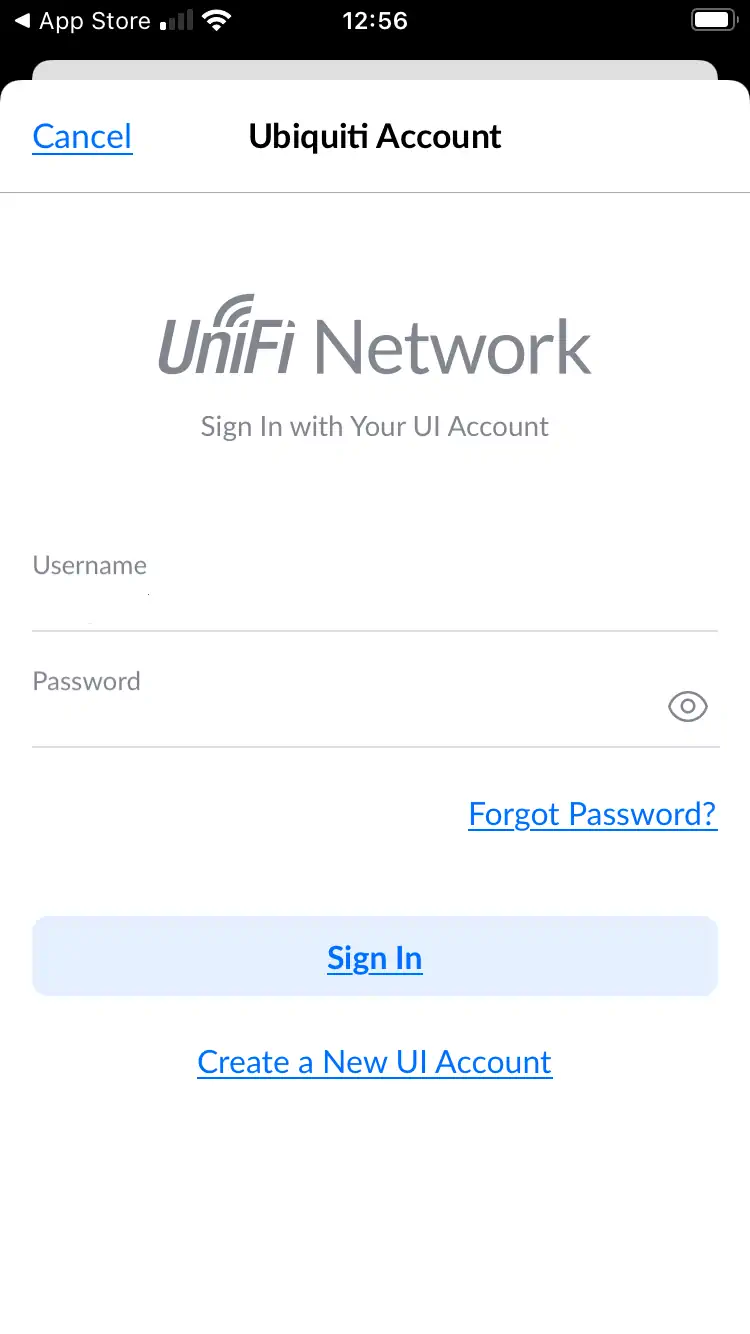
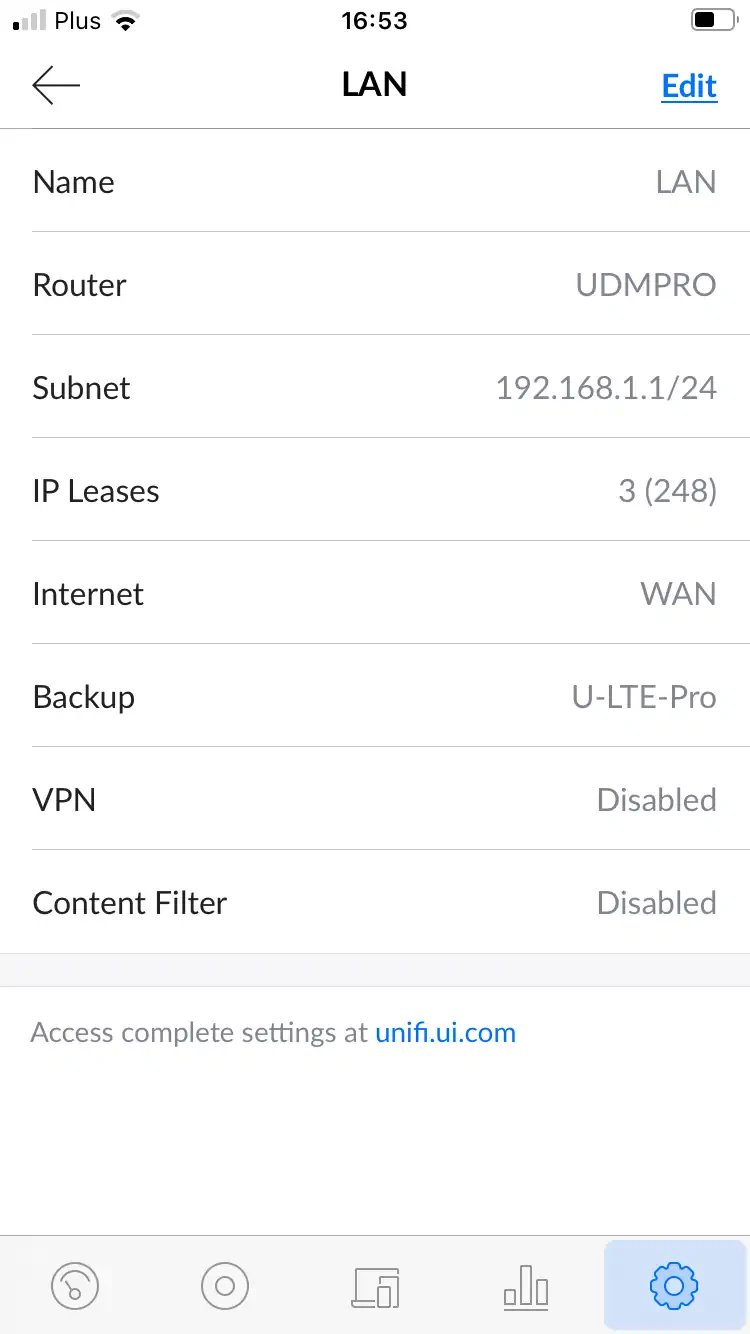
After logging in add the device. When the device is configured in the menu, you can set the following parameters

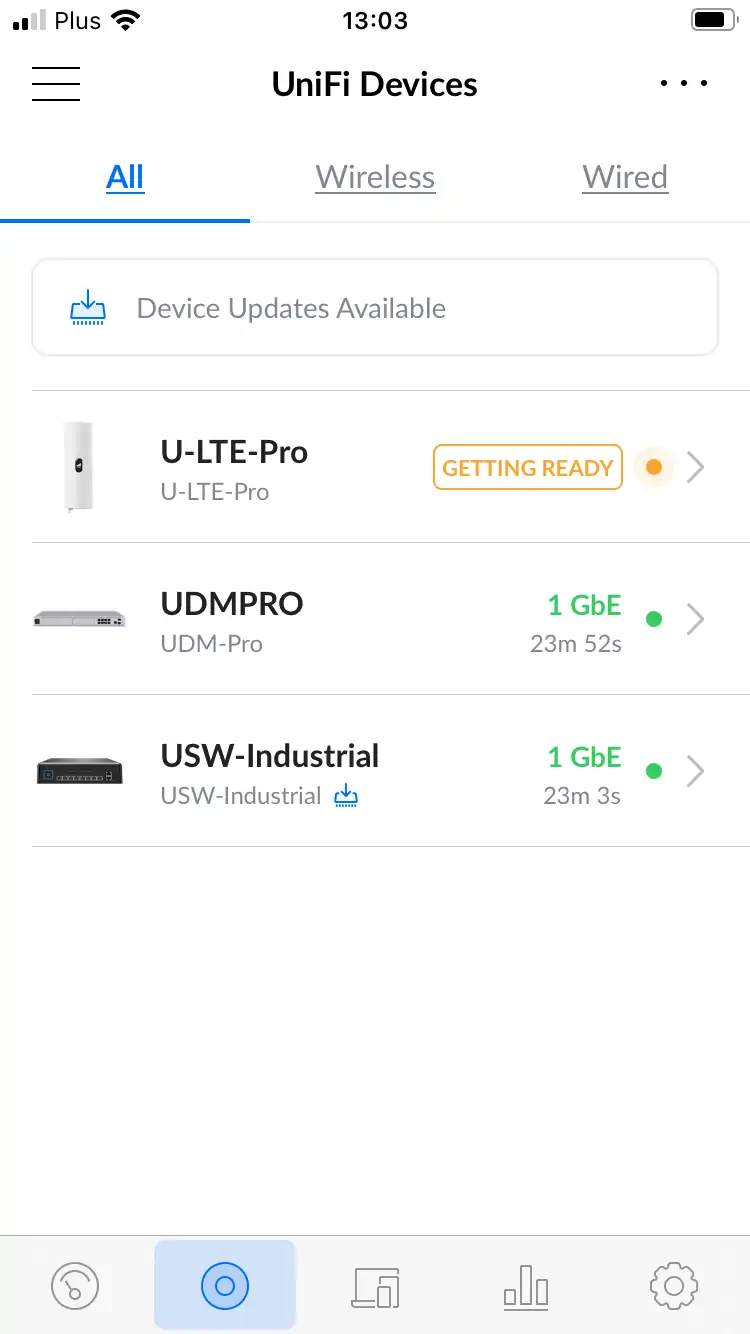
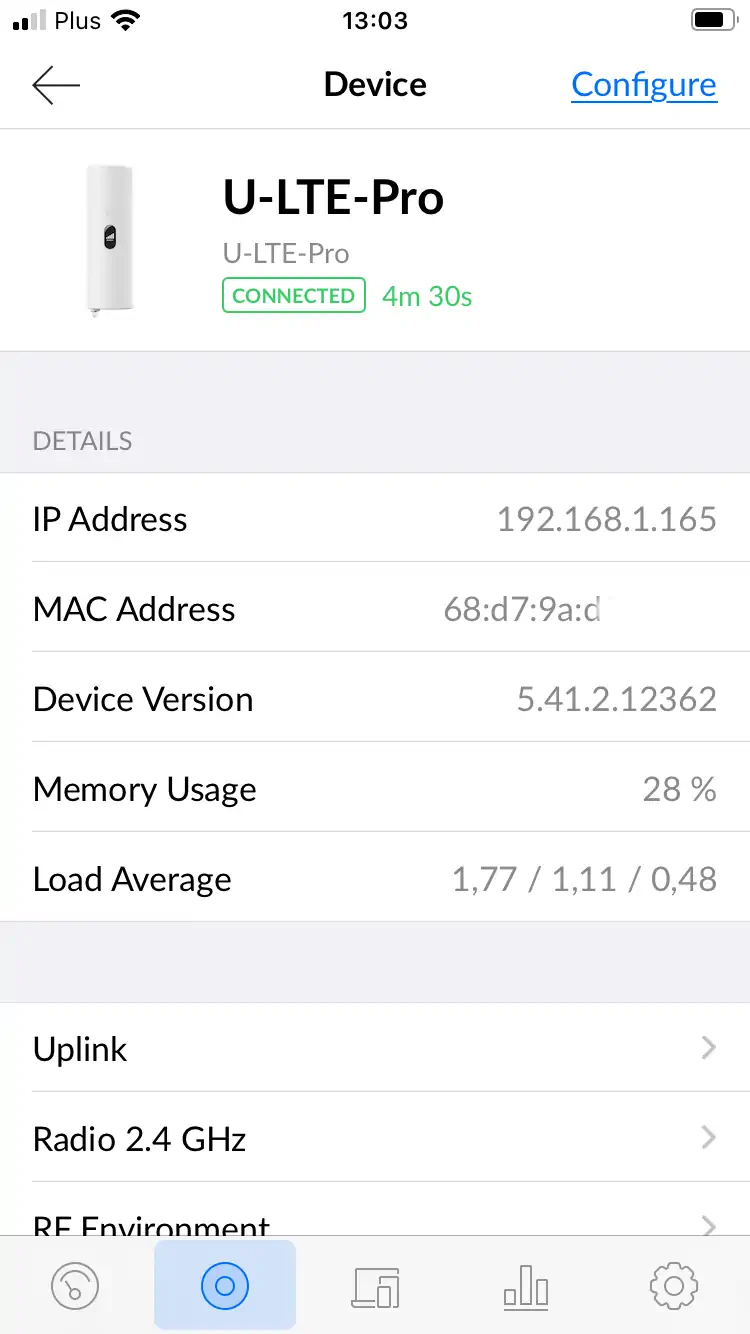
Configuration via computer
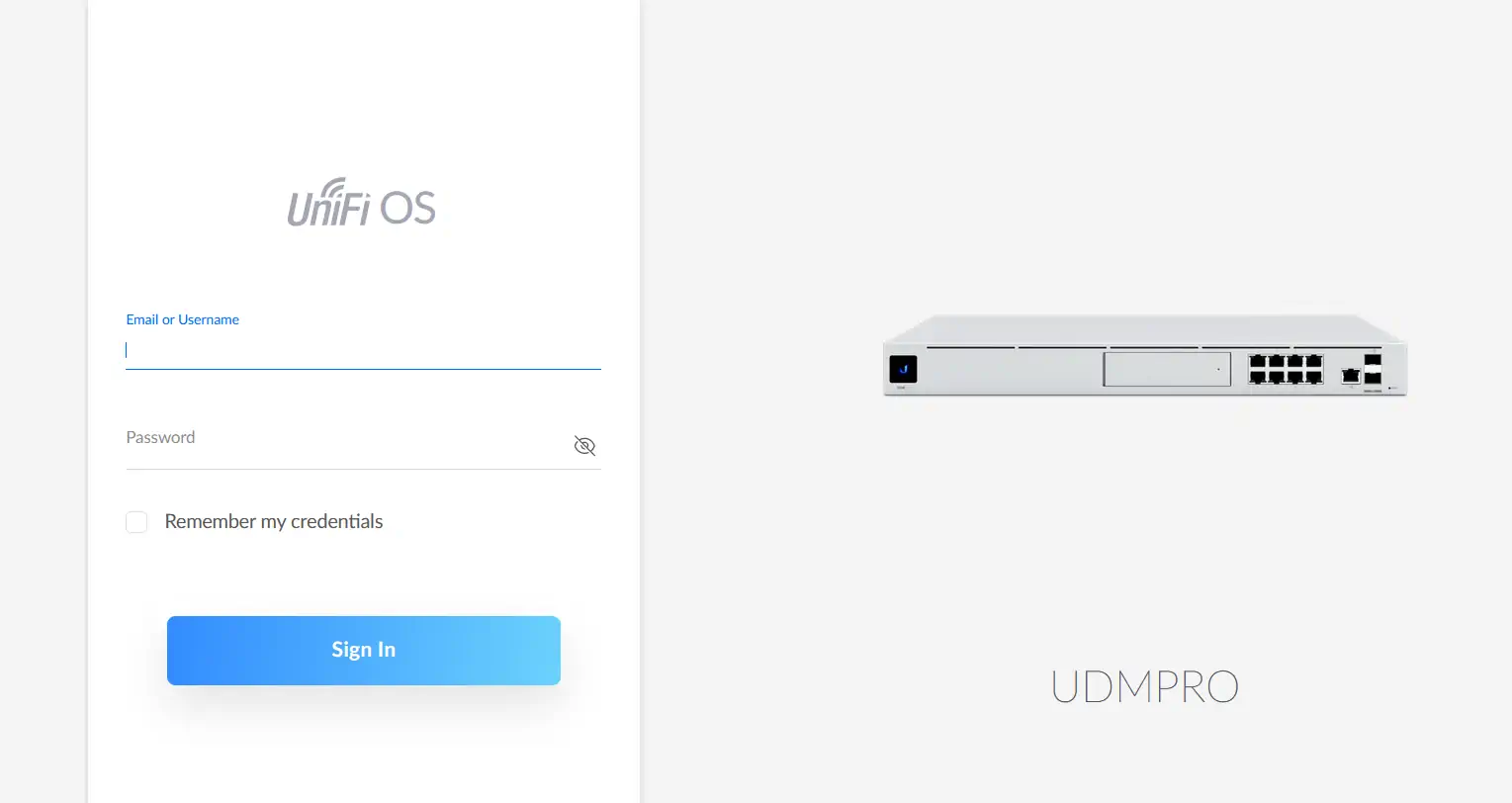
Before proceeding with the configuration using a computer, follow the same steps, that is, connect the LTE Pro modem (cable plugged into the MAIN port on the antenna) to the switch (USW), which you connect to the UDM Pro Machine. The computer or laptop connects to the UDM Pro Machine or the switch and starts the configuration by logging into the UniFi OS Console through the browser.
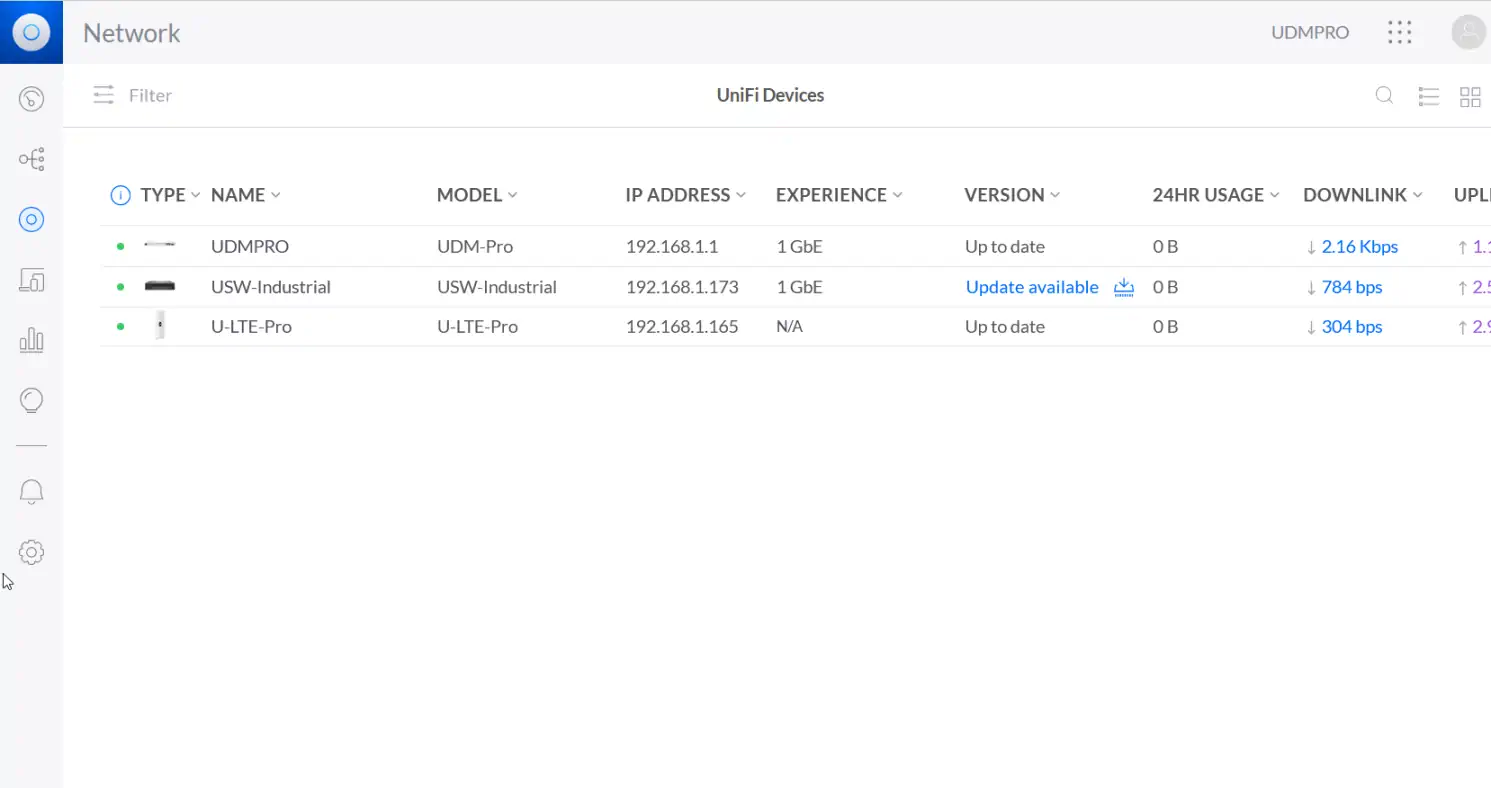
Log in to the UDM Pro Machine and add the UniFi LTE Pro device
Log in to the UDM Pro Machine and add the UniFi LTE Pro device
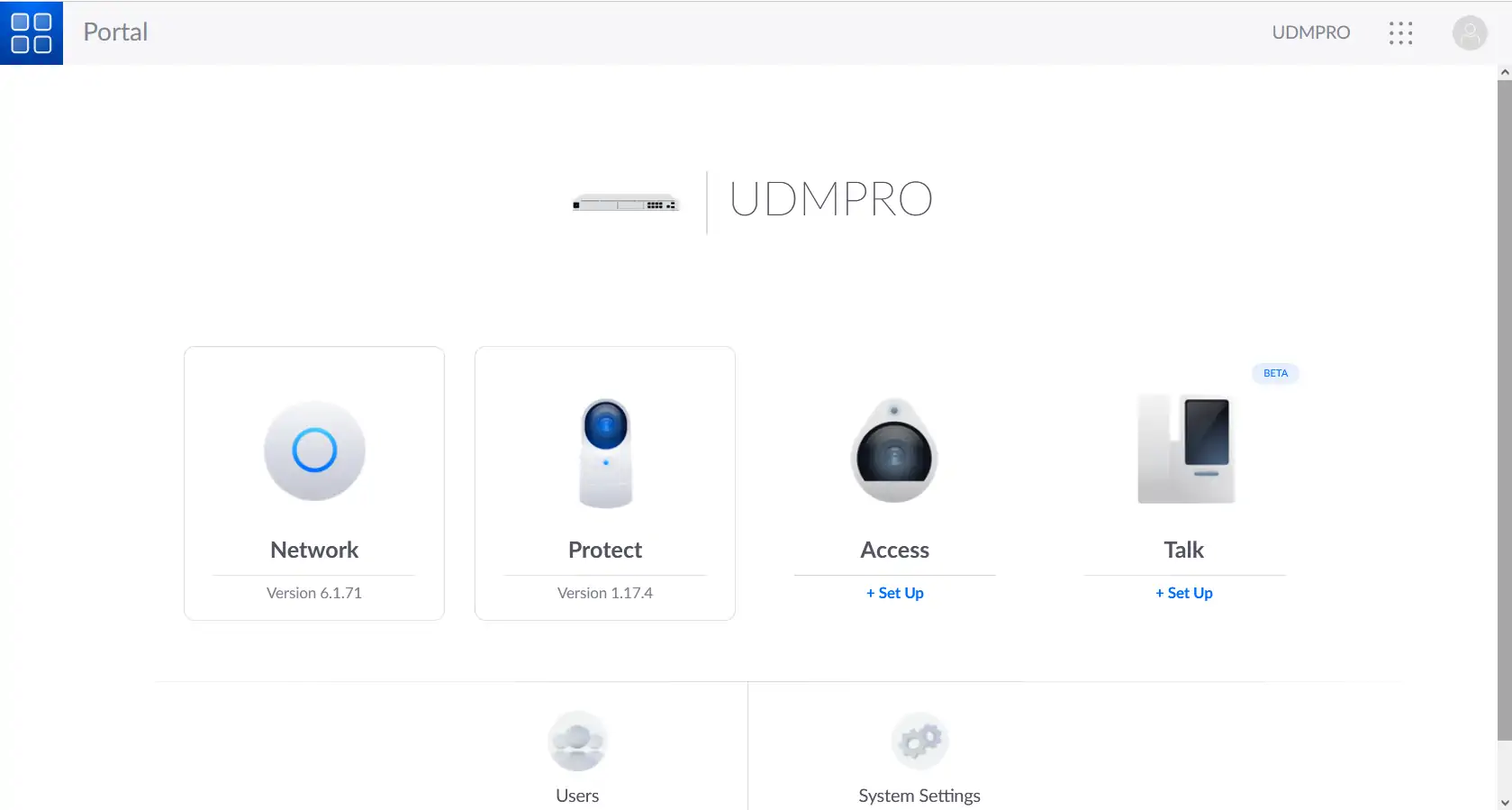
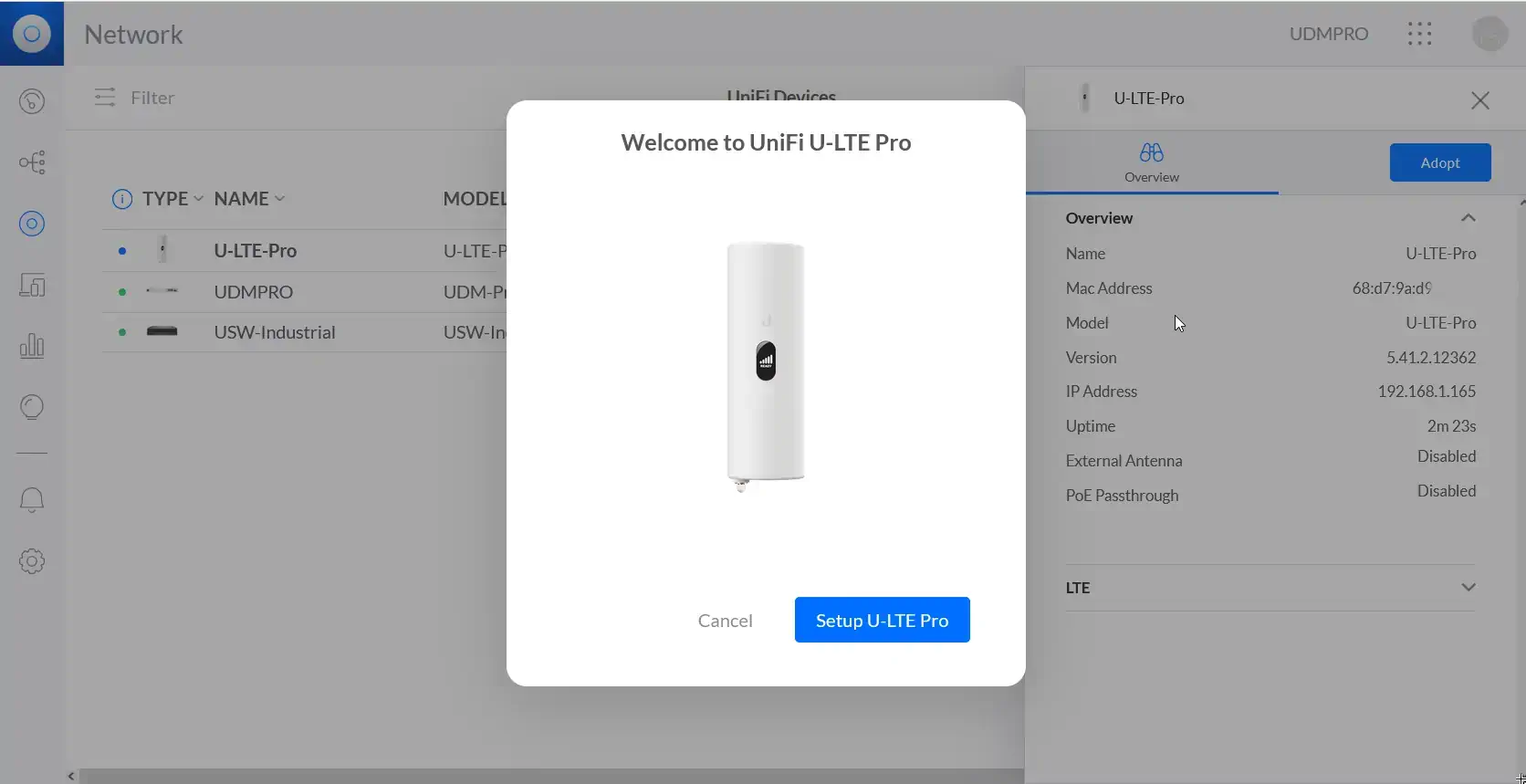
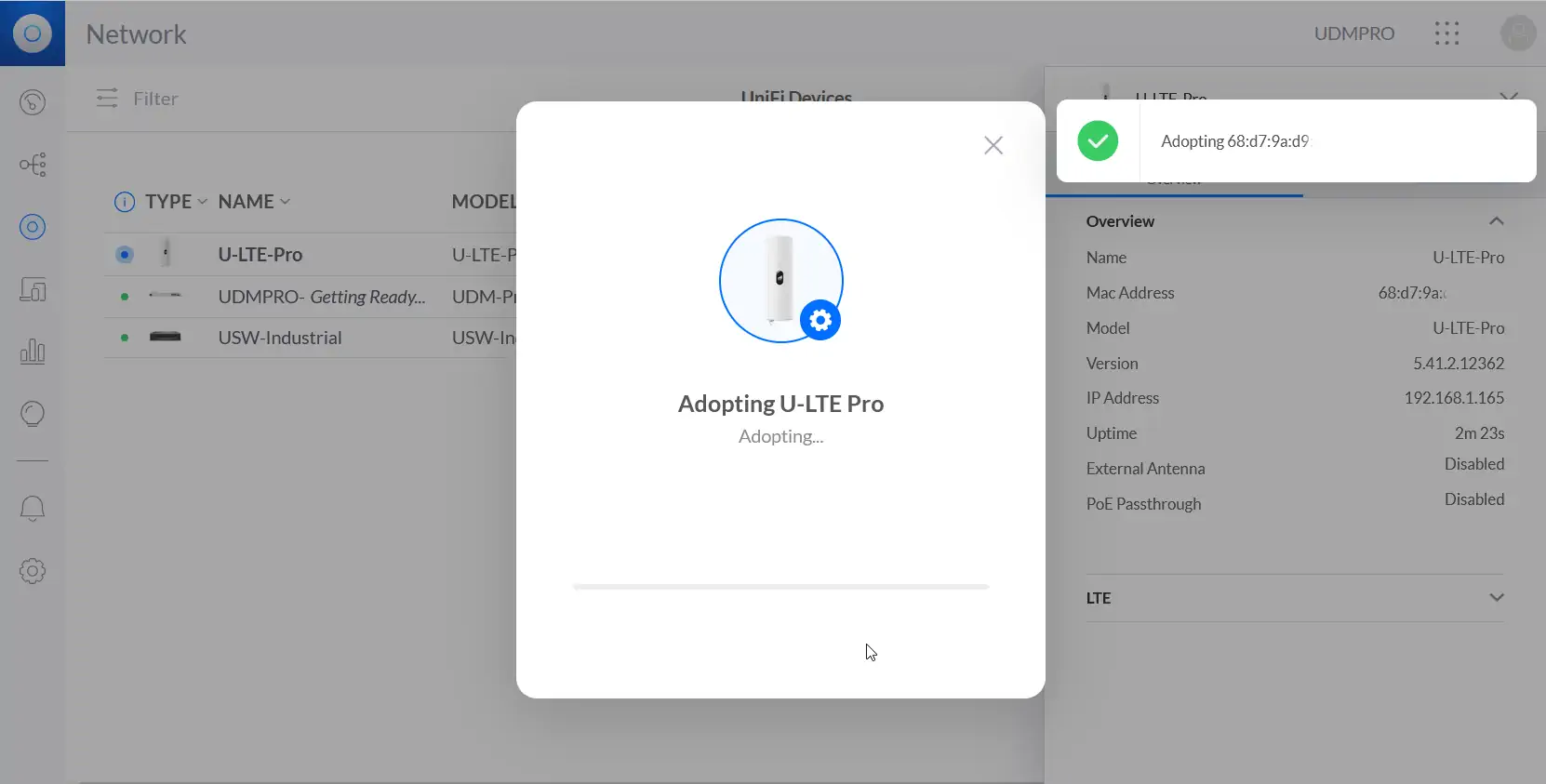
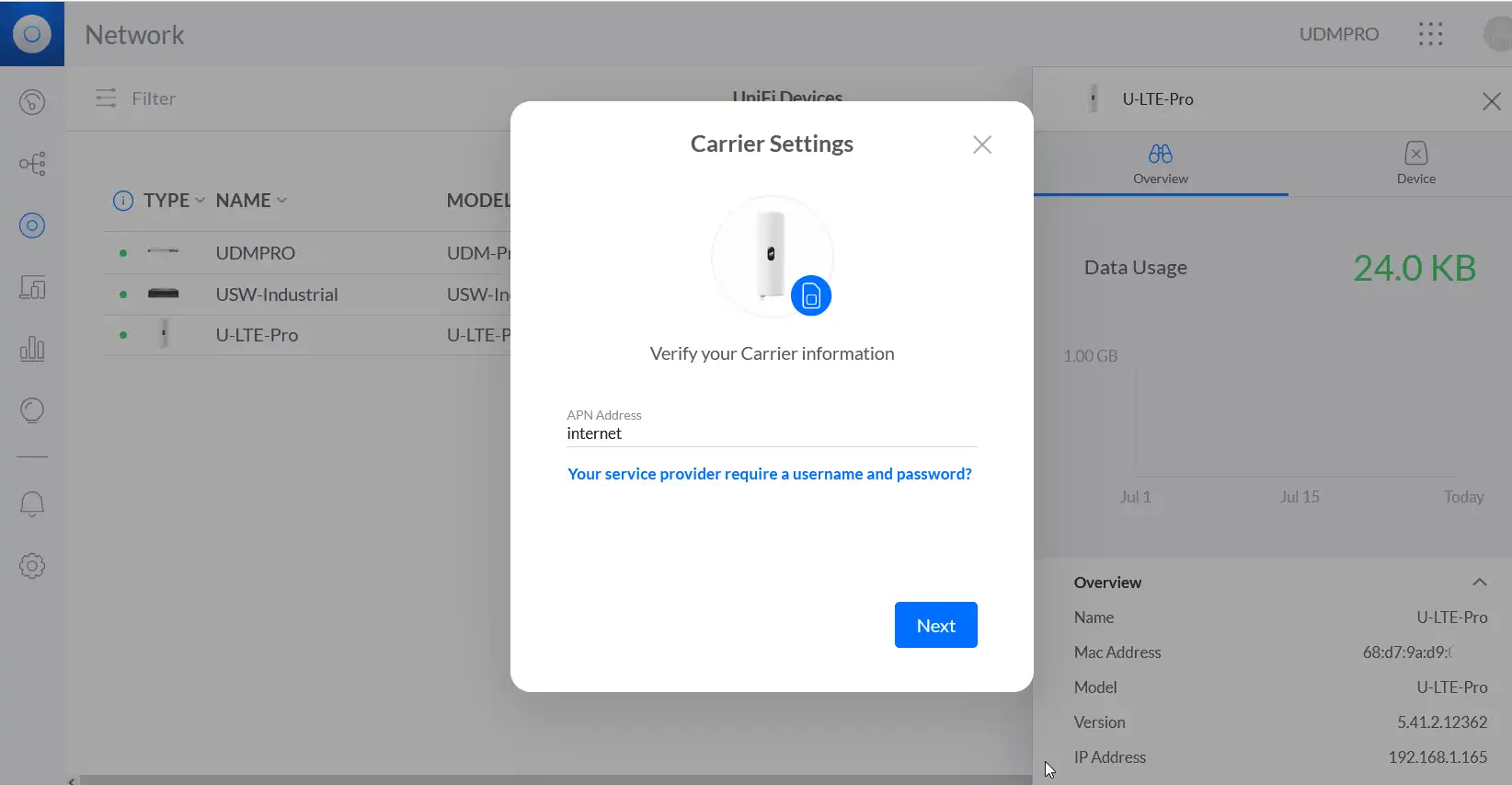
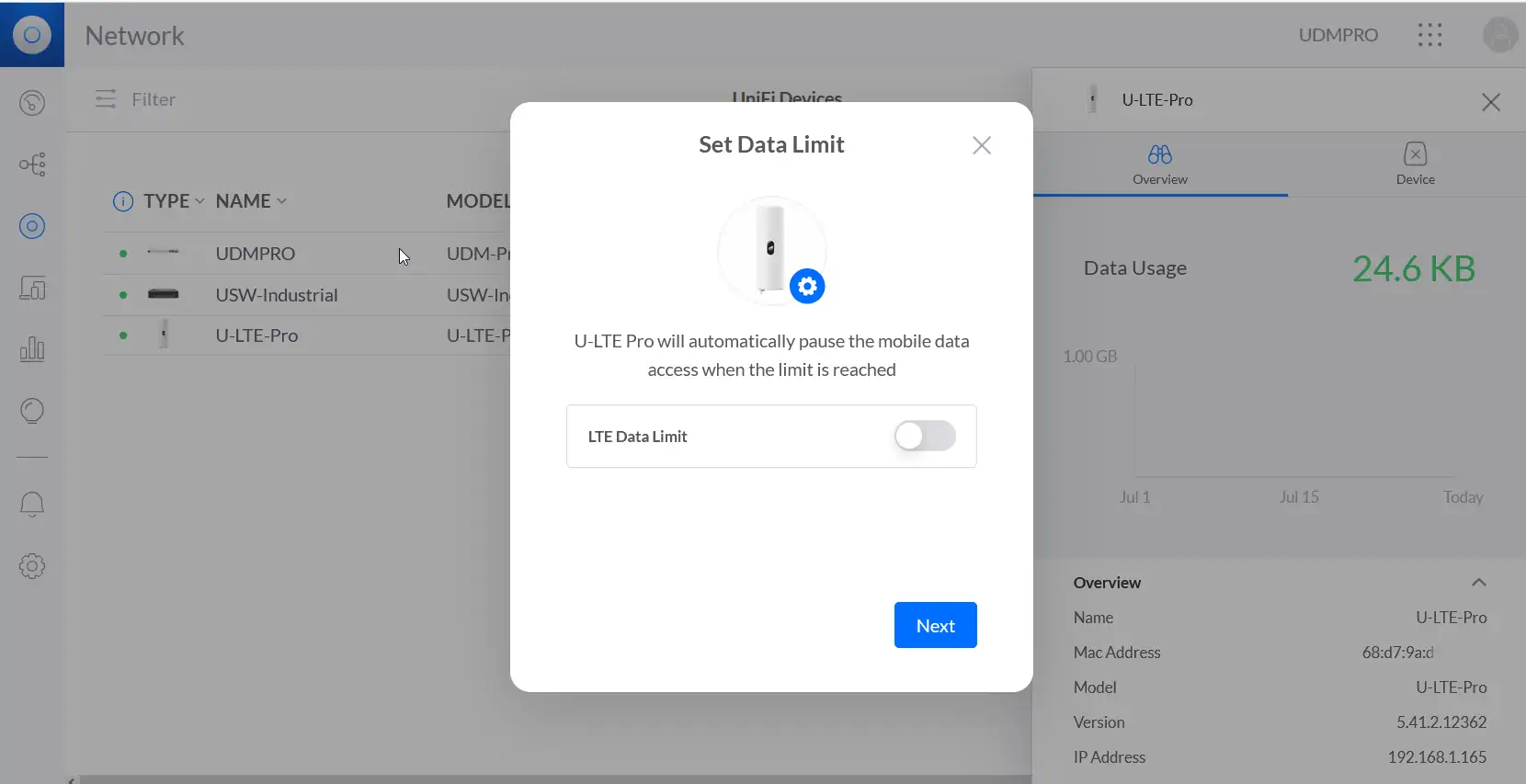
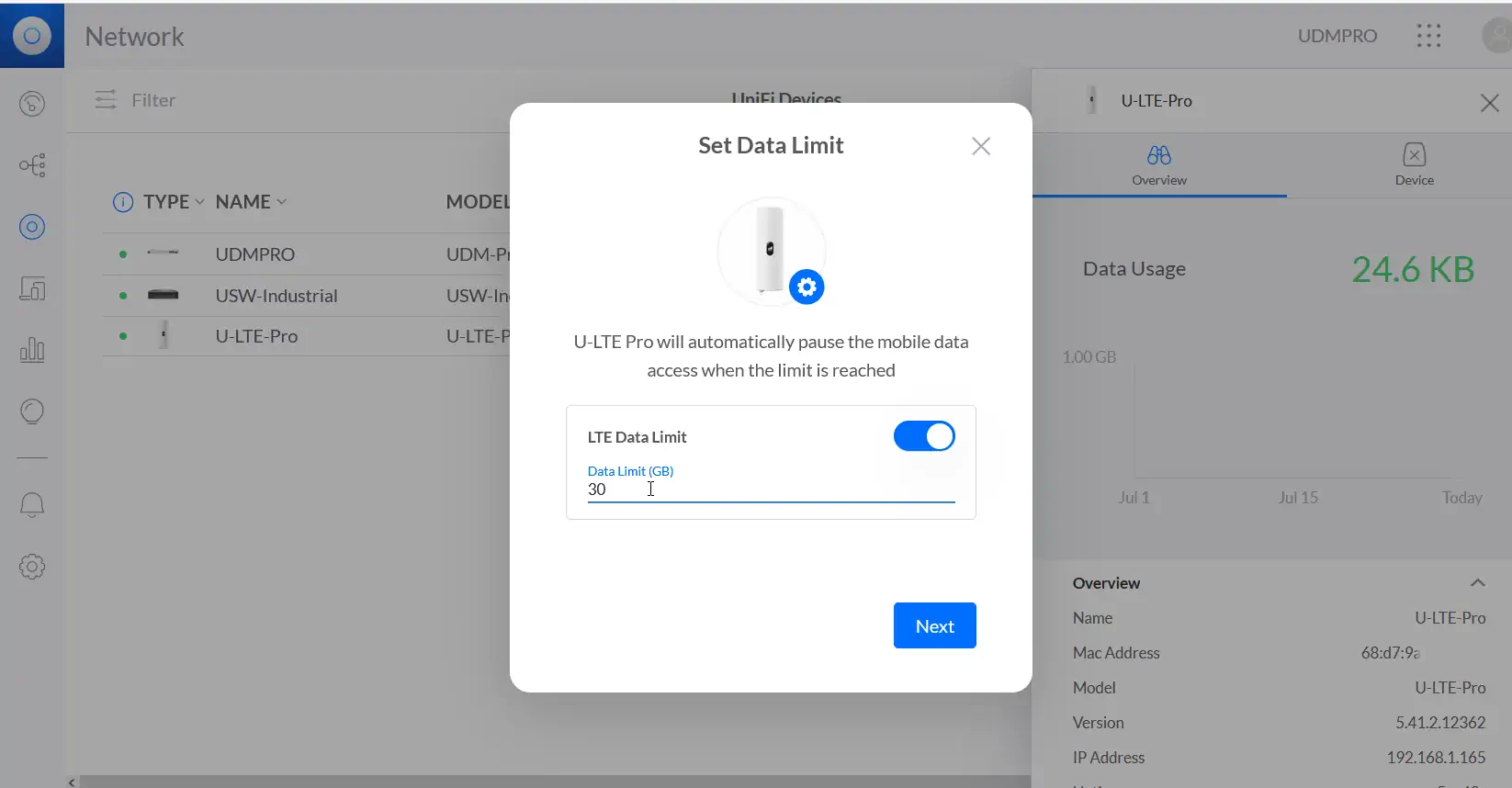
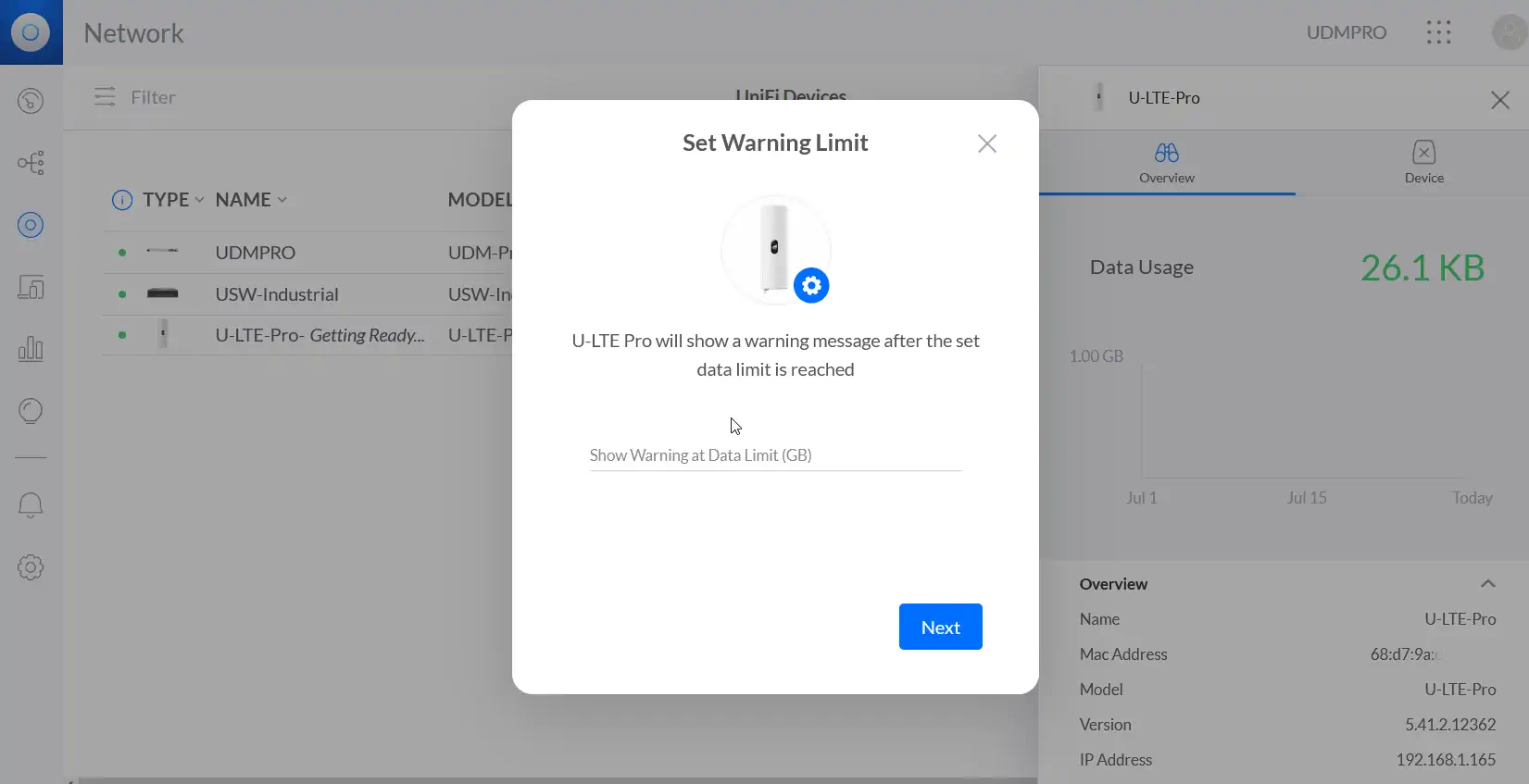
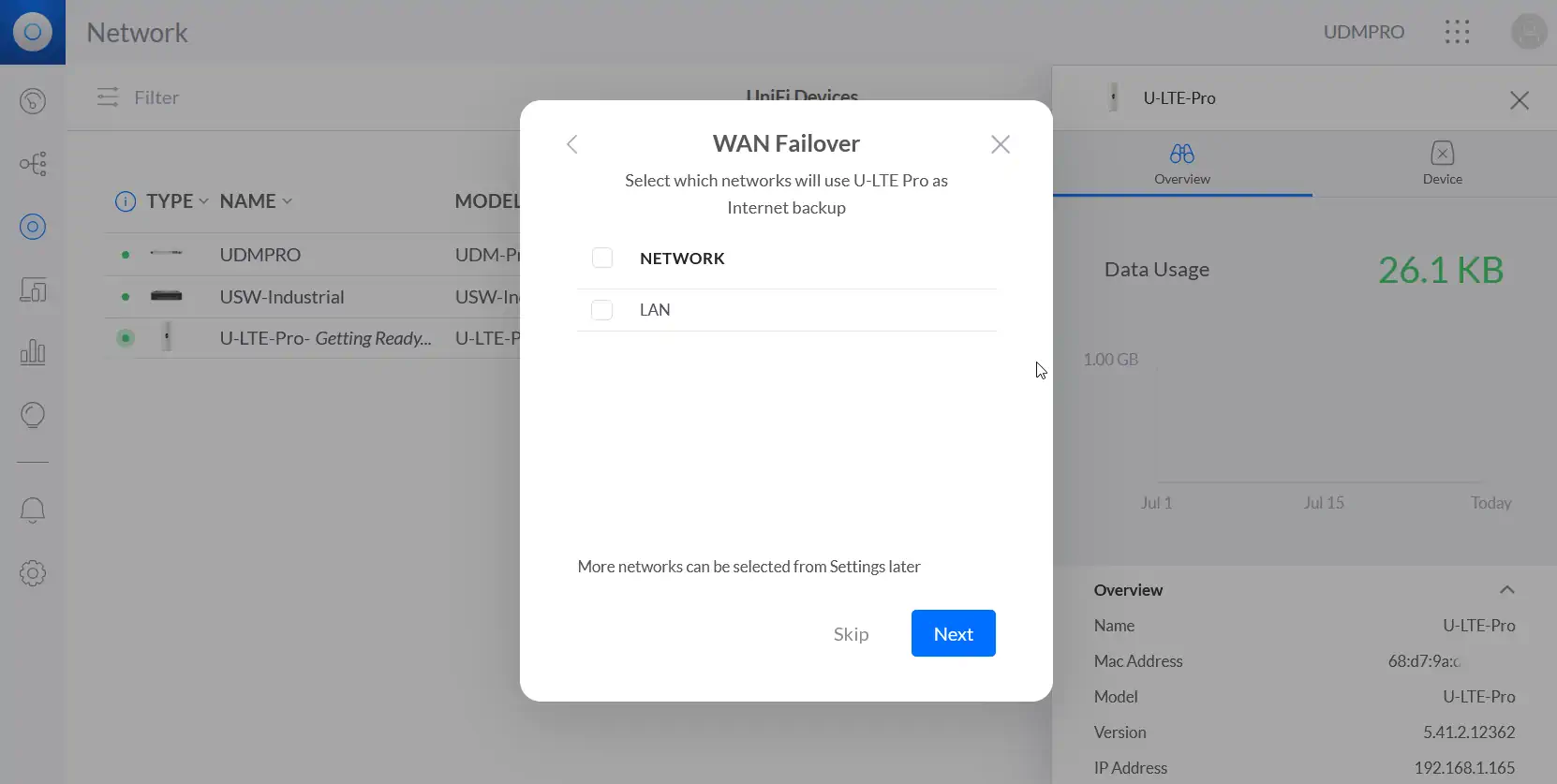
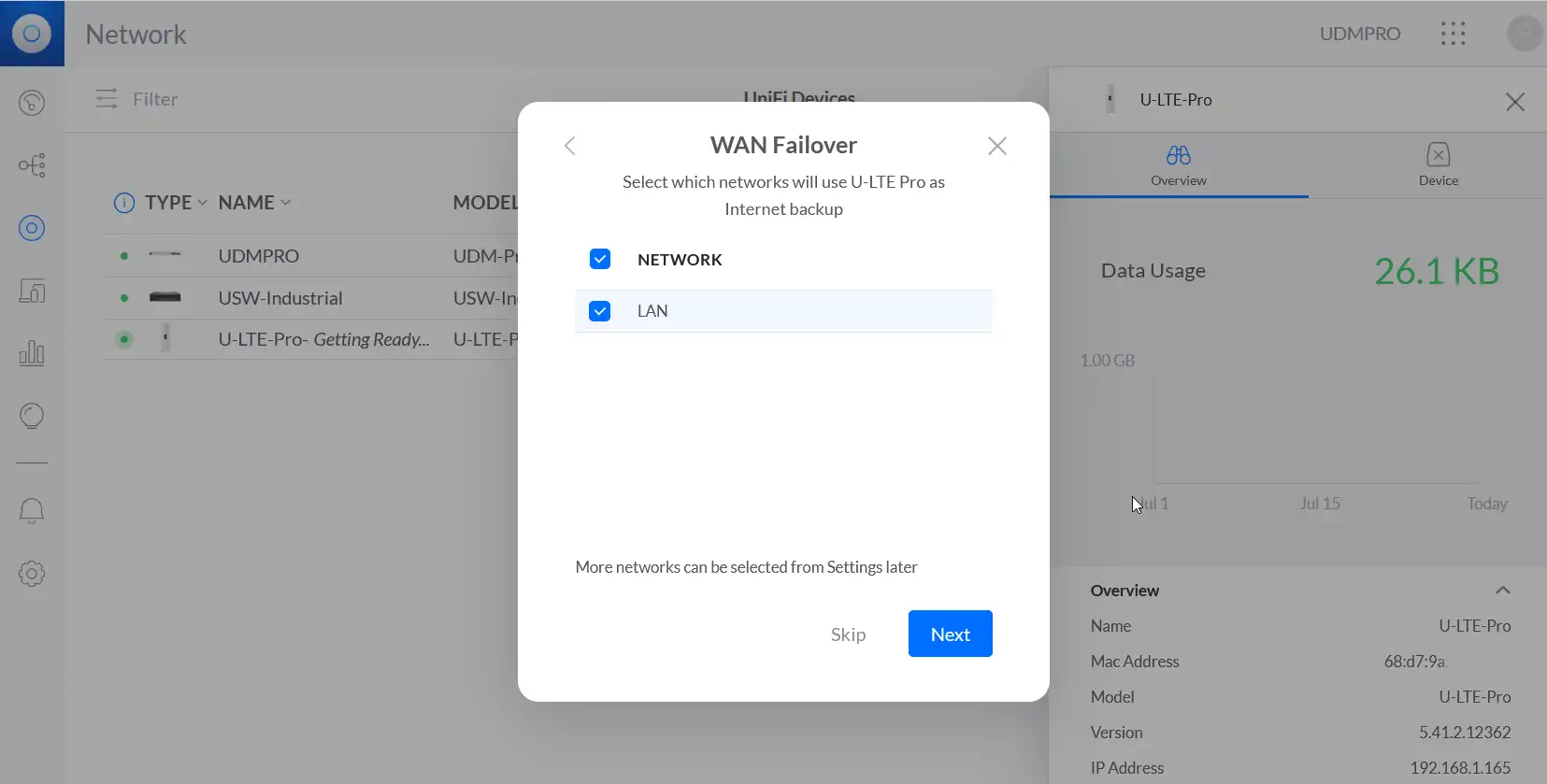
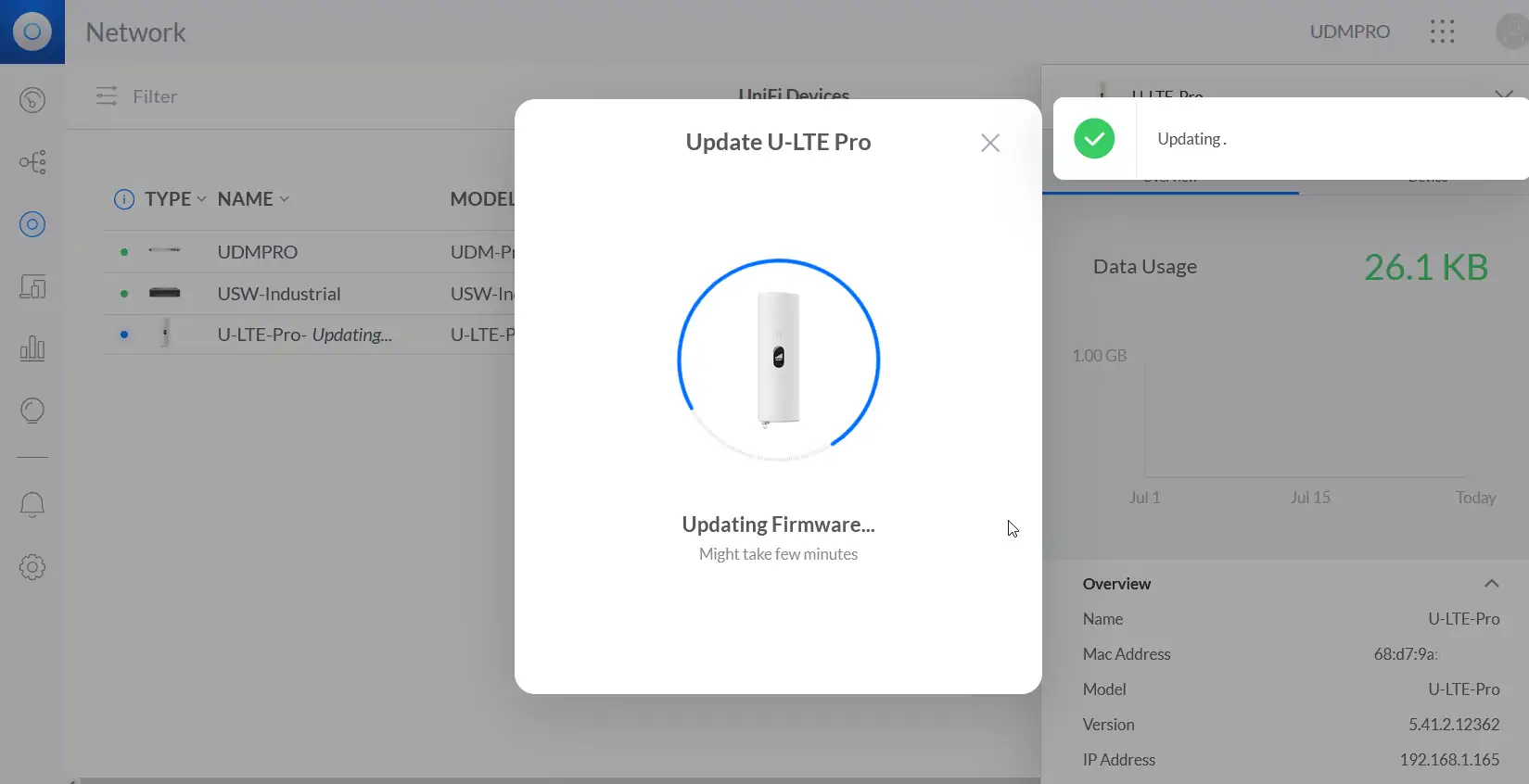
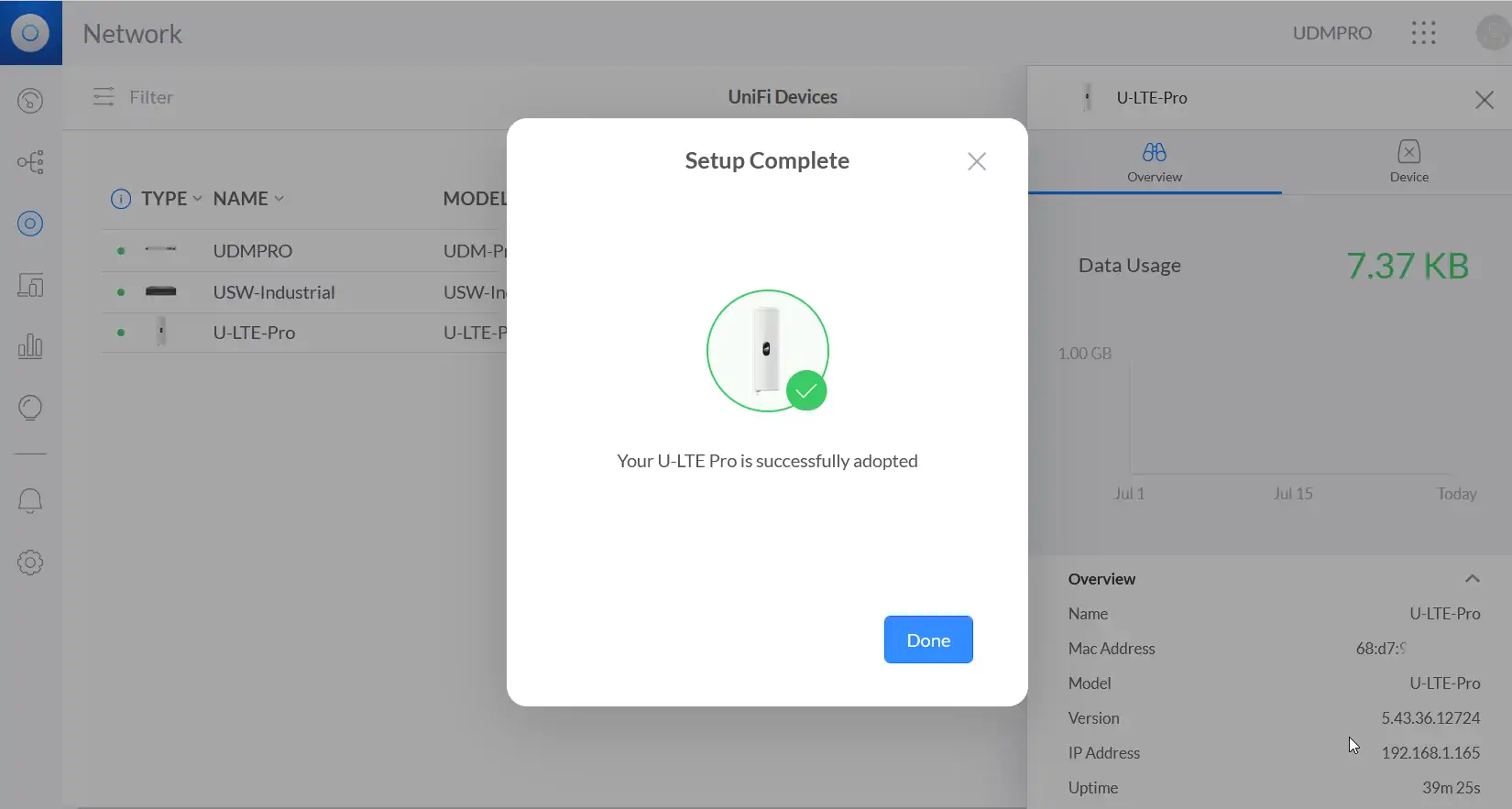
Both ways to configure the device come down graphically to the same menu, here (or in the app) you can also make changes to the settings of the device.
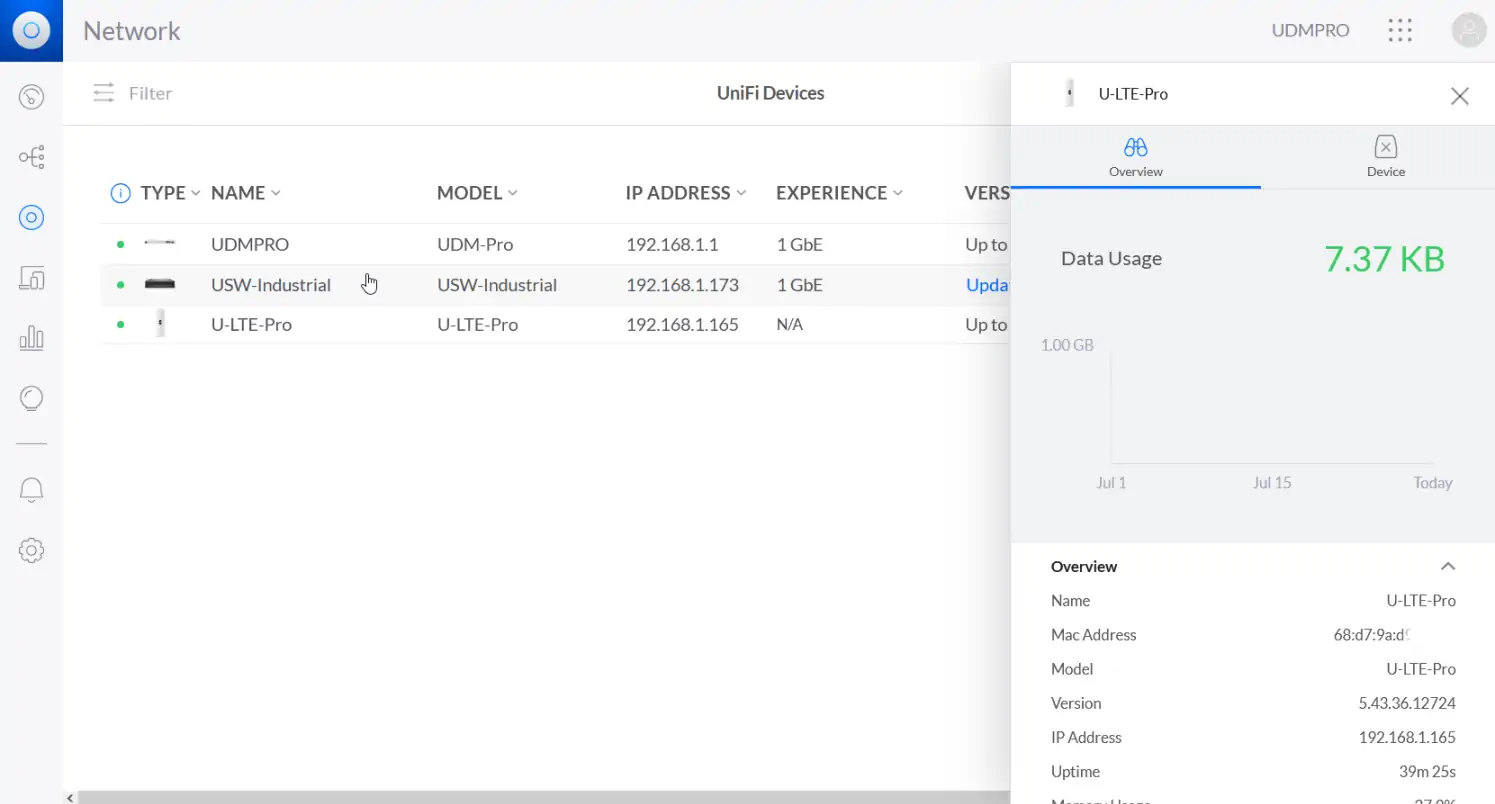
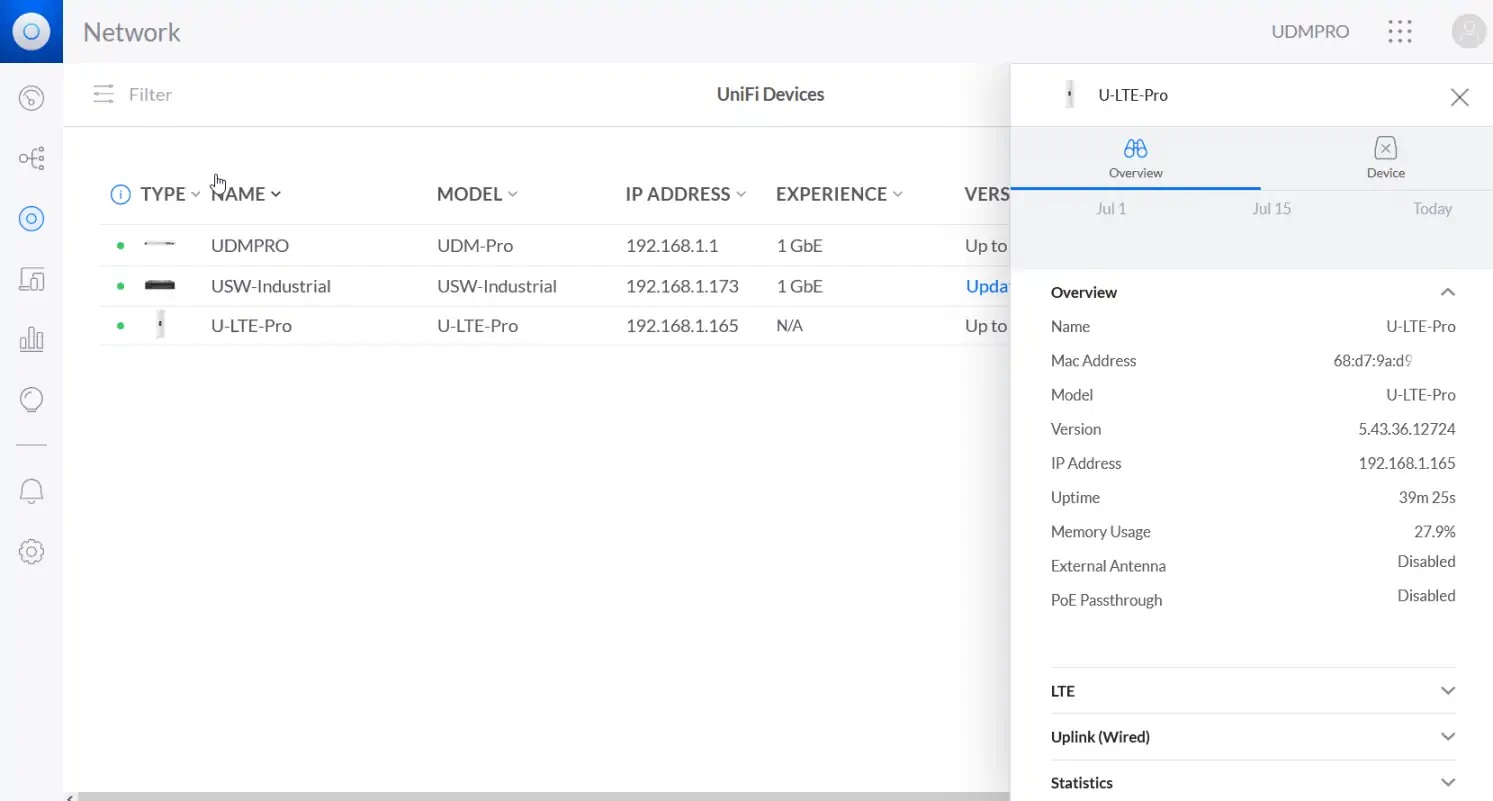
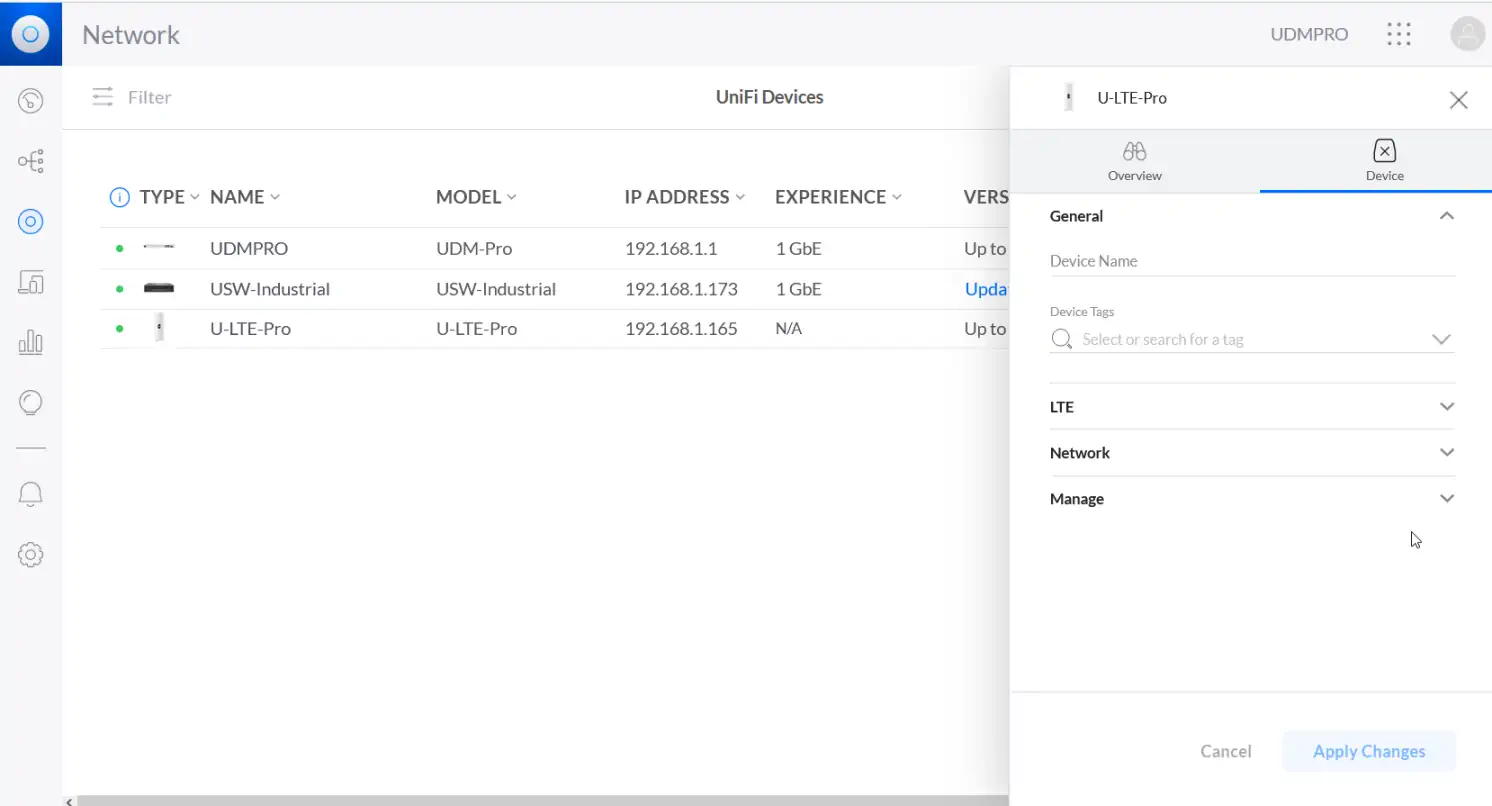
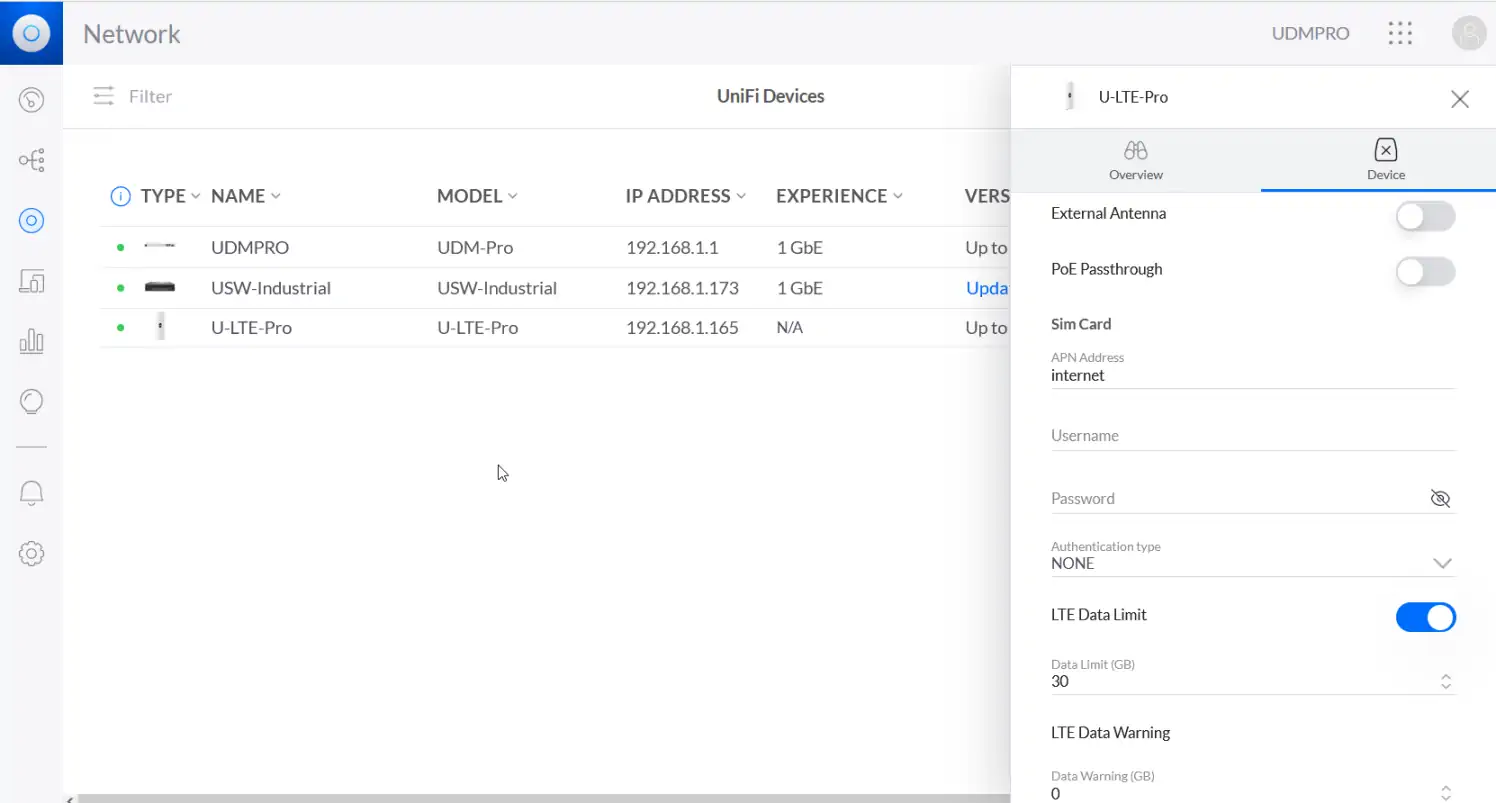
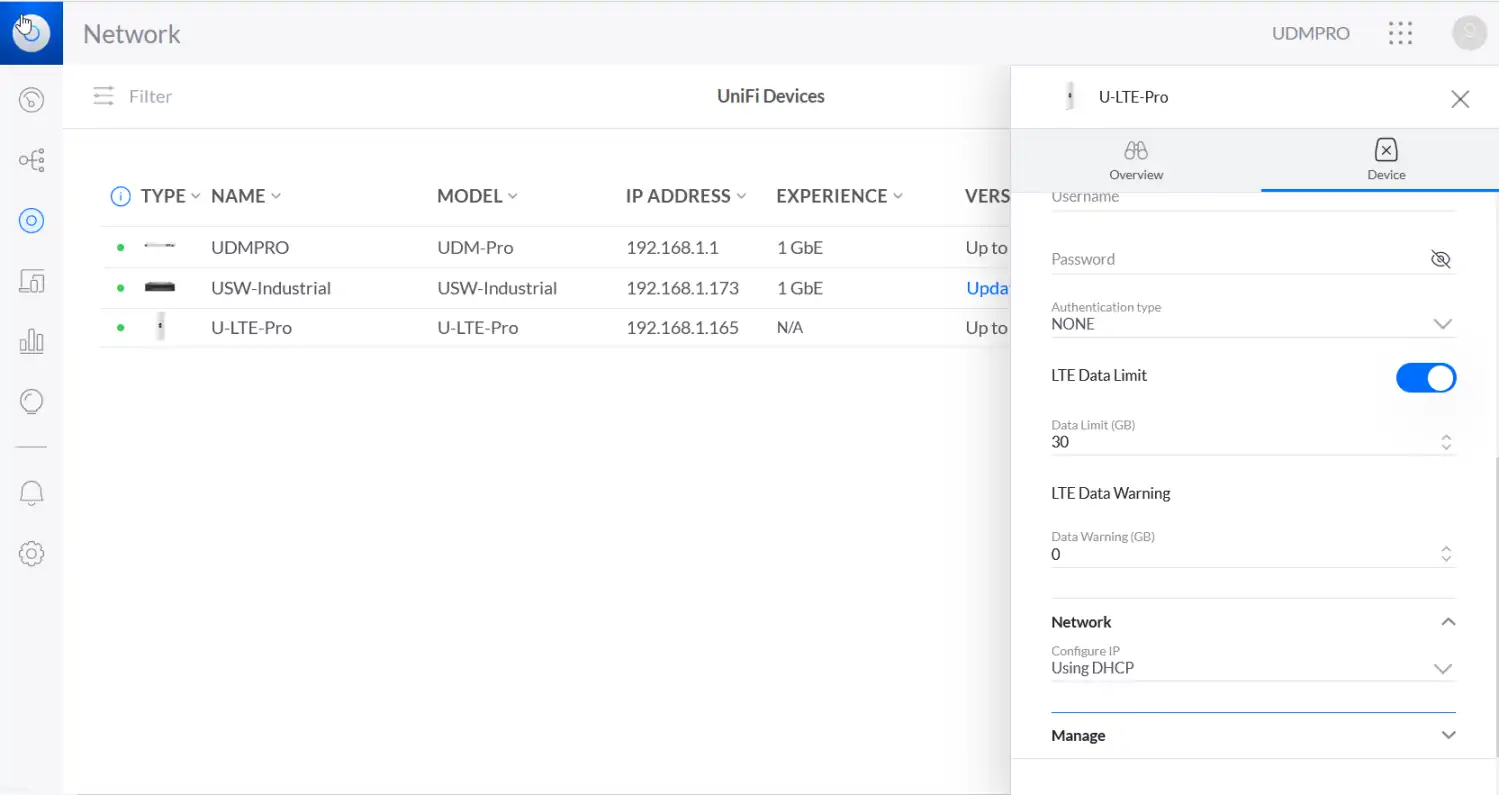
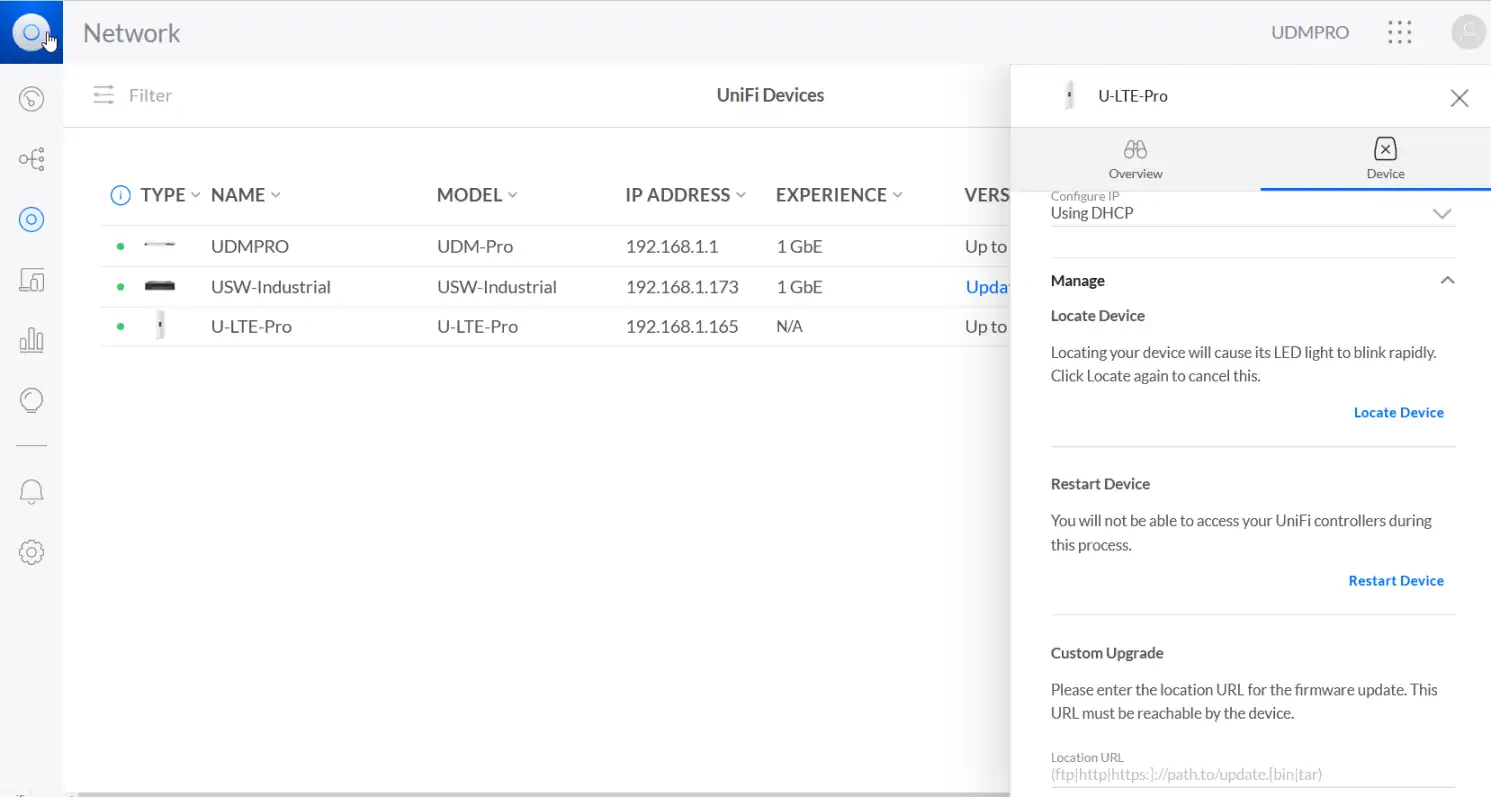
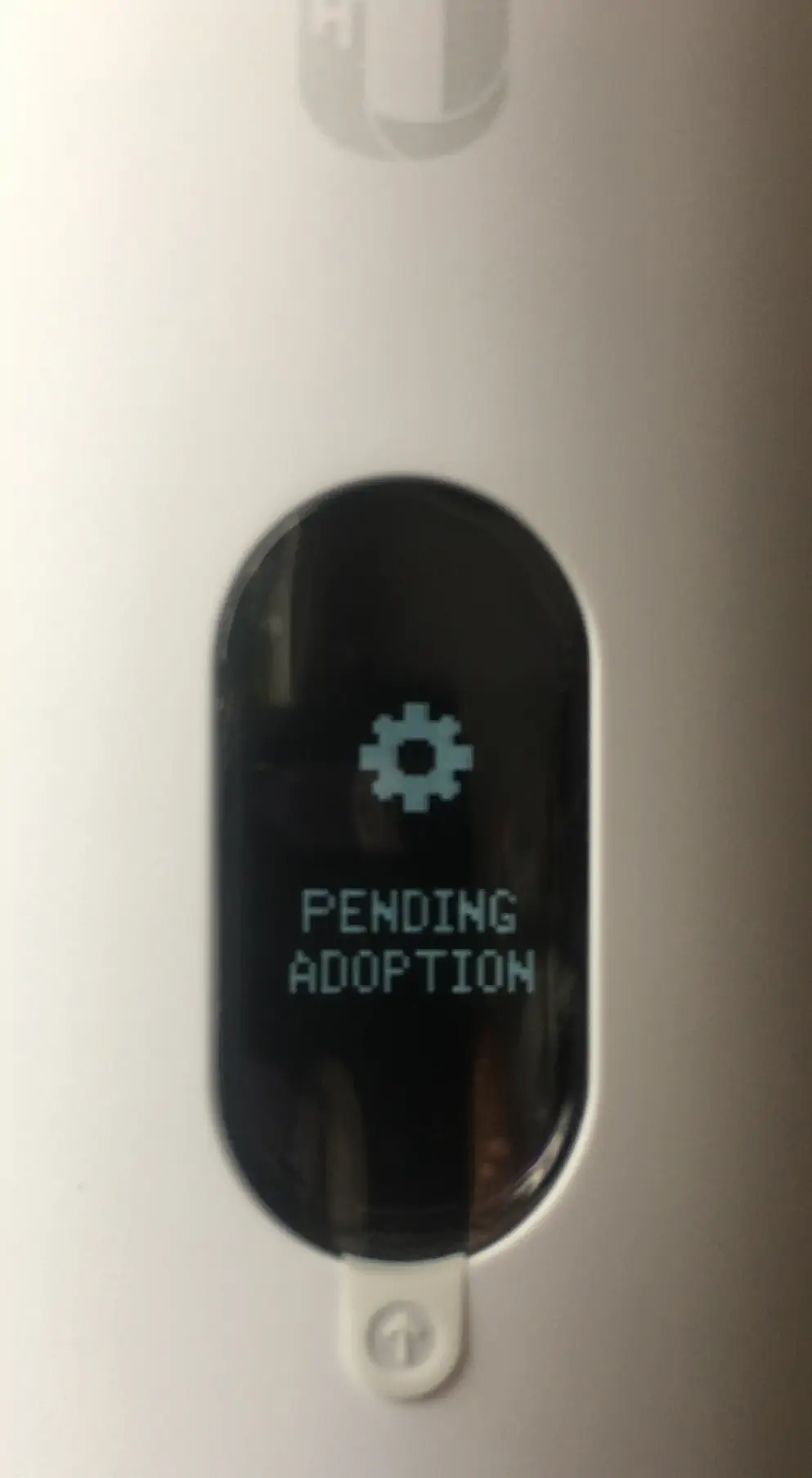
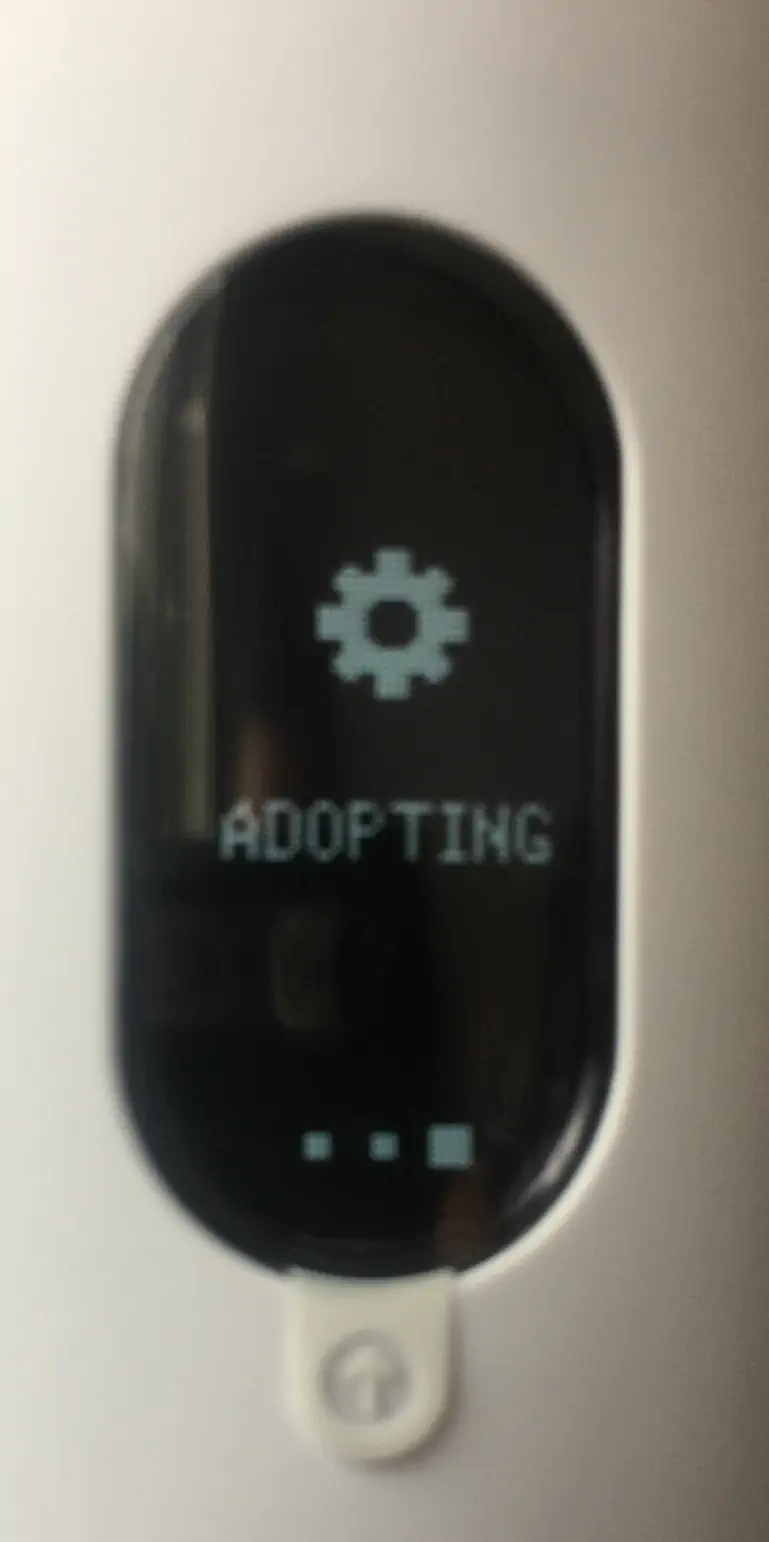
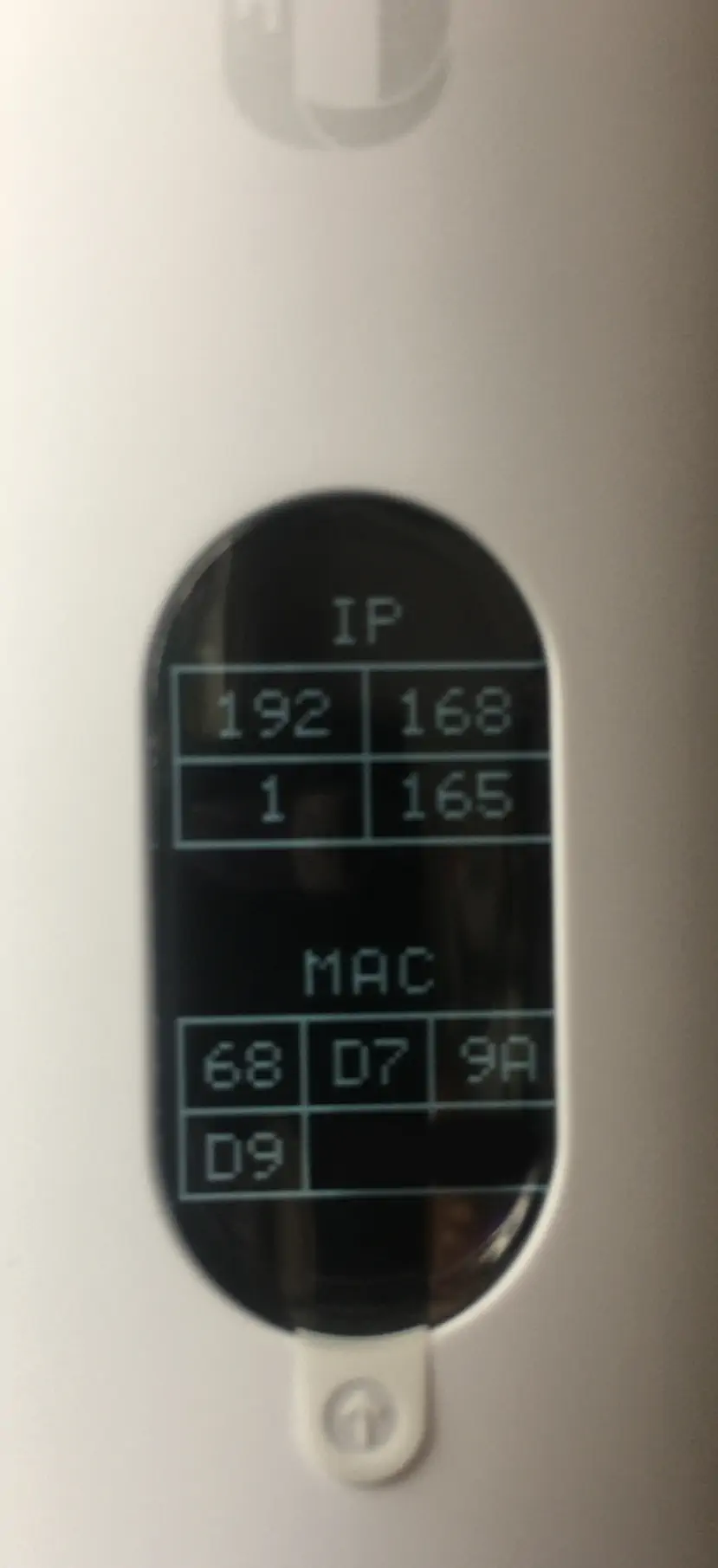
All the individual steps (both in the application and on the computer) became visible on a screen in the central point of the antenna and informed about the progress of the configuration process.
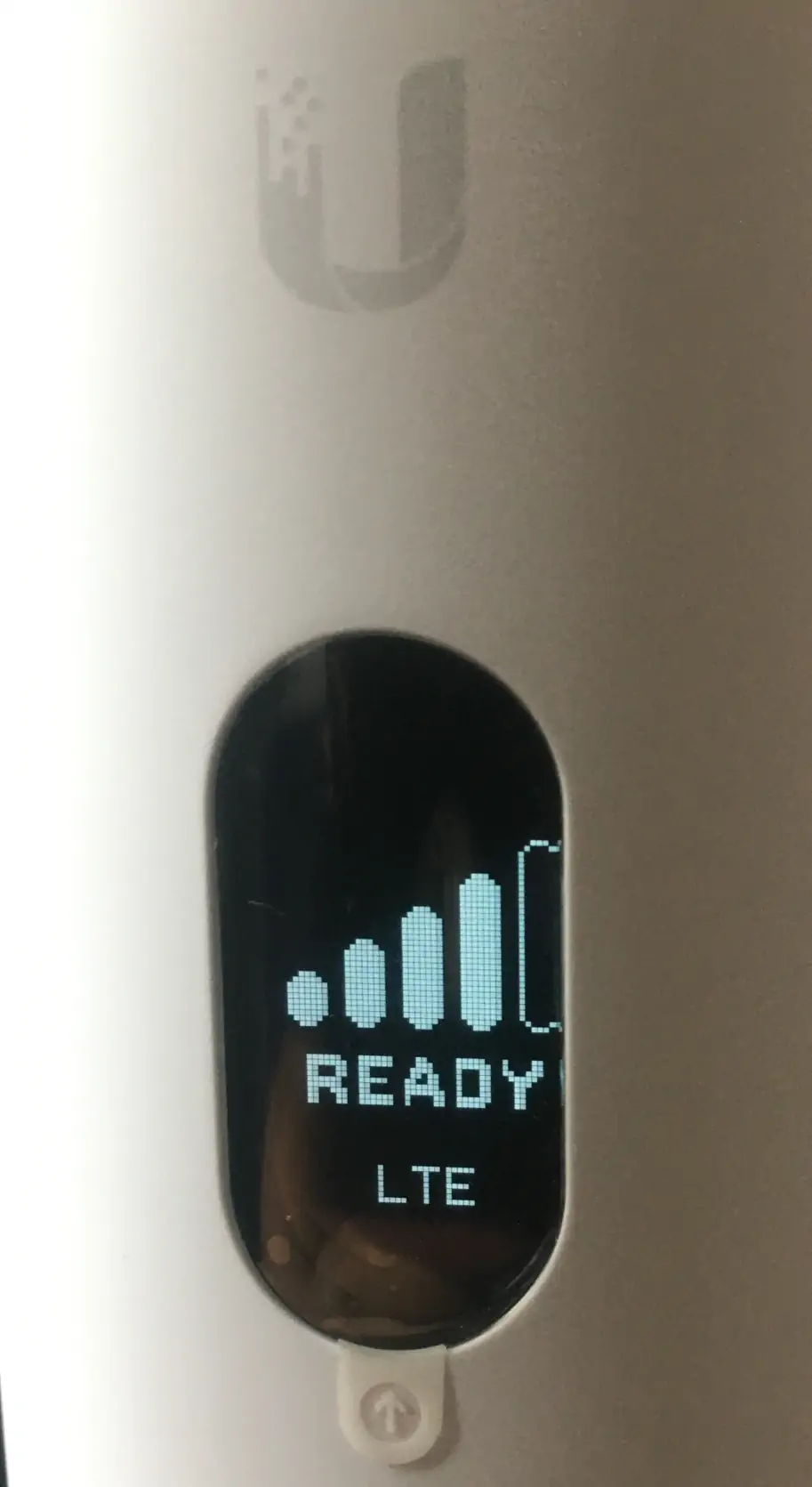

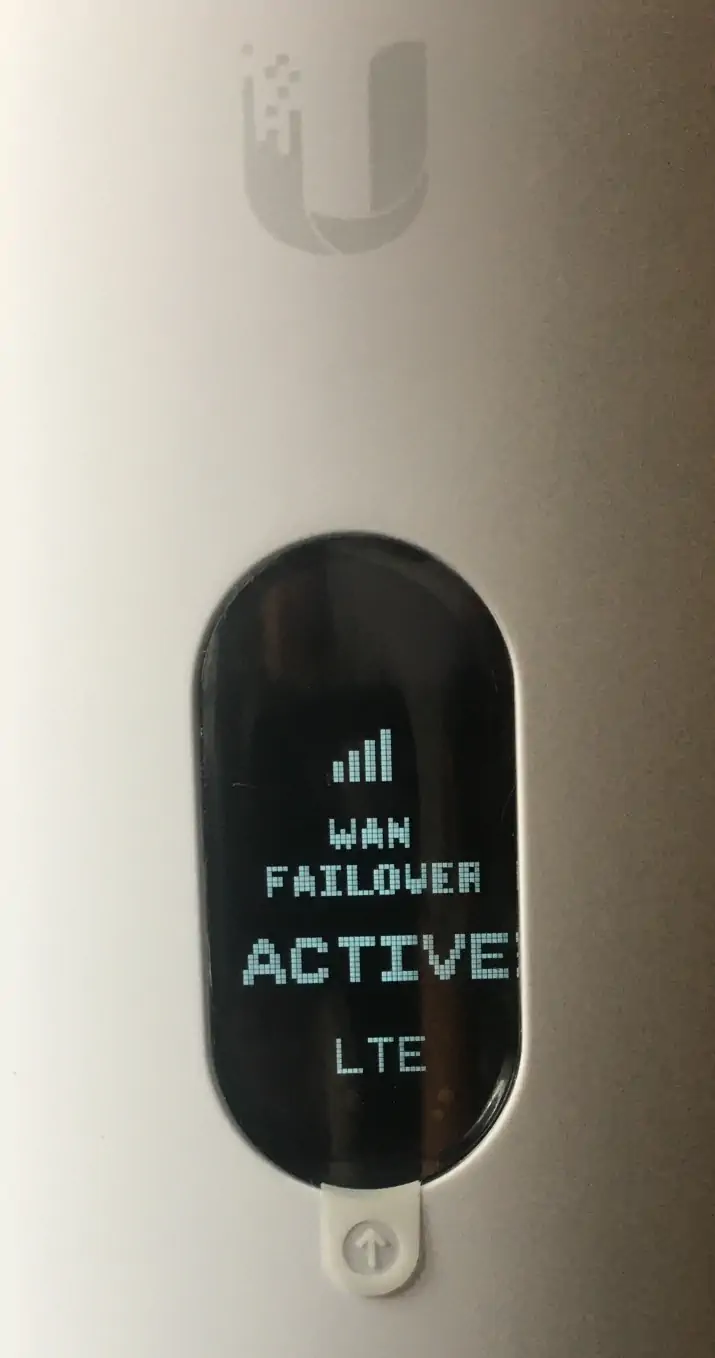
NOTE: In case the backup link via UniFi Lte Pro does not work, check the configuration in the UniFi network controller and allow the option to use WAN Failofer for selected networks.
UniFi LTE Pro tests
Ubiquiti U-LTE-Pro device received a nano sim card and the UDM PRO Machine was deprived of access to the Internet and, as promised by the designers, the process of switching from WAN to LTE ran smoothly and without any problems and the device itself began to perform its function of backup link ........ but unfortunately we as a user did not get access to the Internet.

It happened because, first of all, during configuration of the device the wizard didn't work correctly and didn't enable WAN Failover for selected networks. So in order for the device to seamlessly switch to LTE after disabling the WAN option and the user to be able to connect to it without any problems, the user has to choose Networks from the menu and there turn on Allow backup WAN Internet Access and confirm Apply changes.

Once approved, the service worked properly.
1. The device is located on the ground floor of the building.
1. The device is located on the ground floor of the building.
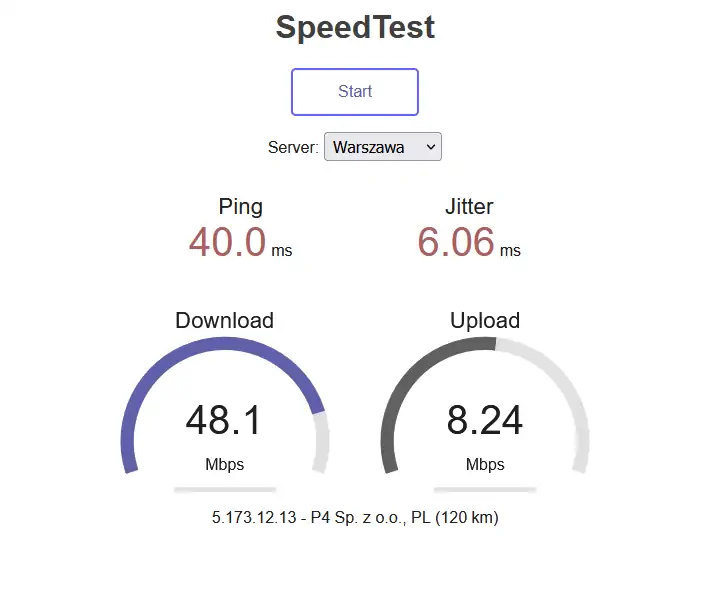
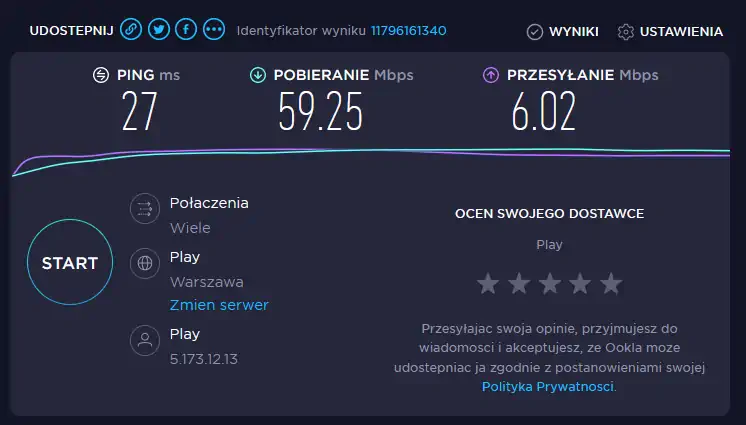
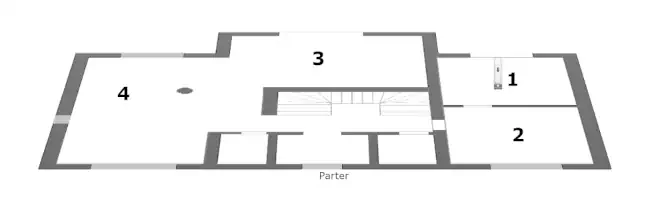
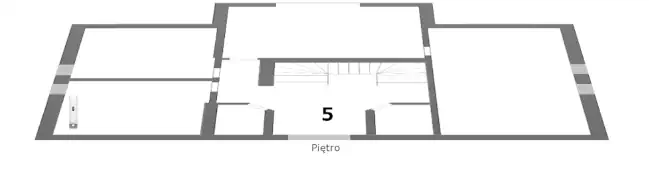
2. The device was placed on the first floor of the building
UniFi LTE Pro - Summary
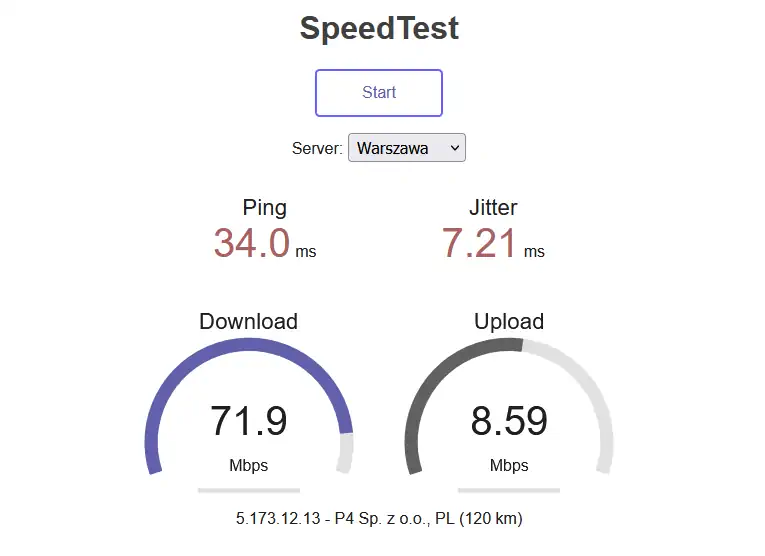
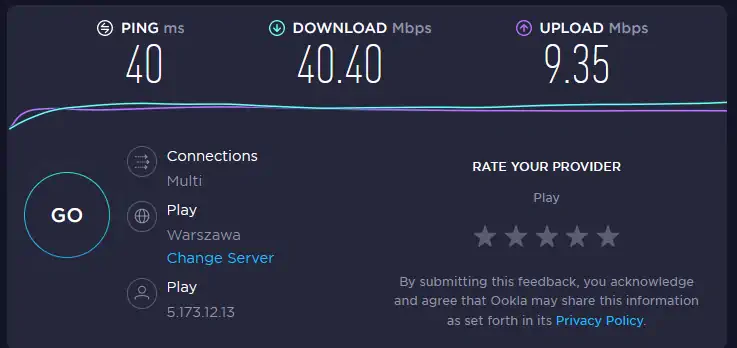
In conclusion, a redundant connection to the outside world is always important, especially when not tied to a physical cable. Ubiquiti 's engineers have done a great job with the UniFi LTE Pro, which does its job perfectly. In real-world testing, the UniFi LTE Pro has proven to switch over to mobile data without issue (with a one-time proper configuration) when the main link fails. However, we didn't like the maximum data transfer speeds in real-world tests, they reached up to 72 Mbps on download and up to 10 Mbps on upload, which is quite a bit lower than the factory settings. Such data transfer speeds would be very low for large businesses and enterprises with traffic of hundreds of megabytes per second. It's worth noting, however, that the speeds we obtained can probably be increased by connecting an external antenna to the UniFi LTE Pro via the RP-SMA jack and get performance similar to the factory setting.
UniFi LTE Pro Pros:
UniFi LTE Pro Pros:
UniFi LTE Pro Cons: