


Extralink Apollo 9-ports managed gigabit fiber switch 8x 1000m test
Extralink Apollo Managed Fiber Switch
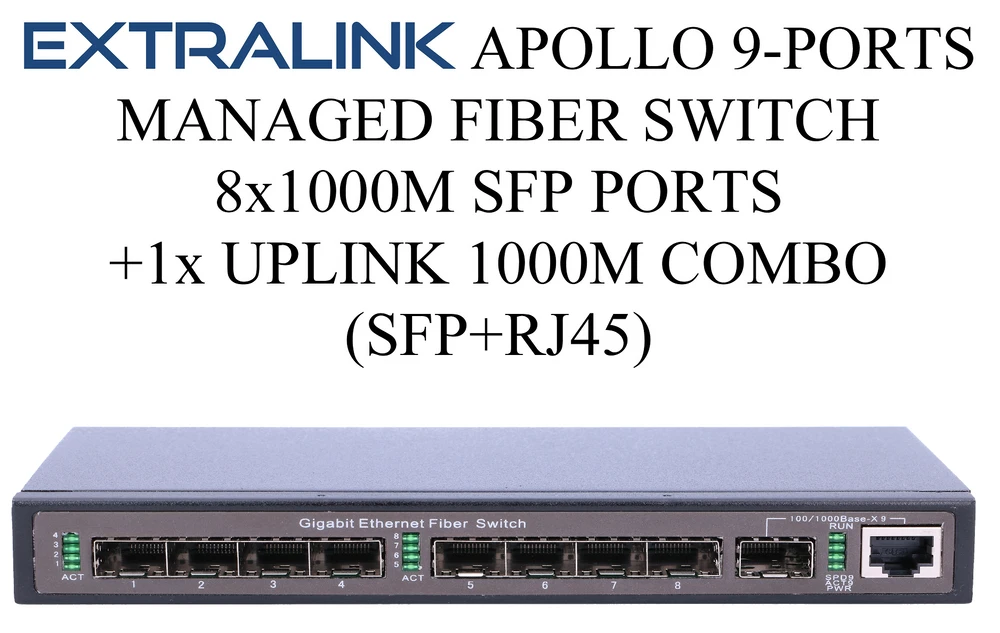
Extralink Apollo Managed Fiber Switch is an 8-port manageable 1000BaseFX Fiber SFP switch with a 1-pin RJ-45/1000SFP port operating in COMBO mode.
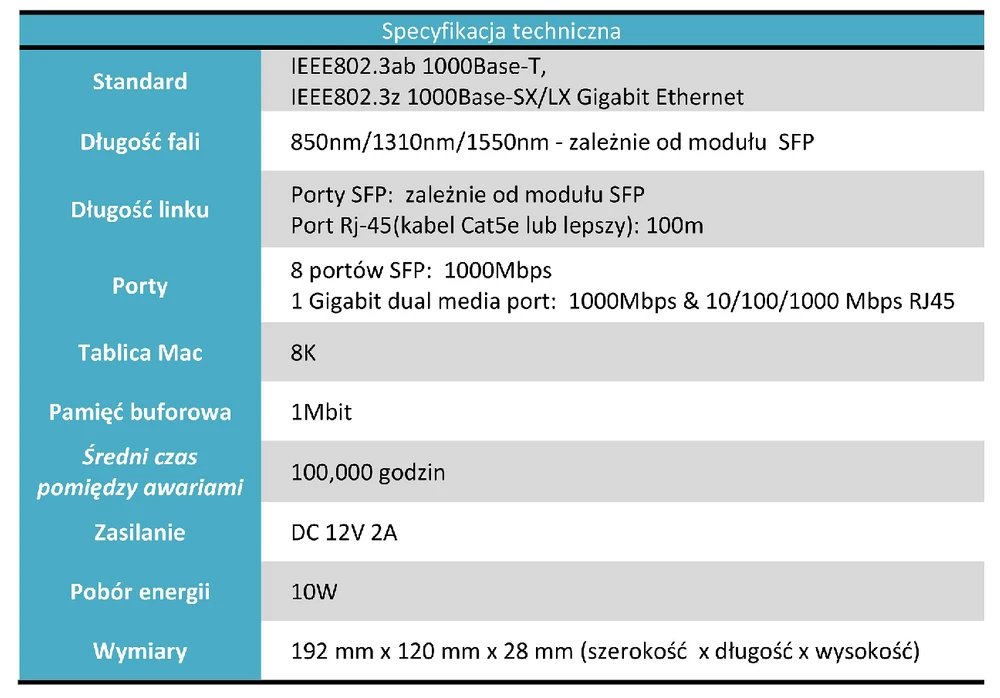
Extralink Apollo Managed Fiber Switch is equipped with a large number of practical functions.
Some of them:
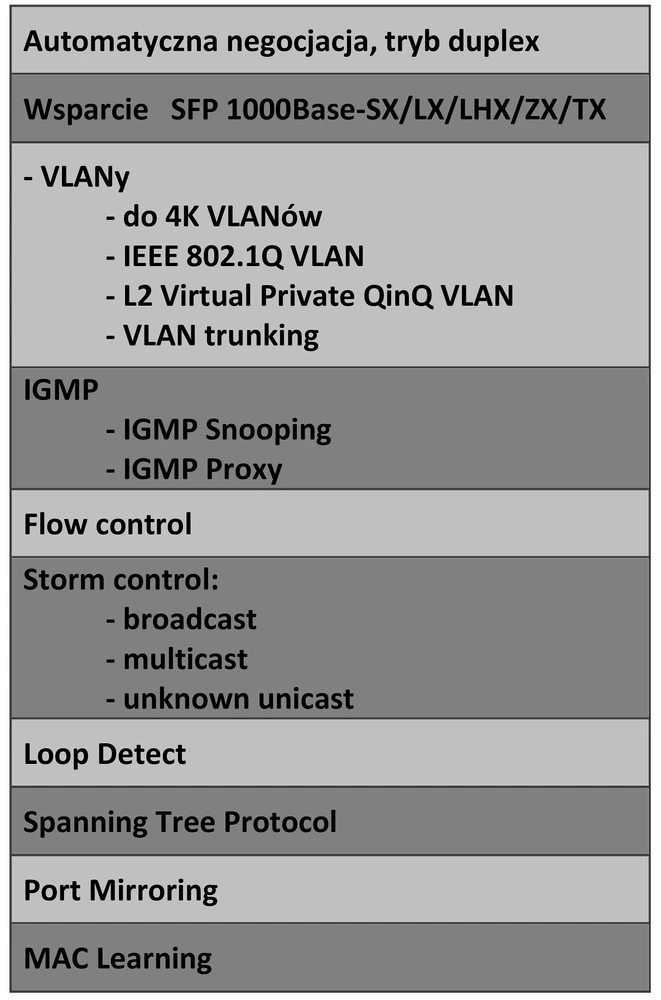
Extralink Apollo has some very important advantages:
- supports SFP modules on a hot-plug basis
- 100% compatible with other fiber optic switches
- 100% compatible with media converters as well as with other devices equipped with SFP ports
- works with various types of SFP modules: single-mode, multi-mode and WDM
Extralink Apollo is an ideal device for FTTx networks and systems (e.g. FTTH, FTTB). However, the greatest advantage of using such fiber optic switches is their versatility and versatility. In a situation where changes in the network have to be made, it is enough to select the appropriate SFP module, without having to replace the whole device.
The maximum transmission distance is also determined by the type of SFP module and fiber optic cable used.
This type of SFP switch is a great solution for various types of security, alarm and electrical systems as well as for motion control and information flow systems.
The next very practical application for Extralink Apollo Managed Fiber Switch is to use its capabilities in a workplace where we want to physically isolate the office network from production machine management and monitoring.
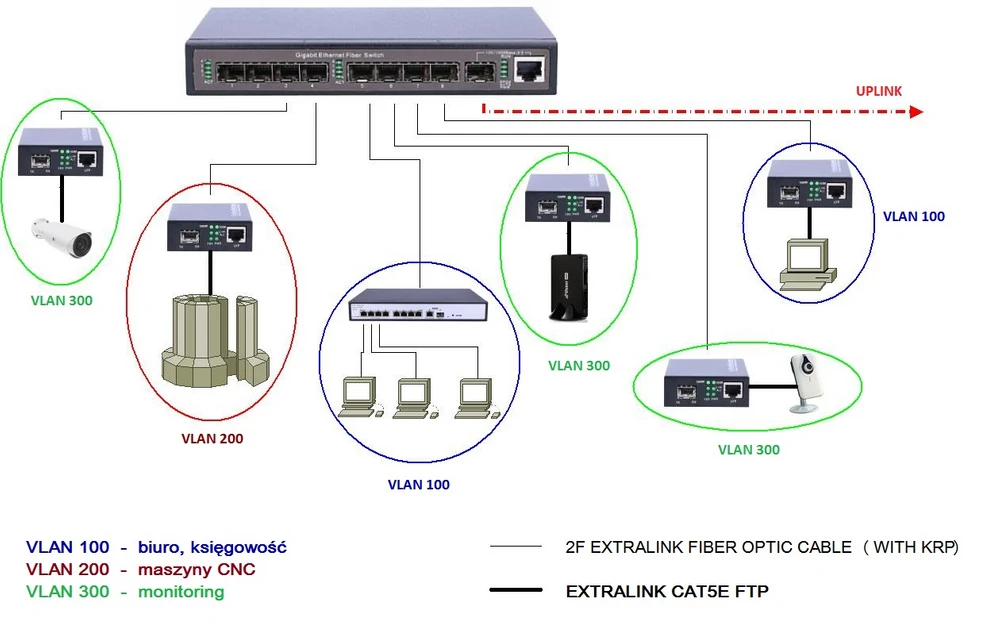
In the example above the network was built using the following devices/elements:
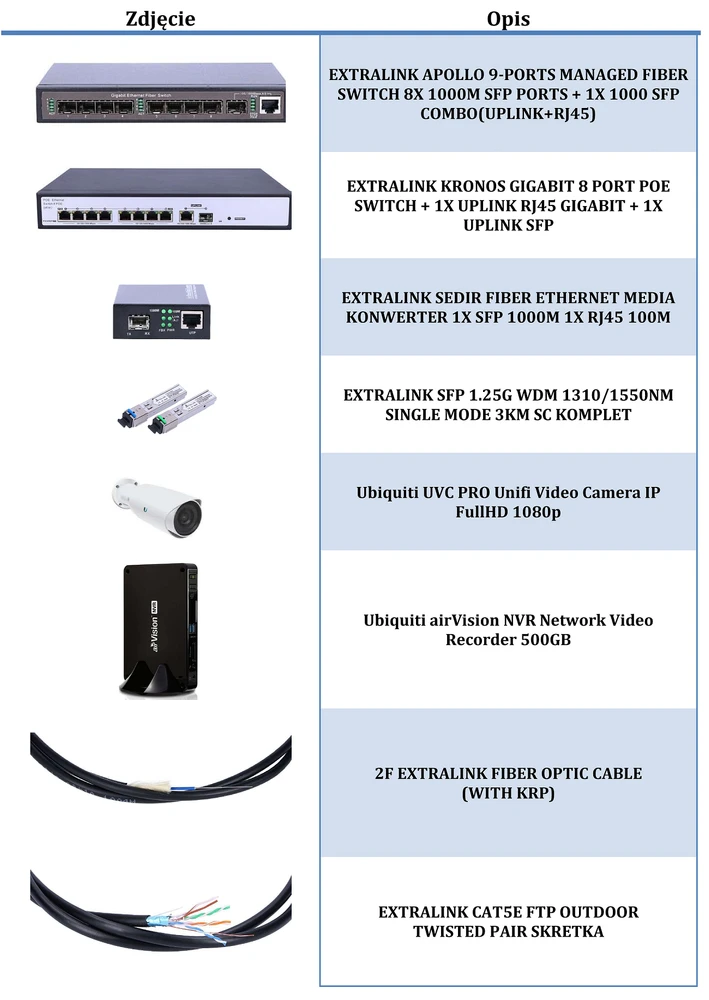
With the use of VLANs, we can quickly physically isolate individual segments of our network, which is increasingly useful nowadays.
When we send/receive very important configuration data to CNC machines and we don't want them to accidentally fall into the wrong hands of e.g. office workers and all the time we record events from cameras on the premises and then we don't want everyone to have access to the recordings either, it is Extralink Apollo that is an ideal solution.
The device has been equipped with a very clear and intuitive graphic interface, which we have access to from a web browser. Thanks to this solution, you can easily and quickly configure the switch. Of course, the device can also be managed from Telnet and CLI.
We log in as follows:
- Open e.g. a Putty terminal, enter the IP address 192.168.3.31, select Connection Type "Telnet" and click Open.
- Login as "root" with the password "root", then type "enable" and enter the password "admin" and you can already access the configuration via CLI.
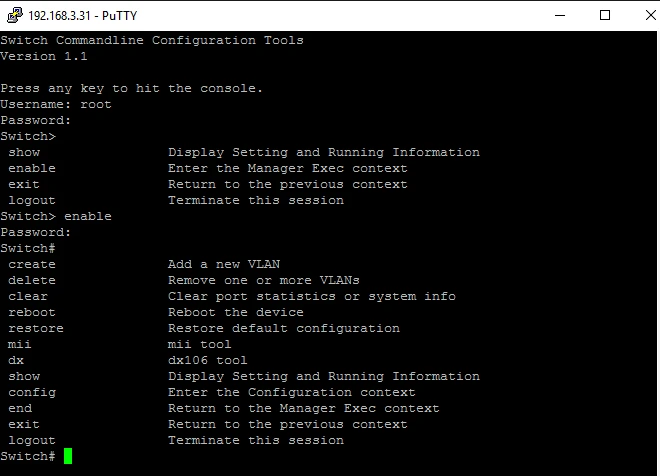
The most noteworthy is the very clear and intuitive graphical WWW interface.
After logging in to the device (ip: 192.168.3.31, login: root, pass: admin ) you can immediately see a very clear panel to manage the various options:
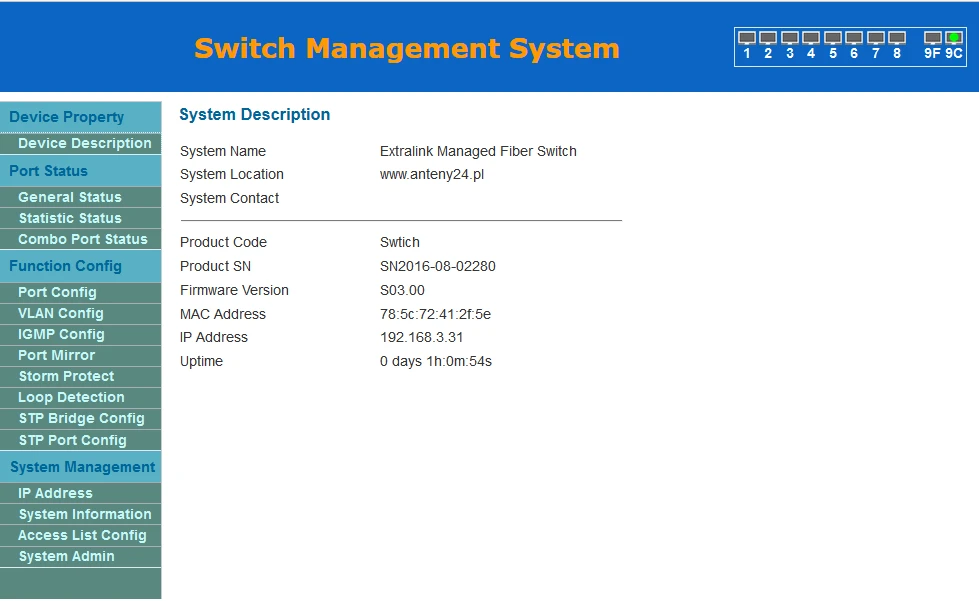
As you can see, all configuration options are arranged in a very intuitive way - there is no need to go into the nested options, all options are very clear.
The graphic interface is divided into four basic sections:
- Device Property
- Port Status
- Function Config
- Management system
With this division, making any configuration changes is extremely easy.
The individual configuration options are shown below:
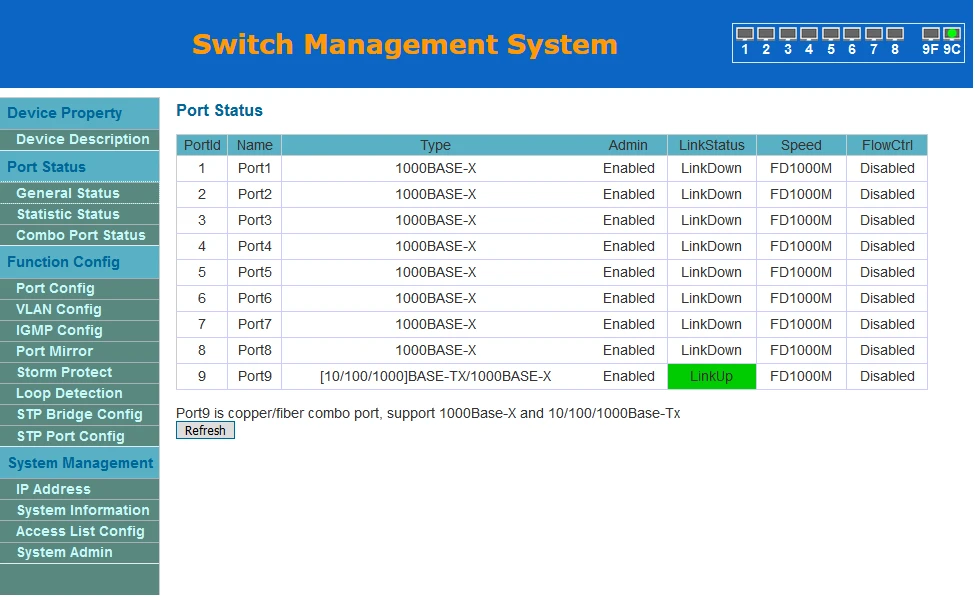
General Status
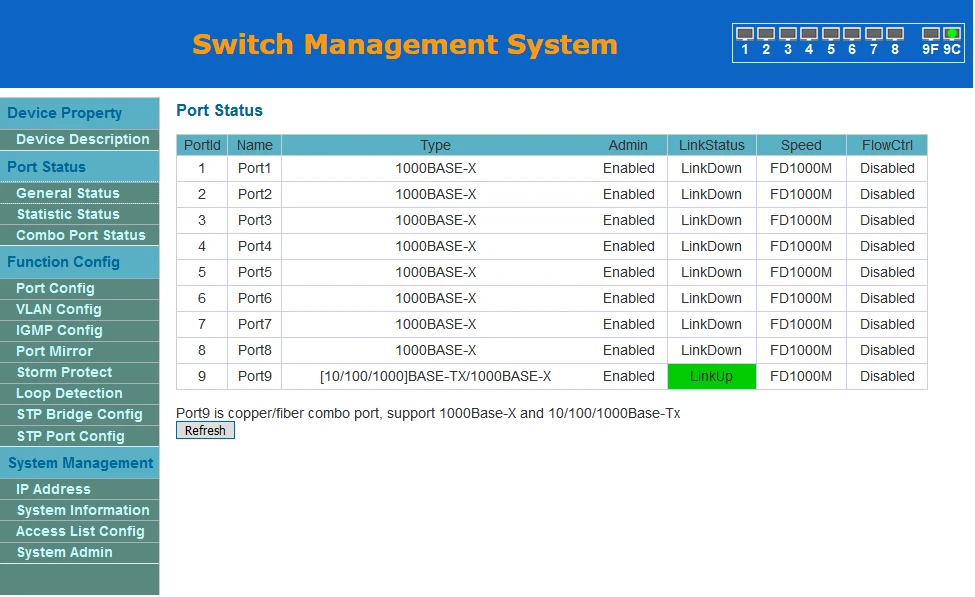
In this tab we have access to detailed information about each port on the switch.
Combo Port Status
Port Config
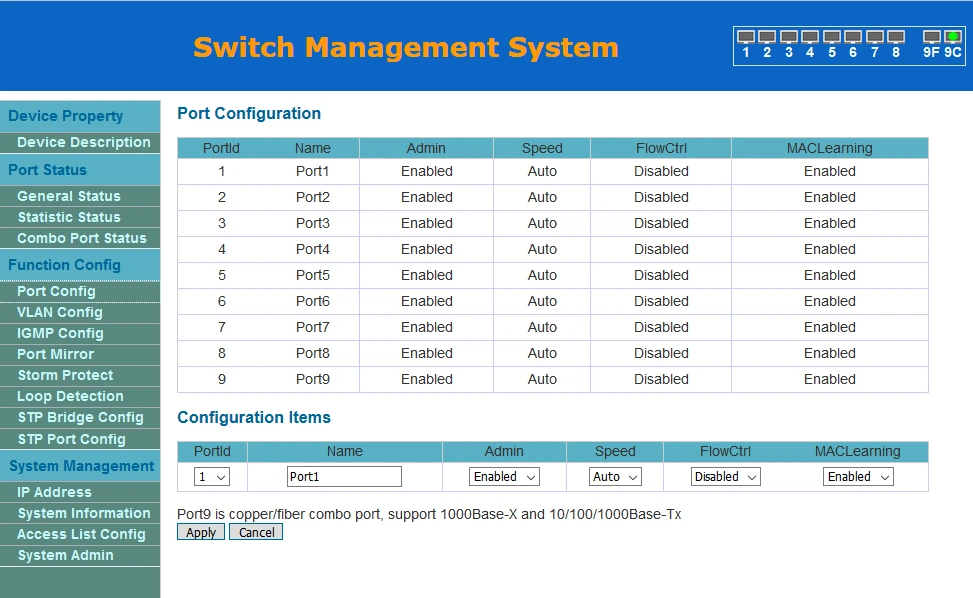
In this tab we have access to all necessary port configuration options: name, speed, flow control, mac learning. We can also disable a specific port here.
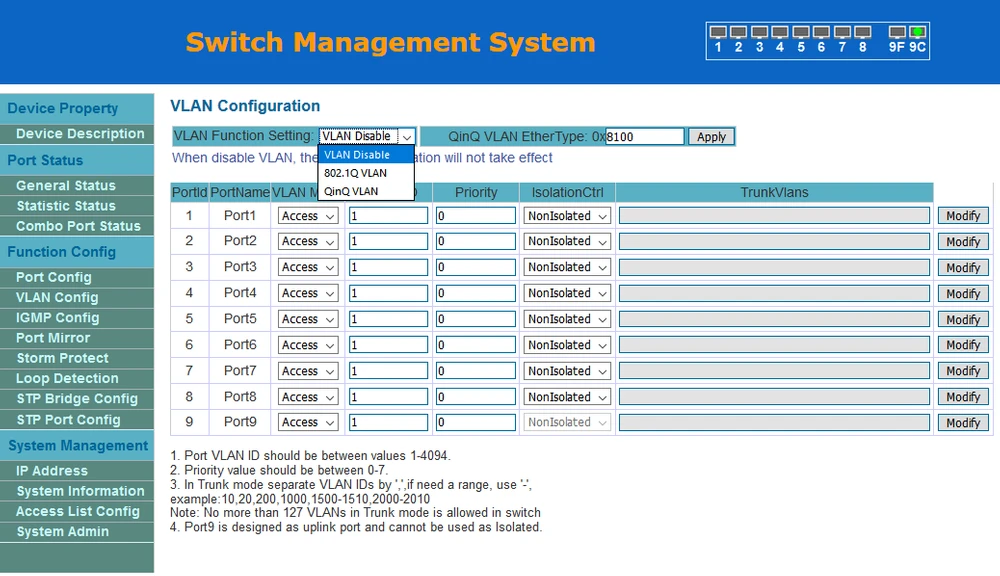
VLAN Configuration
Probably the most important section - VLAN Config - we have here access to all settings related to VLANs (802.1Q , QinQ)
IGMP Config
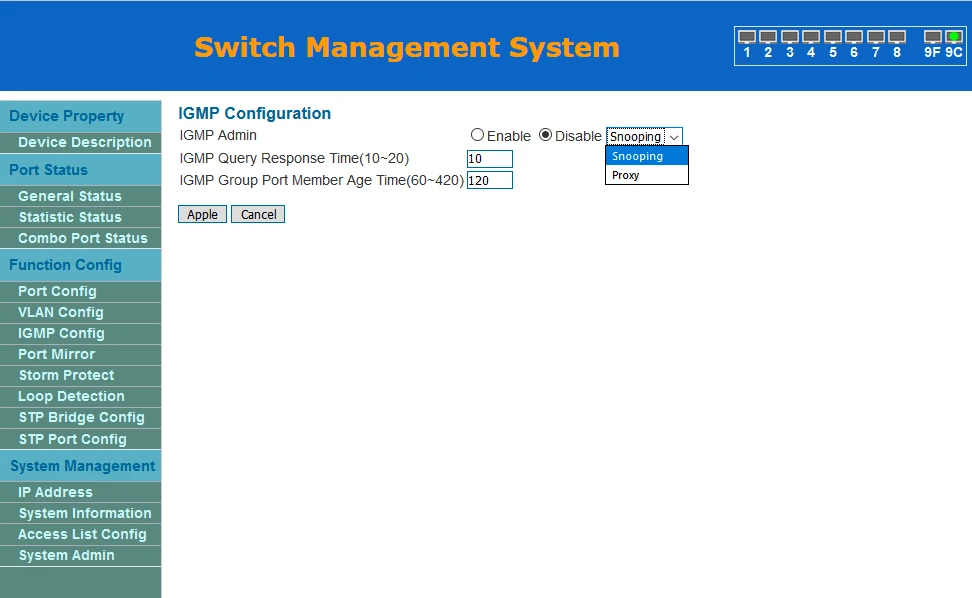
We also have access to multicast related settings (IGMP).
Port Mirror
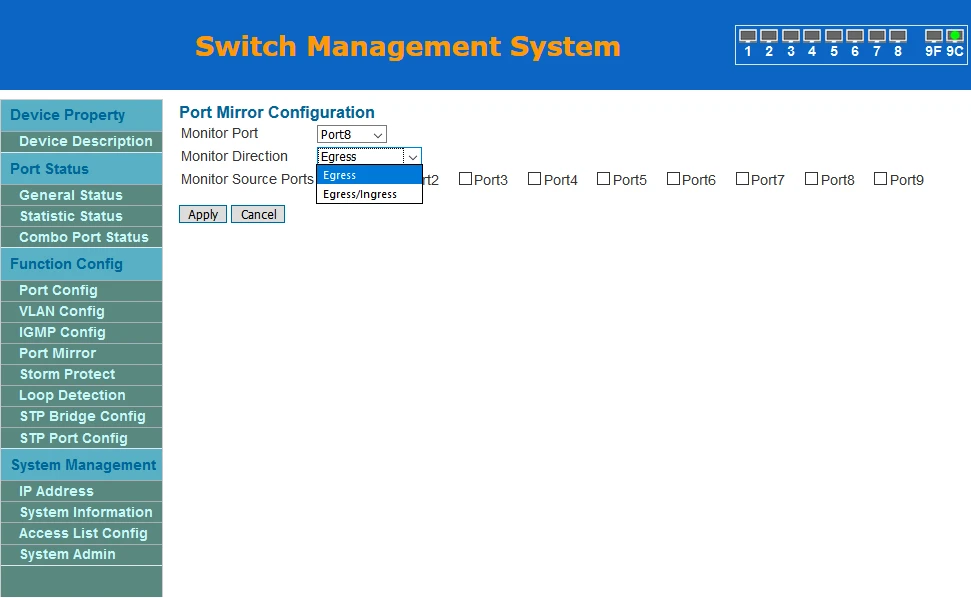
Storm Protect
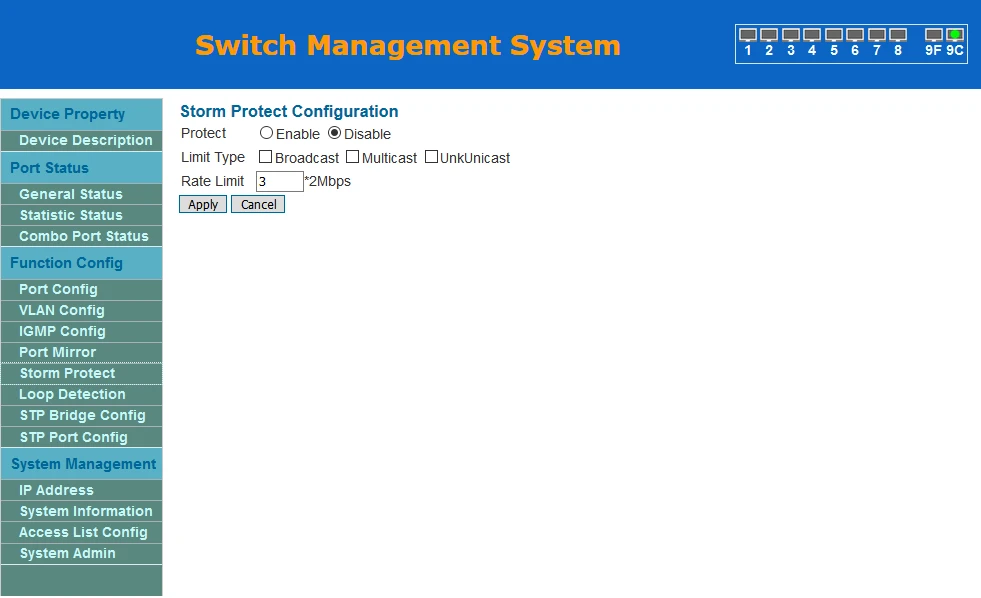
Switch is also equipped with protection for the classic DoS example (frames with destination address FF:FF:FF:FF:FF:FF)
Loop Detect
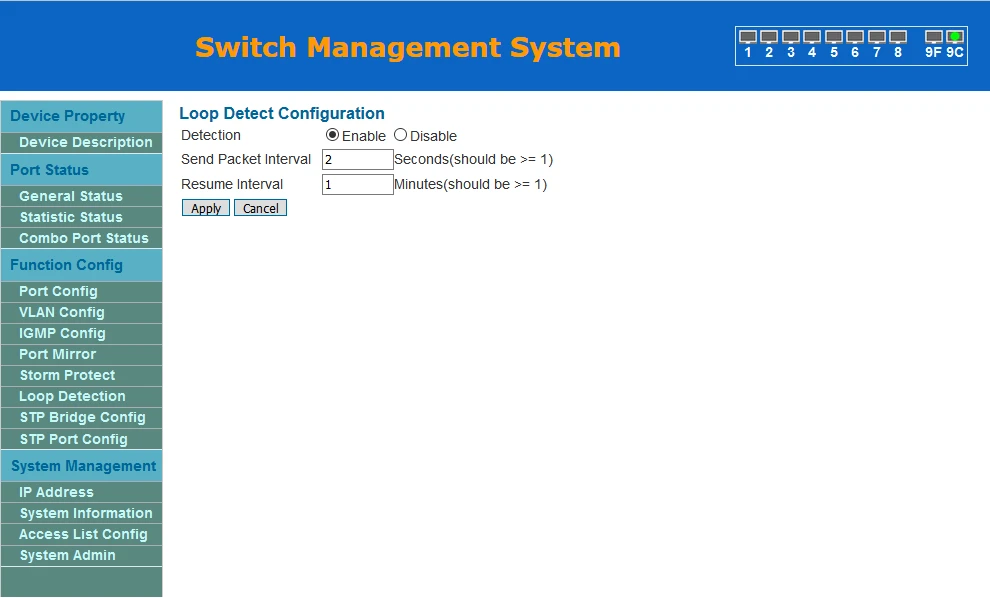
and detects loops in the network.
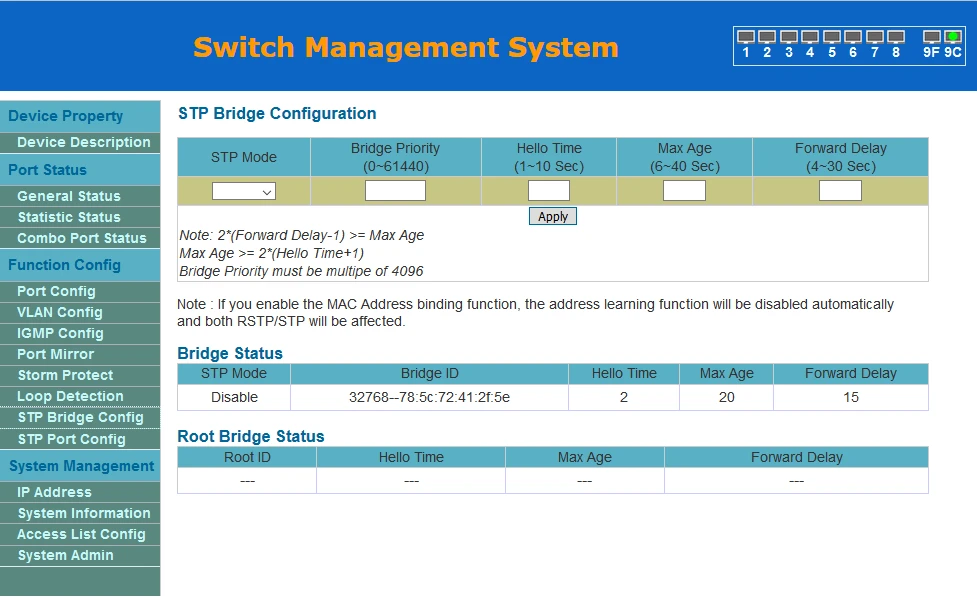
STP
Switch is equipped with a spanning tree protocol - creates a loop-free topology connecting all switches. The protection against loops in layer 2 is necessary due to the possibility of Ethernet Flood (no TTL) and copy of frames (frames are not numbered).
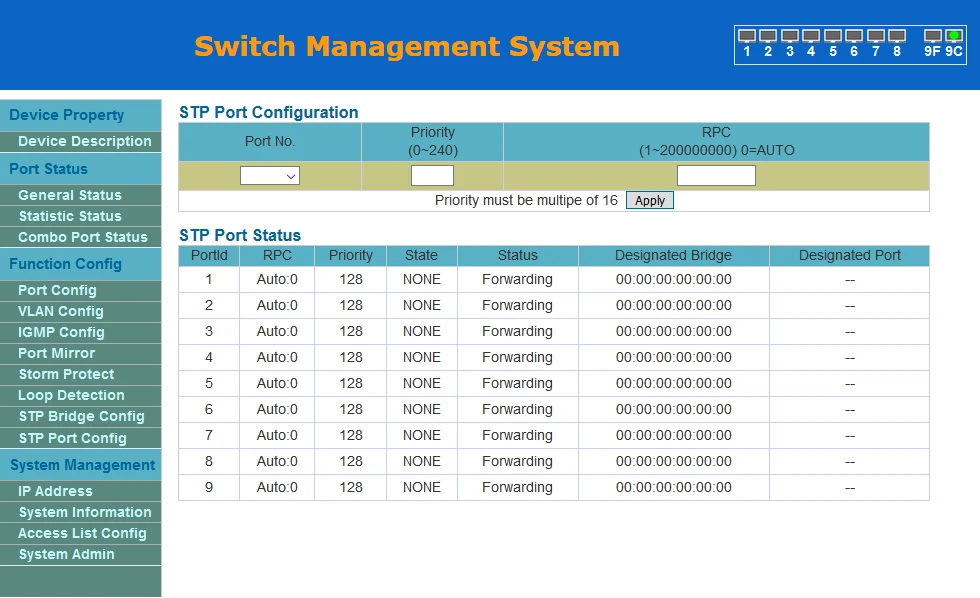
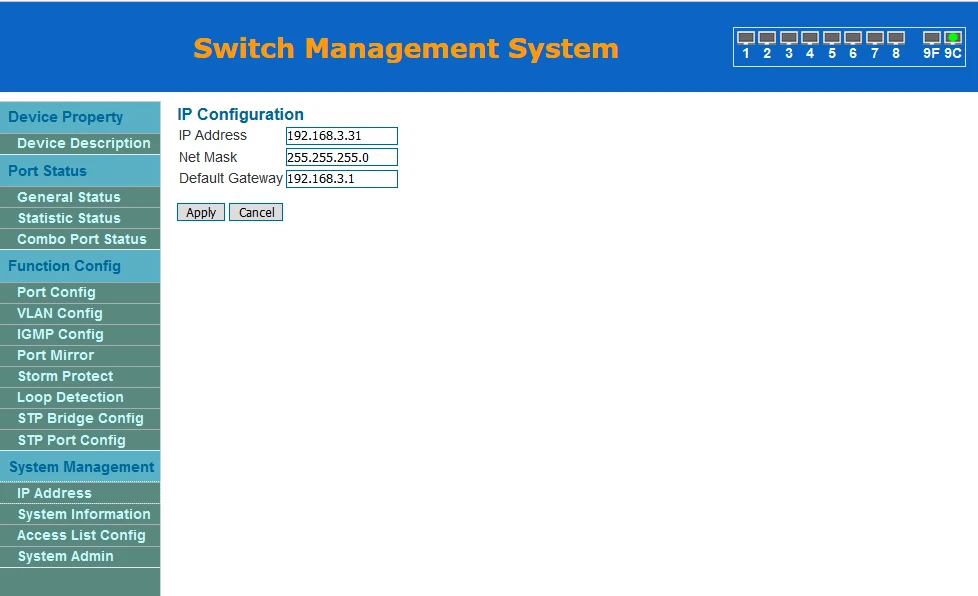
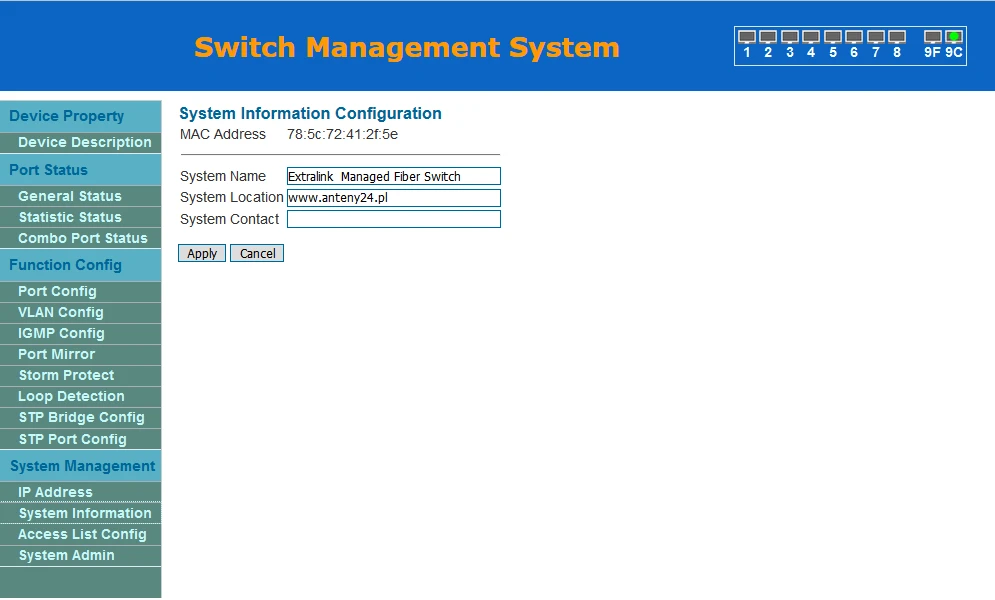
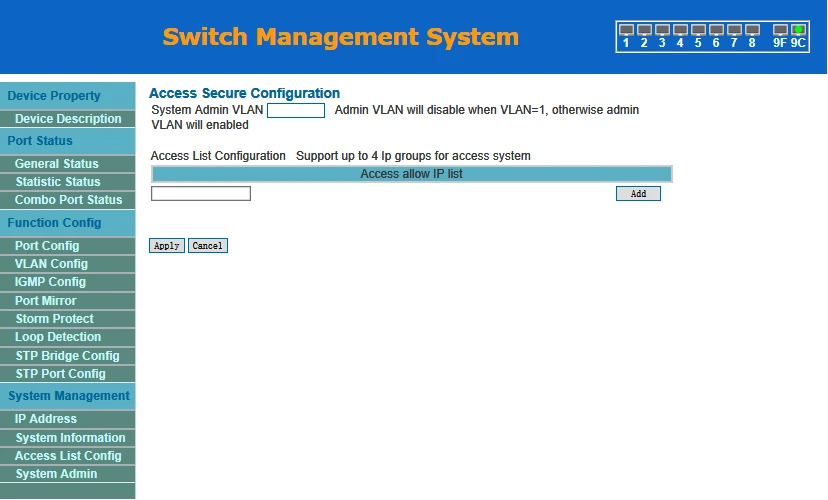
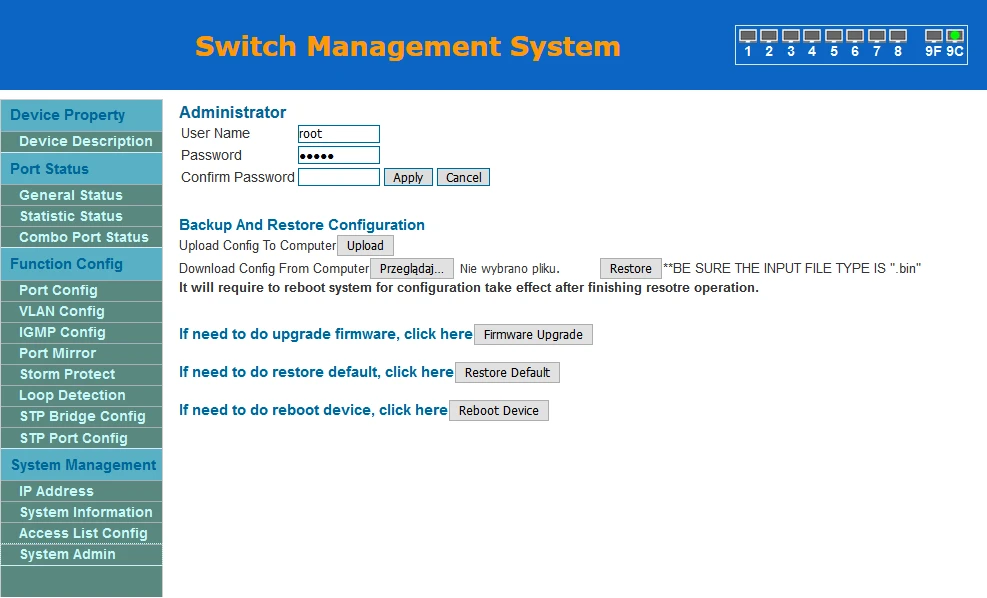
In the System Management section we can access settings e.g. to change the IP address, change the name of the device, or perform a configuration backup, reboot the device or update the firmware. Here you can also set up a VLAN for management and an Access List based on IPv4 addresses.
IP ADRRESS
Information system
Access Secure Configuration
Admin
Author:
Leszek Błaszczyk