



How to change the password in ONT Huawei?
How do I change my password on ONT Huawei?
I'll show you in a few steps how to change the default administrator password on Huawei ONT devices.
The procedure will be performed on Huawei Echolife Hg8546M.
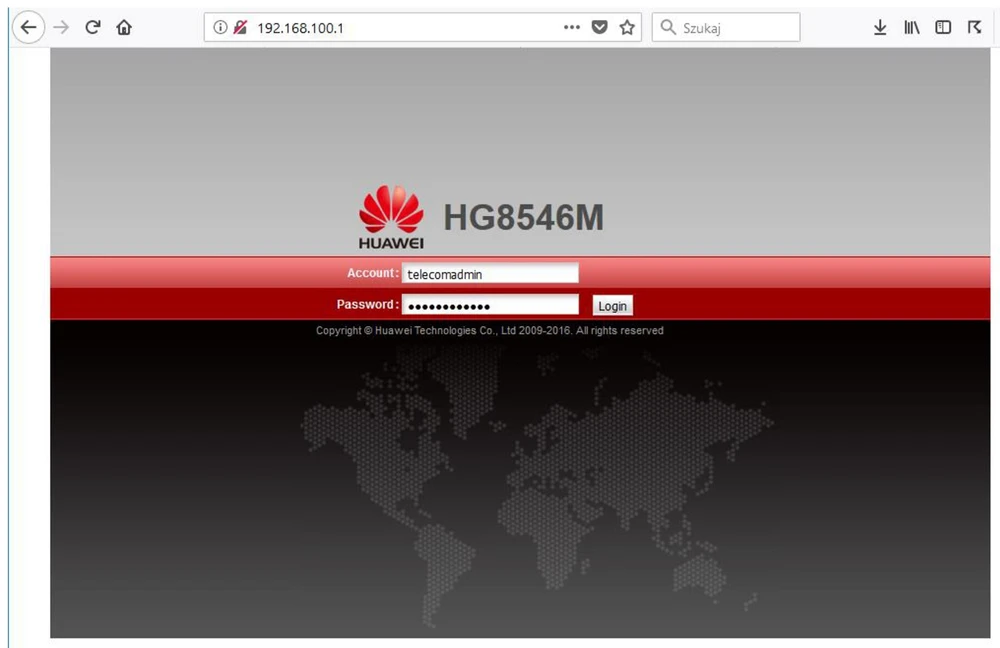
The default login settings for the administrator are as follows:
User: telecomadmin
Password: admintelecom
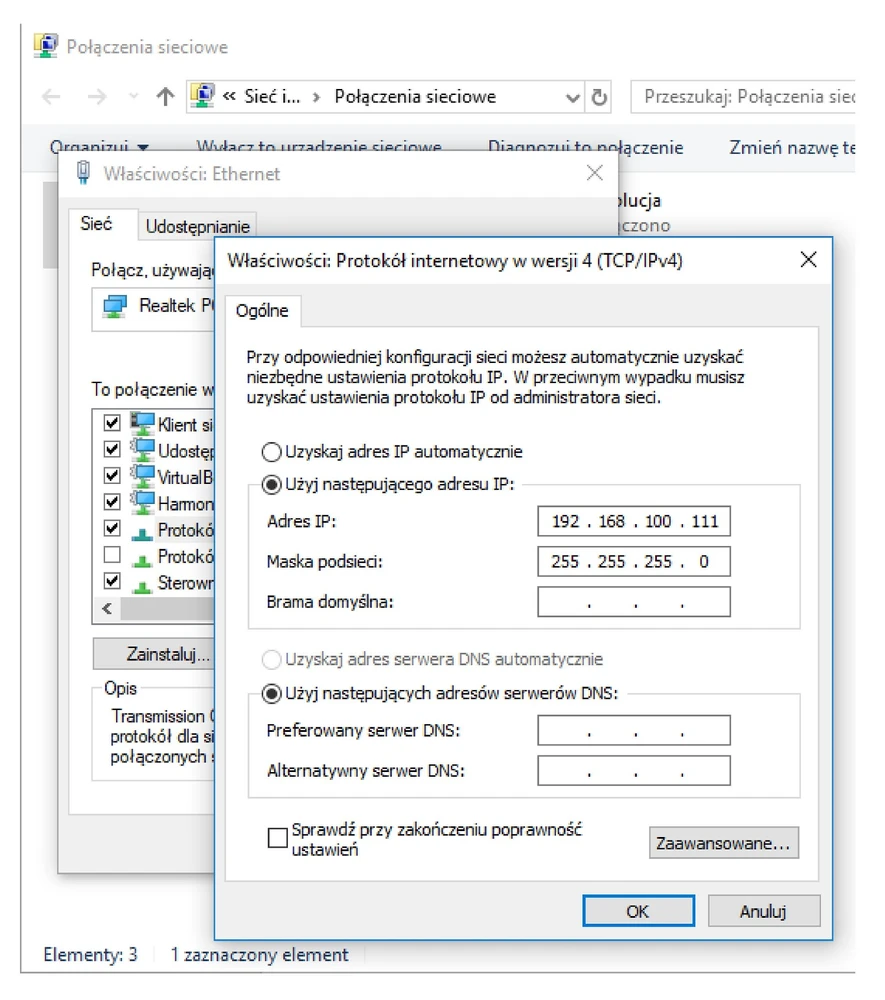
First we have to set an address from subclass 192.168.100.0/24 on our network card, e.g. 192.168.100.111 netmask 255.255.255.0
Please log in to ONT at 192.168.100.1 using the default administrator login data (telecomadmin/admintelecom)
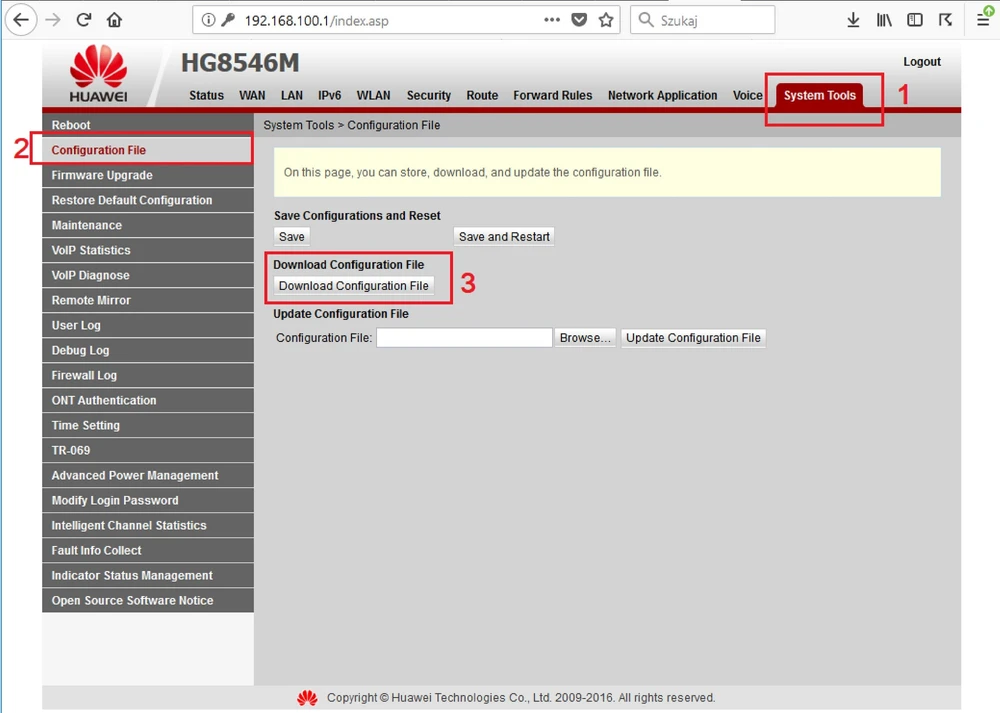
Please go to System Tools (1) -> Configuration File (2) and download the current configuration file hw_ctree.xml -> Download Configuration File (3).
Open the downloaded file with the Notepad++ editor (as it is free) and search for the line associated with the user "telecomadmin"
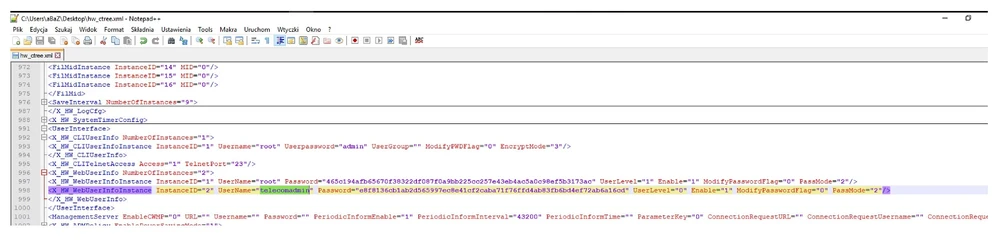
You have to remember that the password in the "Password" field is double-hashed - MD5 and SHA256, so we have to prepare a new password in a similar way.
To do this, go to http://www.timestampgenerator.com/tools/md5-generator/ where we will generate our new password using MD5 hash
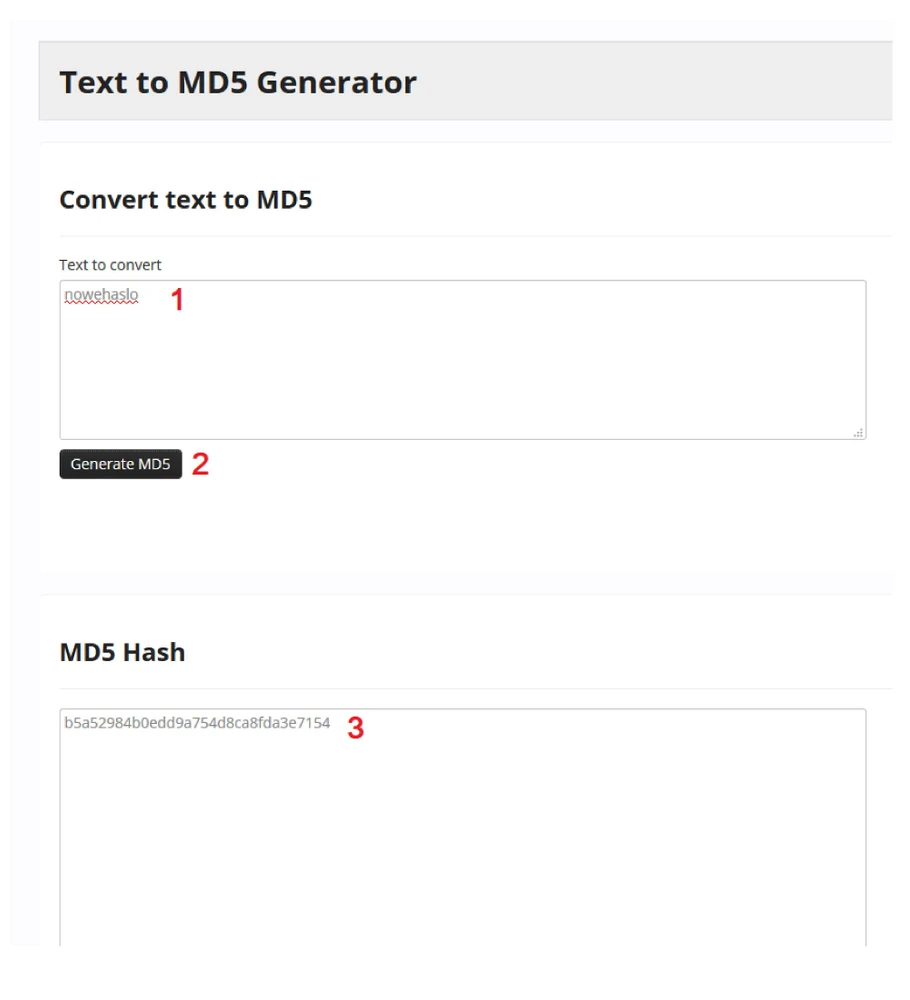
Copy the resulting string (3) and then proceed to the next page http://www.timestampgenerator.com/tools/sha256-generator/ where we paste the resulting string (4) and generate SHA256 hash (5).
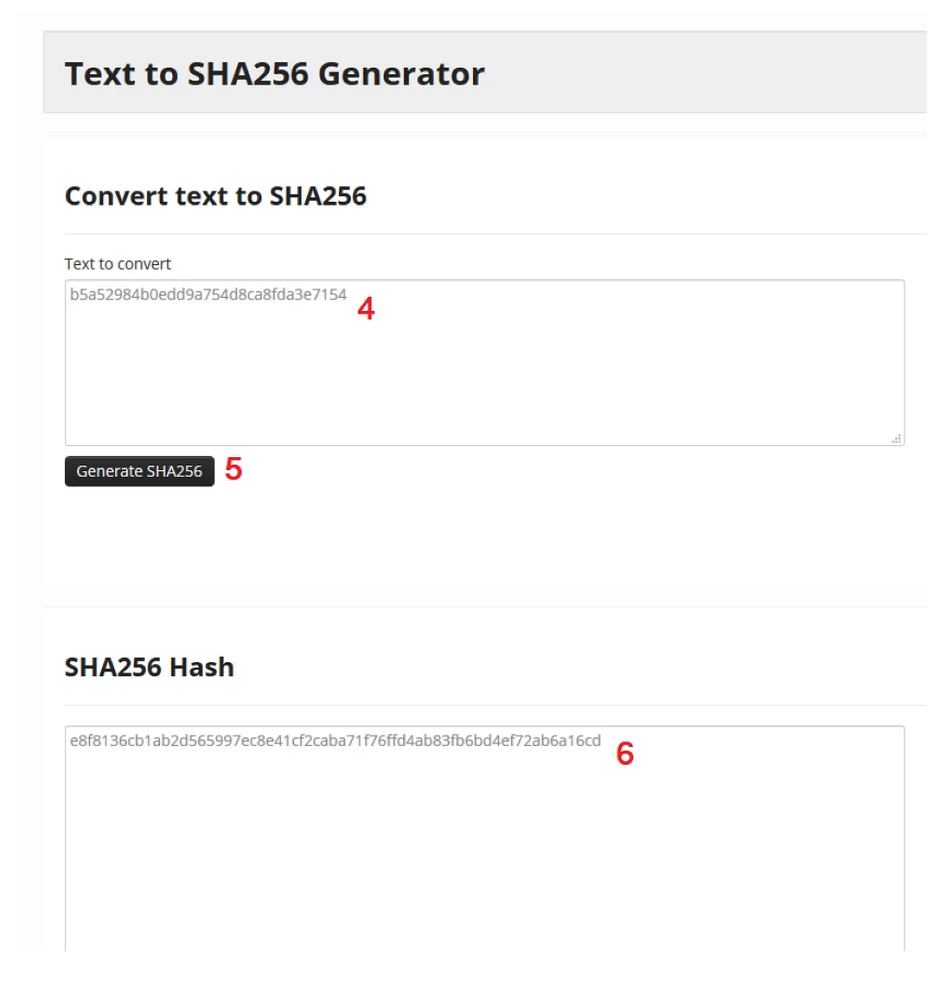
Paste the resulting hash SHA256 (6) into the configuration file in the "Password" field of the user "telecomadmin".

and reload the configuration file on our device by clicking Update Configuration File.
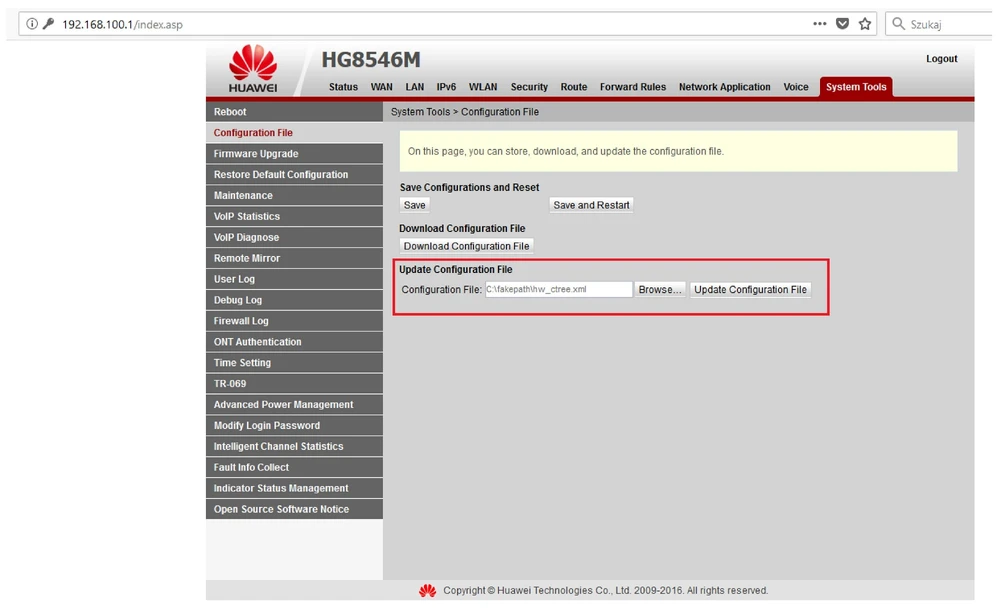
After a new configuration file is correctly uploaded, the device will automatically reboot...
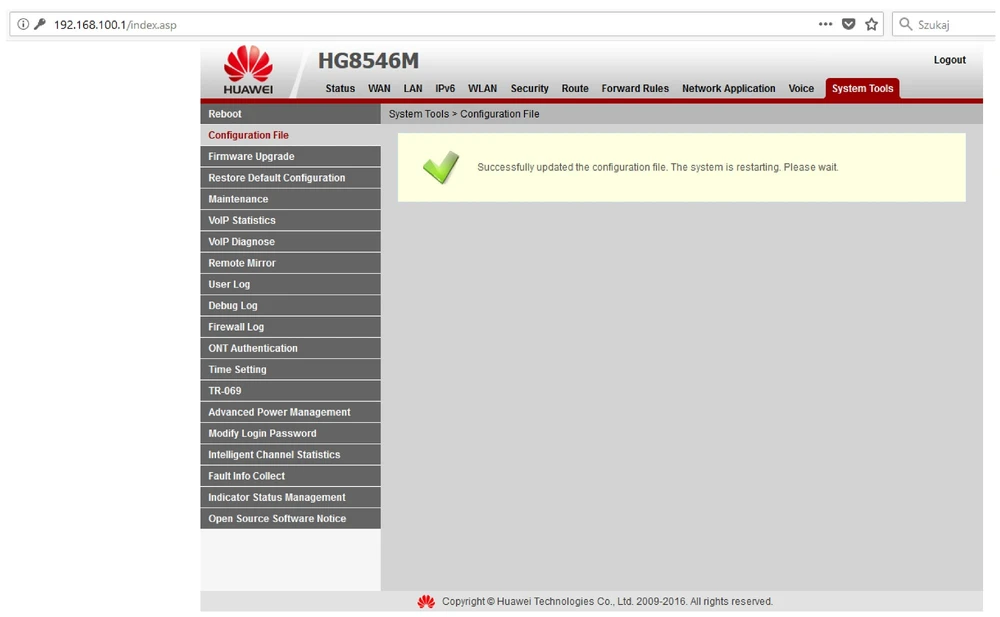
And there you go! After restarting, we can already log in to our Echolife Hg 8546M with the new login data.
Author:
Leszek Błaszczyk
We also invite you to discuss on our FORUM
https://www.forum.batna24.com/