LTE high-speed internet in a few steps
The coronavirus has made a great deal of fuss in every part of our economy. Many of us were forced to work remotely at home to protect ourselves from COVID-19. And in the era of such a high demand for the Internet, access to a high-speed connection is invaluable. Of course, it is not only to work that we need fast Internet, after all, there are also on-line classes in schools. However, not everyone has access to a fibre optic cable or other efficient link from their ISP.
LTE service!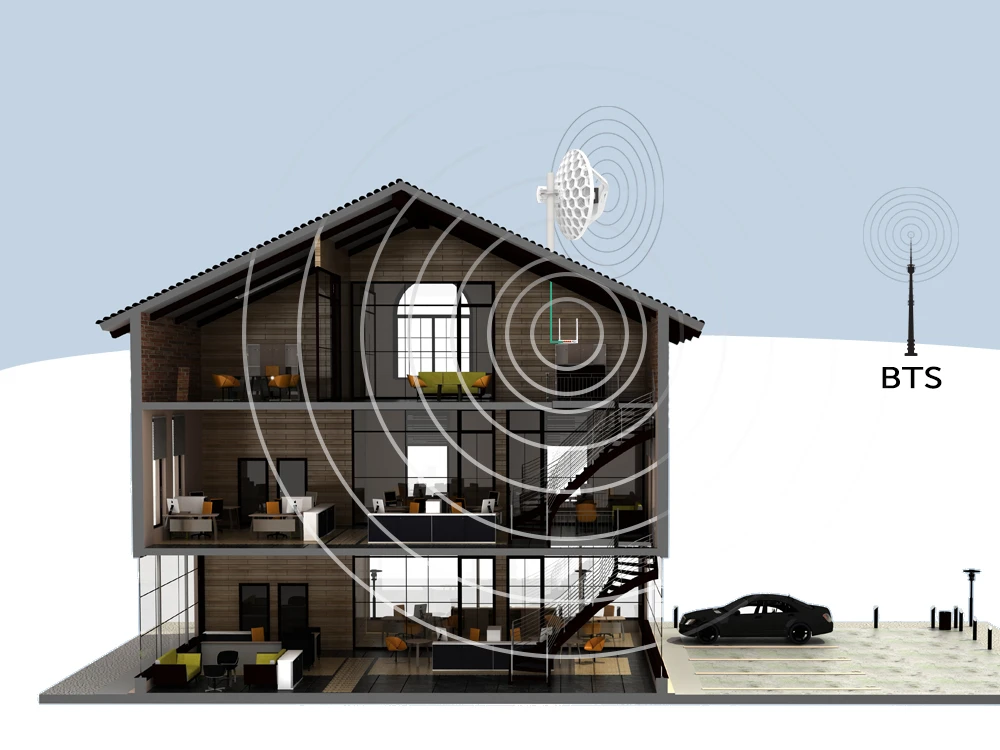
Today, many times the use of LTE is limited by the bad location of our LTE receiver and the place where we are located (remote village, forest, mountains, etc.). As a result, we do not have sufficient coverage, and therefore do not have enough bandwidth to use the internet smoothly. Not to mention such services as Skype, Netflix or videoconference...
.For all those who need
fast LTE Internet (practically in every location), we have prepared sets of devices and a short guide on how to quickly and
efficiently set up a WiFi network in your home and business.Our
main Internet source is obviously the LTE service.LTE Internet Reception Kit
We've prepared
(www.batna24.com) a complete set that allows you to receive LTE service and use wireless Wi-Fi:
With these devices, we will build our efficient wireless WiFi network cheaply and efficiently. Using LTE service as the main source of Internet.
LTE transmitters
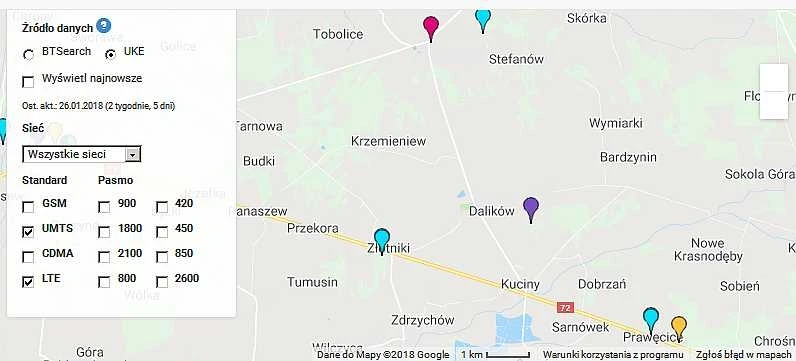
Before we start assembling and configuring the devices, you should check where the
base stations of mobile networks (
BTS) are located. Only with such knowledge can we mount an LTE antenna, aiming at a specific
relay station (BTS).If we don't know exactly where the nearest BTS (
base transceiver station) is located, we can use a map of mobile transmitters, e.g.
BTSeach. LTE configuration - step by step
Configuration of our
LTE reception devices is trivially simple. Below you will see a diagram of the configuration of individual devices in a few steps. Before we start the configuration we have to equip ourselves with
Winbox software, thanks to which we can configure our
Mikrotiki..
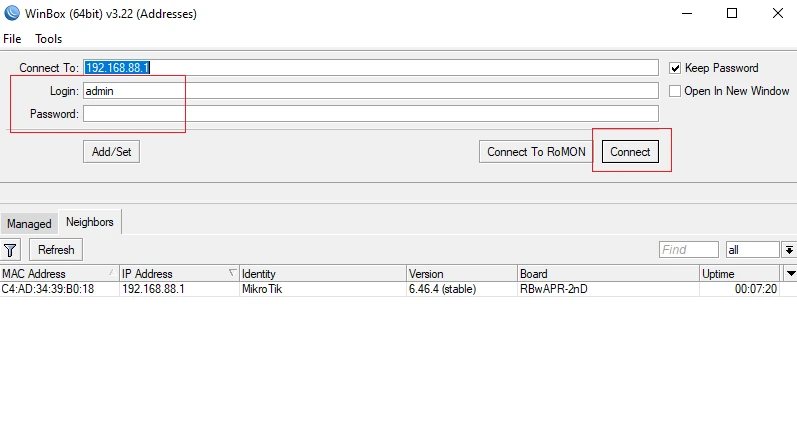
- We log in to Mikrotika using the Winbox
tool.
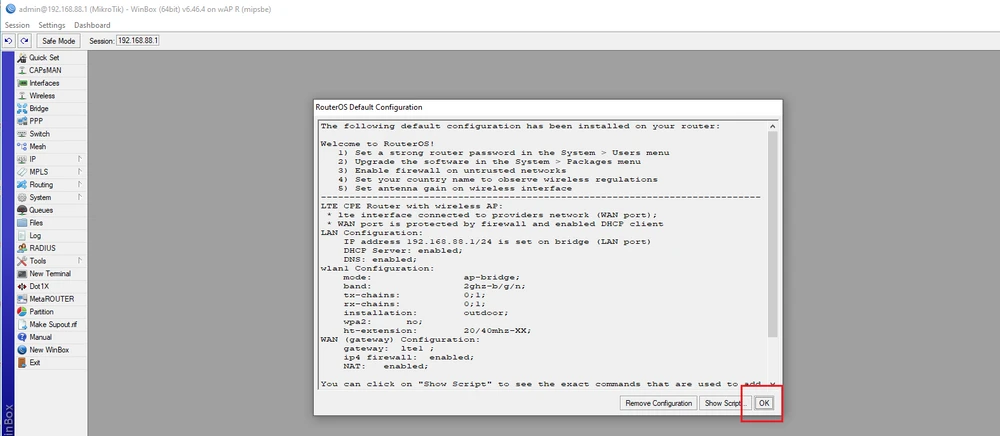
Login: admin Password: leave it empty (at first login).We leave the default configuration by clicking "Ok" on the front panel we see.
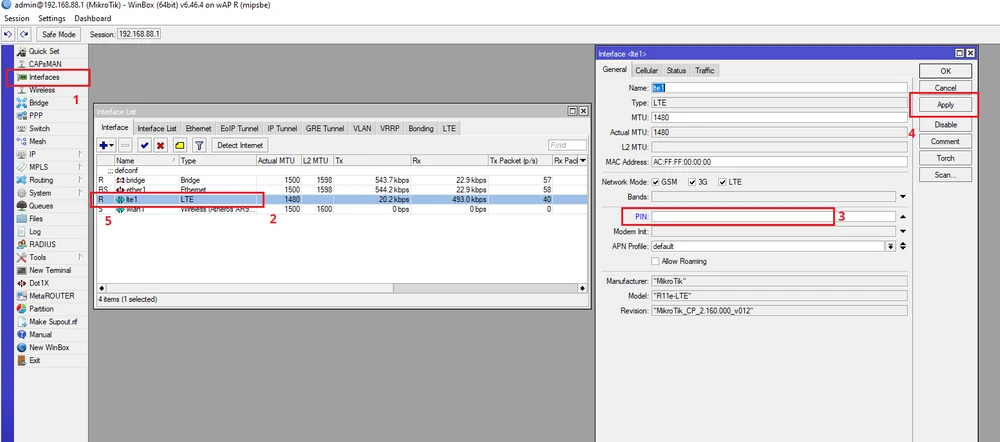
- Now we have to enter the PIN code of our SIM card (of course provided that it is required). If we don't have a PIN code on our SIM card then remember this point.
(1) Click on the
Interfaces tab, then on our interface
(2) lte1, on the
General (3) enter our code
PIN and at the very end confirm the configuration
(4) Apply. If everything is entered correctly and the antenna is
correctly pointed towards the LTE relay, then next to the interface name
lte1 the letter
(5) "
R" should appear. (Running). This indicates that the LTE antenna is
correctly connected to the BTS relay.
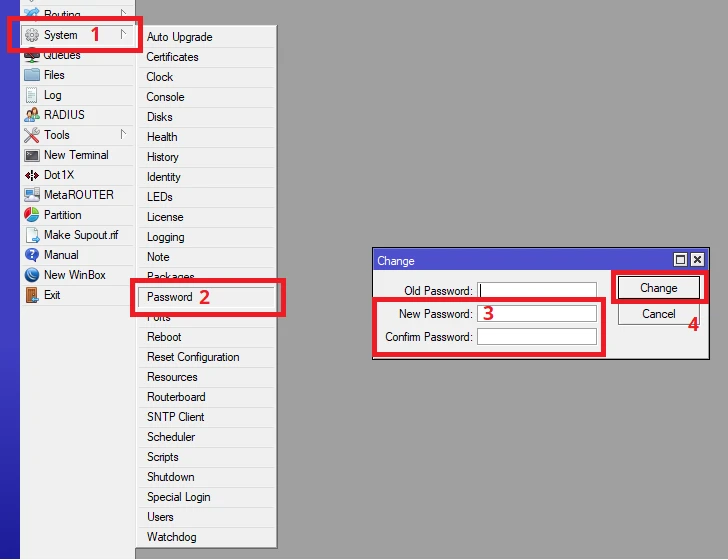
- The next step is to protect our Microtik. First of all we have to set an access password, because by default the device has no password.
(1) go to System -> select (2) Password -> enter the new access password (3) New Password and confirm Confirm Password . At the end click (4) Change.
Wireless network configuration
Mikrotik ready, so now we configure our local wireless network based on the
Totolink N300RT router.
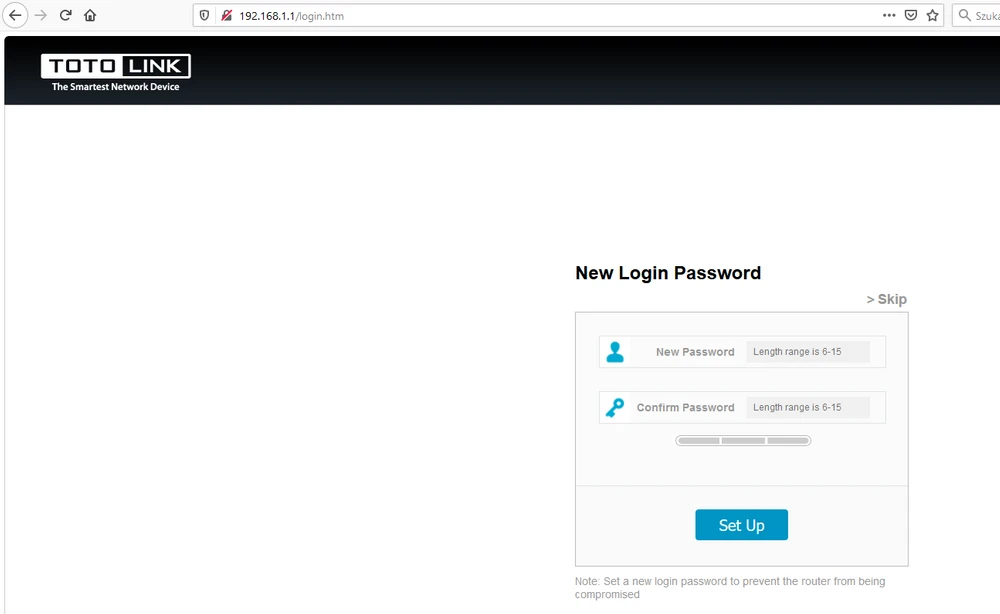
- With patchcord (included) we connect (PC/laptop) to our router's LAN port. Once the router is properly started, we will automatically move to the logging page. There we will have to set new access password.
.
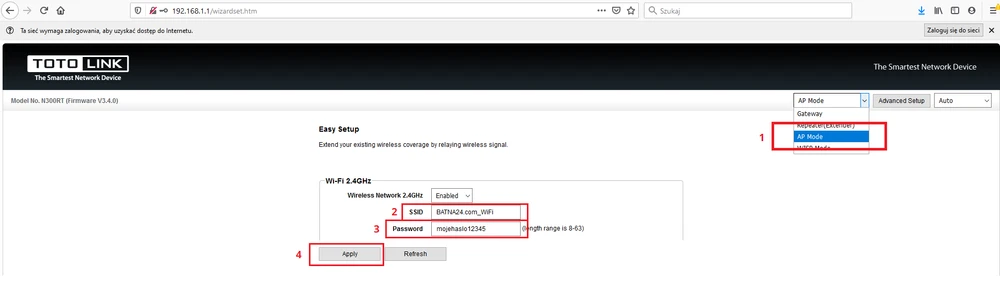
After logging in, we need to select the appropriate
router mode (in our case it will be typical
Access Point) and configure our local
wireless network.
Change the router's mode to (1) AP mode, (2) type in our Wi-Fi network name (SSID), (3) set the wireless access password (WPA2). Finally, we confirm the configuration of (4) Apply.
Summary of the configuration
For a more detailed (
advanced) configuration and any questions, please visit our
NETWORKFORUM.