


Extralink EPON OLT - web interface
Extralink EPON OLT PREDATOR - WWW interface

Brief tutorial describing the procedure to launch the web interface on
OLT Extralink RAPTOR and PREDATOR
To meet the expectations of our customers, we have equipped Extralink OLTs with the ability to manage through WWW.
The procedure for updating our OLT EPON EXTRALINK RAPTOR and PREDATOR will be described below and in a few steps you can enable management via Web interface.
We should start with the fact that in the new software version (V2.3.1) we have two addresses to manage OLT, unlike in the previous version, where there was only one address:
1. Before upgrading, the default OLT IP address is 192.168.1.100, and after upgrading to V2.3.1:
- OLT uplink port manage ip address: 192.168.8.100
- OLT AUX/MGMT port manage ip address: 192.168.1.100
2. If the default OLT address was changed to 192.168.1.X (excluding 192.168.1.100) before updating to V2.3.1:
- OLT uplink port manage ip address: 192.168.1.X
- OLT UX/MGMT port manage ip address: 192.168.2.100
3. If before the update the default OLT address was changed to a completely different one than 192.168.1.X, then after updating to V2.3.1:
- OLT uplink port manage ip address: same as before the update
- OLT AUX/MGMT port manage ip address: 192.168.1.100
So let's get to the point... first we have to prepare everything accordingly
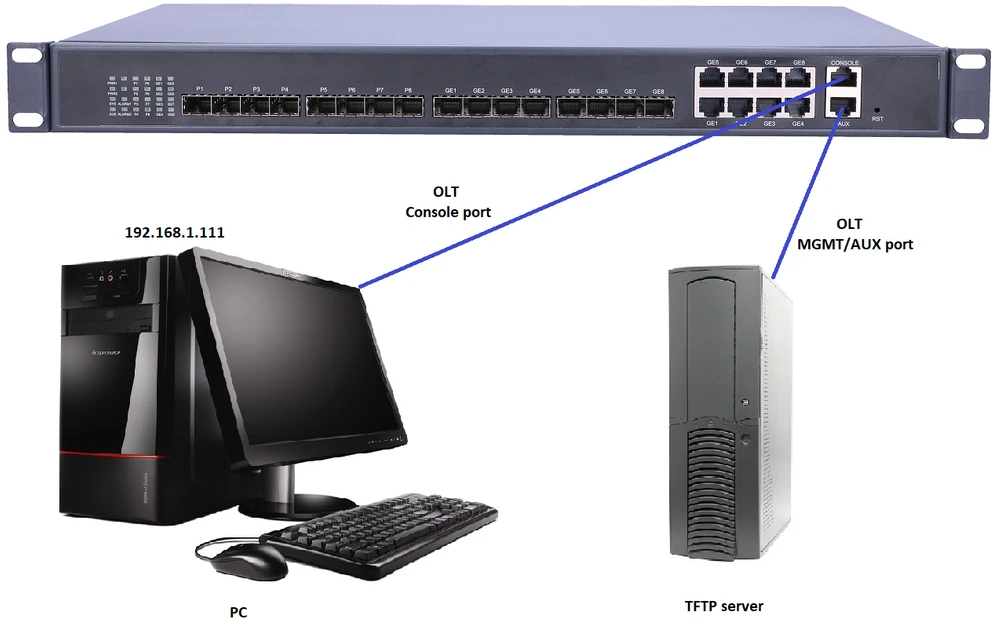
In this guide, the PC has been set up as a Server and has an IP address of 192.168.1.111, while access to OLT is obtained from the address 192.168.1.100.
I. First we have to make sure that the firewall on our computer is disabled.
II. Then make sure that your computer's IP address is in the same subnet as our OLT. The same network segment can ping each other:
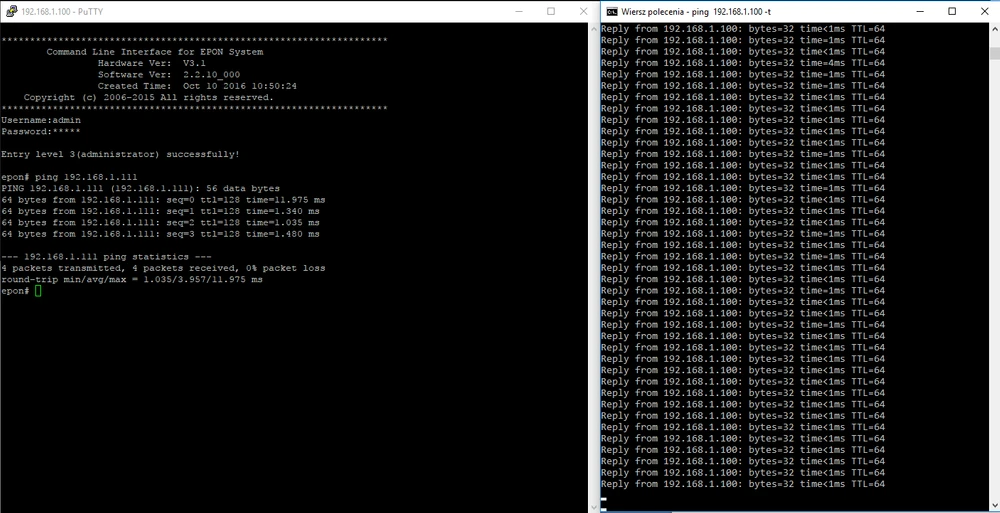
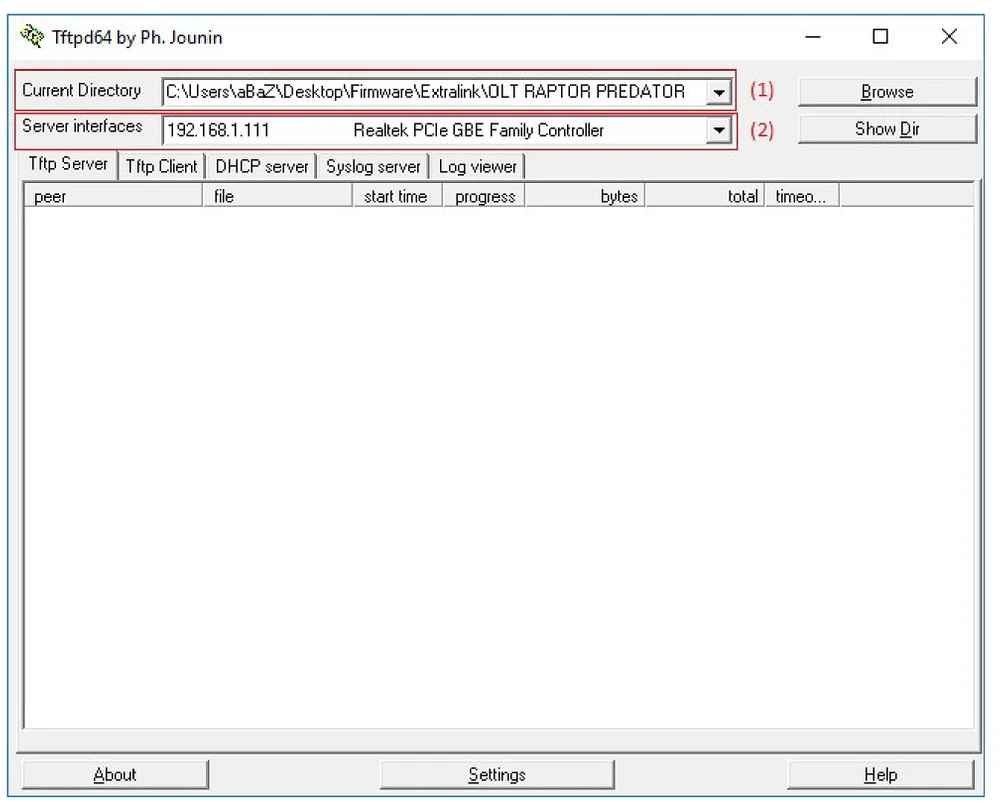
III. We run the TFTP program to upload the firmware to the OLT. The TFTP server is configured as follows:
(1) Specify the path to the software you want to update
(2) Specify the IP address of the server (in this case it is the PC's address)
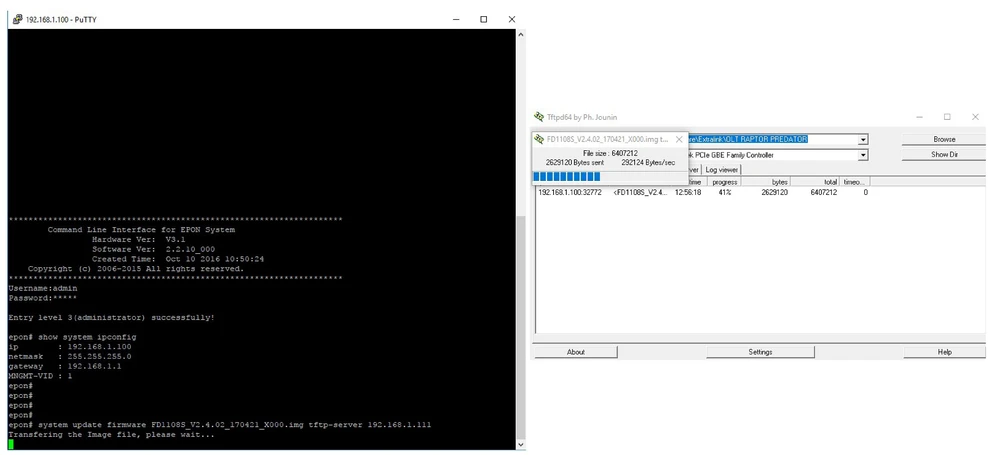
IV. Now we can get to updating the OLT
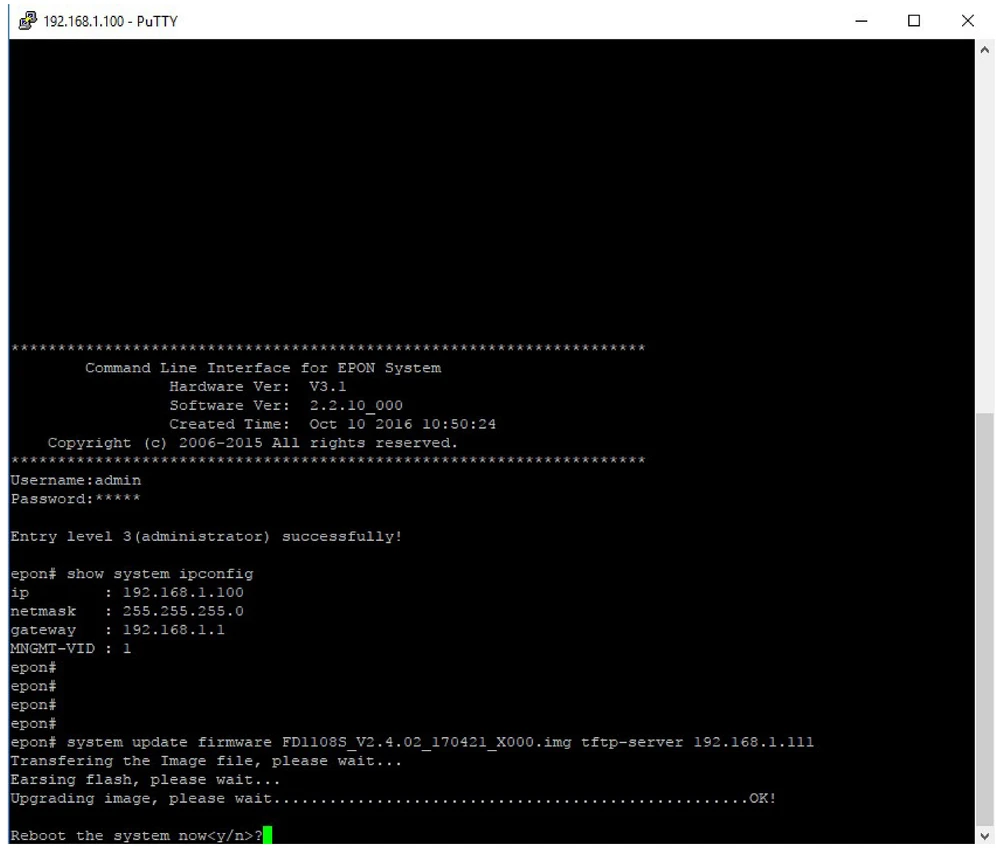
epon# system update firmware <firmware name> tftp-server <tftp-ip>
where:
(1) <firmware name>: FD1108S_V2.4.02_170421_X000.img,
<tftp-ip>: 192.168.1.111
(2) If the command has been entered correctly we can see our firmware image being sent to the OLT
V. In the next step, we have to upload an image of the software that will start accessing via WWW in a similar way.
epon# system update web-server <firmware name> tftp-server <tftp-ip>
where:
(1) <firmware name>: FD1108S_WEB_V1.0.0_170421_1831.img,
<tftp-ip>: 192.168.1.111
(2) In order to check if we have installed everything correctly, we issue the command:
epon# show information system
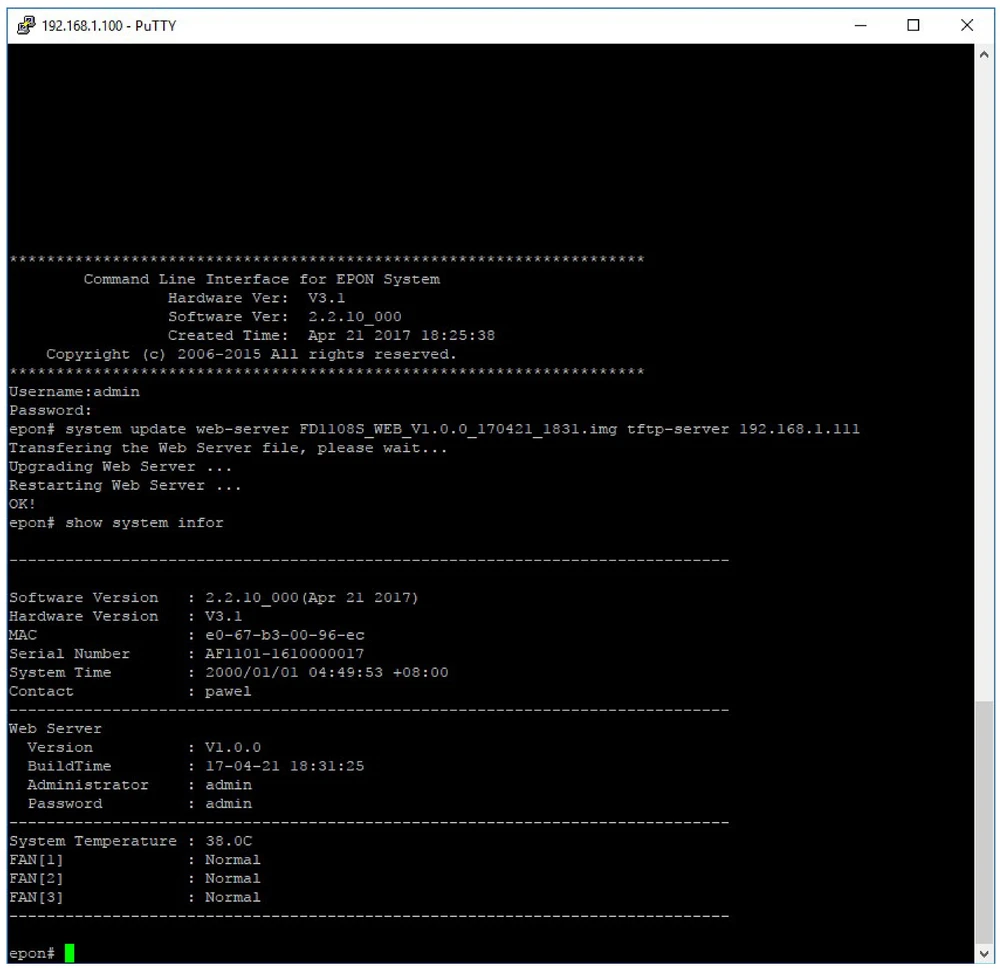
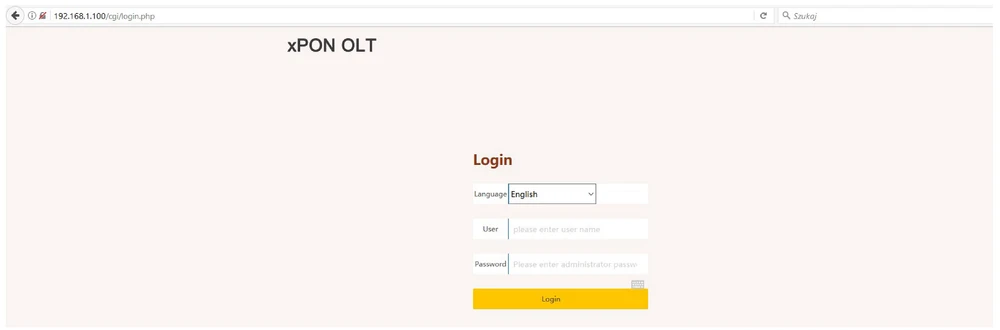
If everything went well we can finally log on to our OLT via the web interface without having to reboot the device - enter http://192.168.1.100 (default) and log on using the user and password admin.
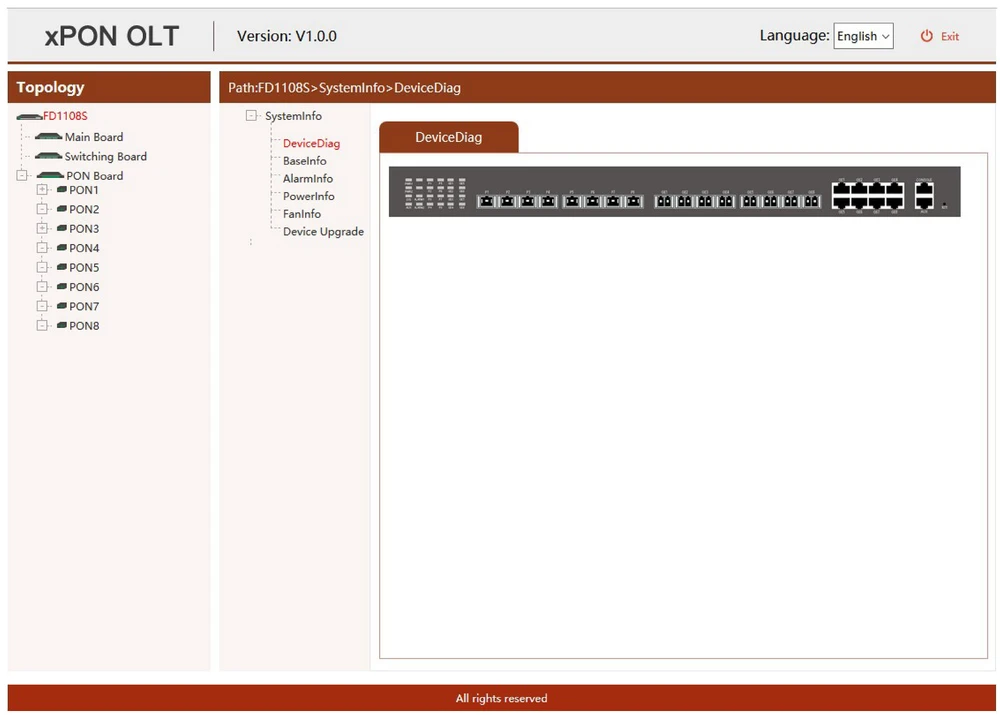
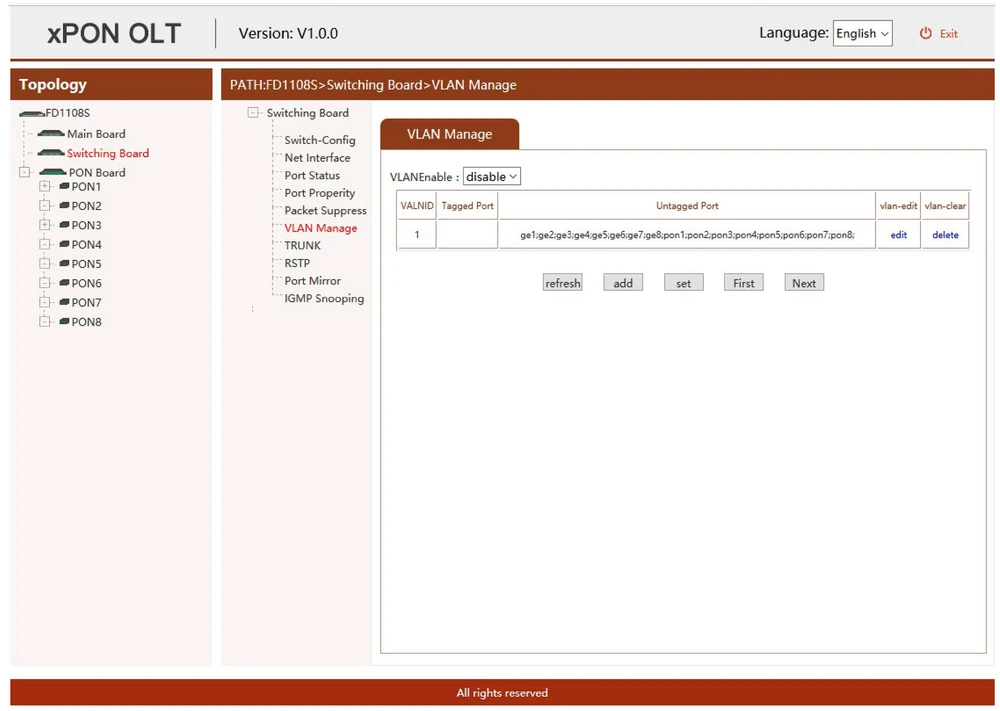
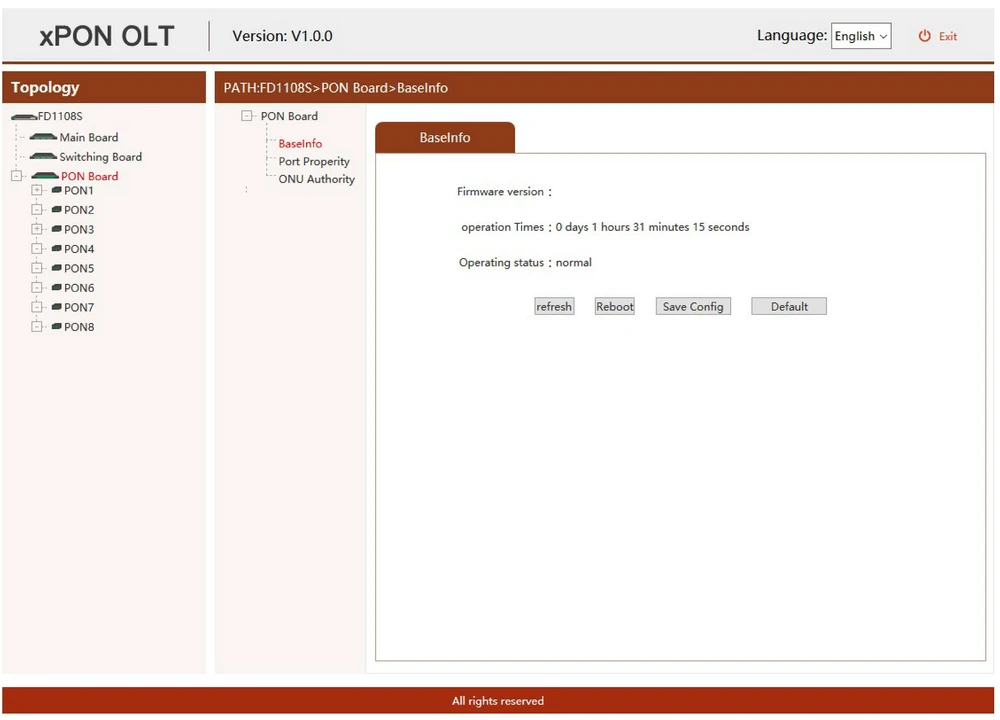
It was also worth adding that the www interface that OLT was equipped with is very clear and user-friendly, which is best illustrated by the following screenshots with some settings:
Downloads
Downloads
We recommend that you update your software!!!
All the necessary files can be found at www.batna24.com