


Totolink N9 access point - Performance test
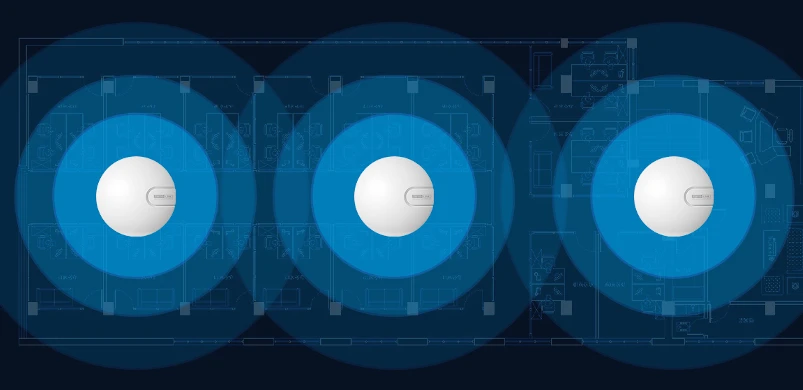
- The WiFi standard supporting 300Mbps.
- The ceiling design.
- 10/100Mbps LAN port, supporting power over wired network (PoE - 802.11af).
- Supports 3 SSIDs, up to 40 connections.
- Built-in 2x 4dBi antennas, supporting MIMO technology.
- Supports centralized management with Totolink SoftAC software.
- Ability to create a schedule for automatic startup.
- The device emits very little heat during operation, allowing for continuous operation without interruptions.

Totolink N9 overview
The platform is based on MT7620 with parameters:
- The MIPS24KEc 580MHz processor
- WiFi 802.11b/g/n MIMO 2:2 (2T2R)
- The chip itself supports 802.11k+r, but the firmware itself doesn't seem to support it.
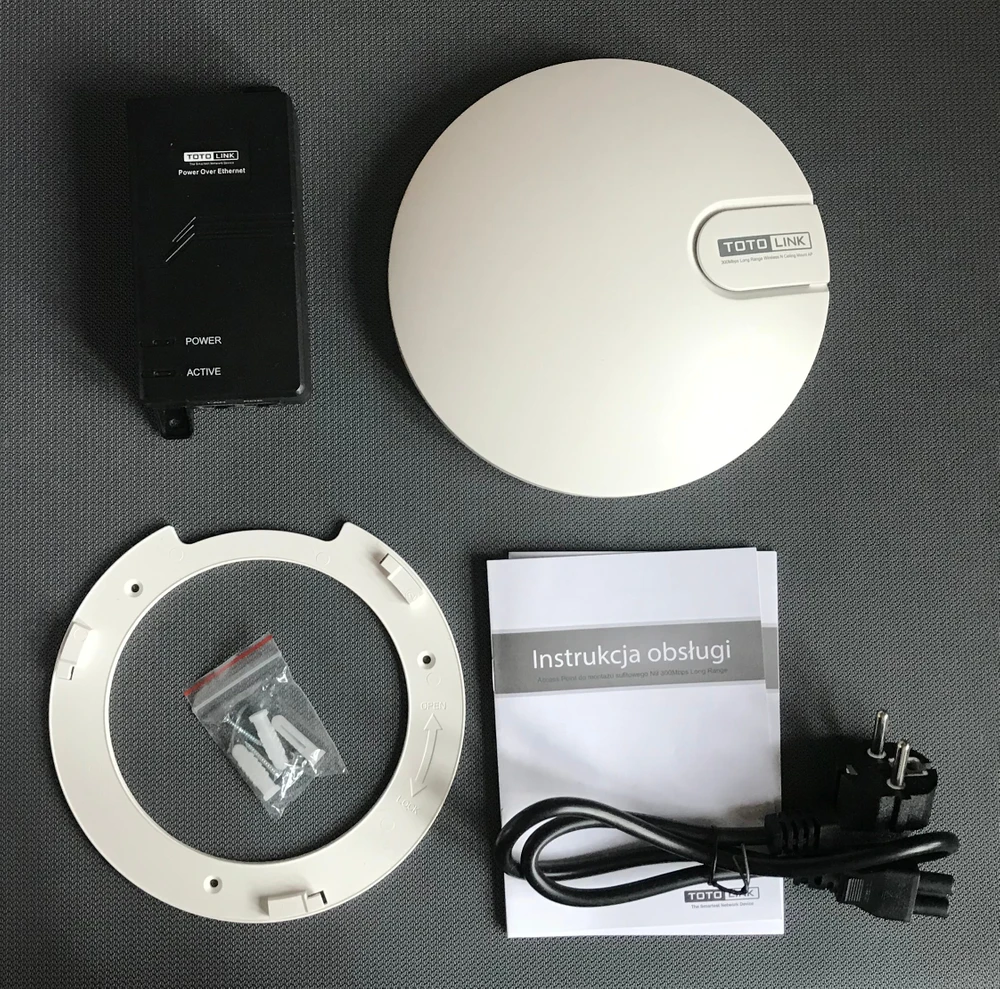
The picture above shows all the accessories included in the Totolink N9. PoE adapter, power cord, catalogue instructions and screw mounting.
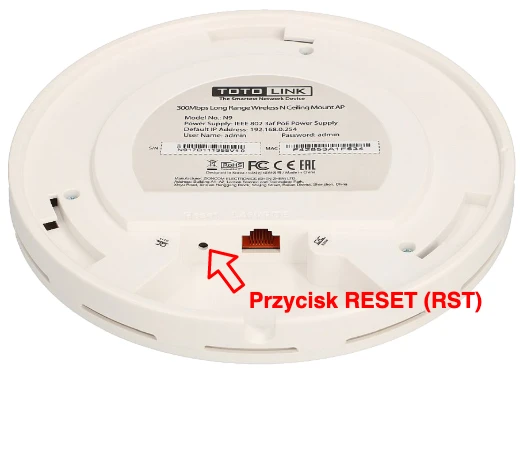
As far as the connection port is concerned, Totolink N9 has only one 100Mbps port, and the way of connecting the device to the network is very simple. All you need is a network cable to connect this port to the PoE adapter, both for power and signal transmission. Next to the LAN port, there is a button to reboot the device, it is shaped like a hole.Configuration
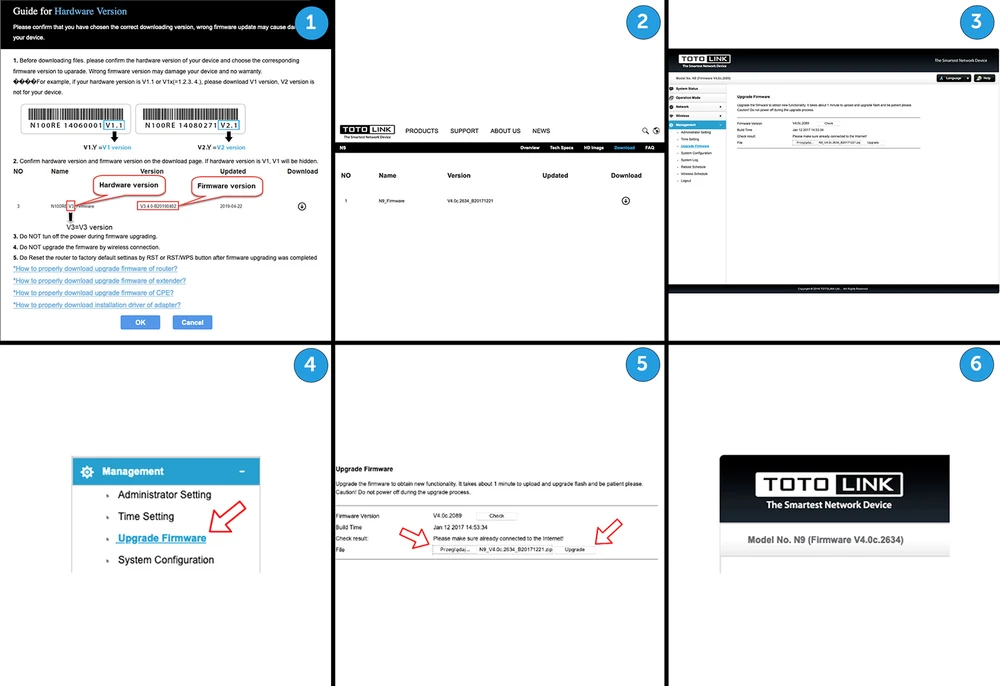
The first step we recommend is to download the latest version of the software from www.totolink.net (Support -> Search for N9 ->Download).
Default version: V4.0c.2089 from 2017-01-12
New version: V4.0c.2634 from 2017-12-21
- Unpack the downloaded ZIP archive with the firmware
- Select file: TOTOLINK_CSB334A_N9_0154A_MT7620A_SPI_8M128M_V4.0c.2634_B20171221_ALL
- Click the UPGRADE button
WARNING:The "factory" DHCP client did not want to work, could not obtain the IP address. After a reset via the reset button the device started to work.
We recommend changing the settings for the second IP address from auto to manual and entering an alternative IP address, as in some configurations it may cause a problem.
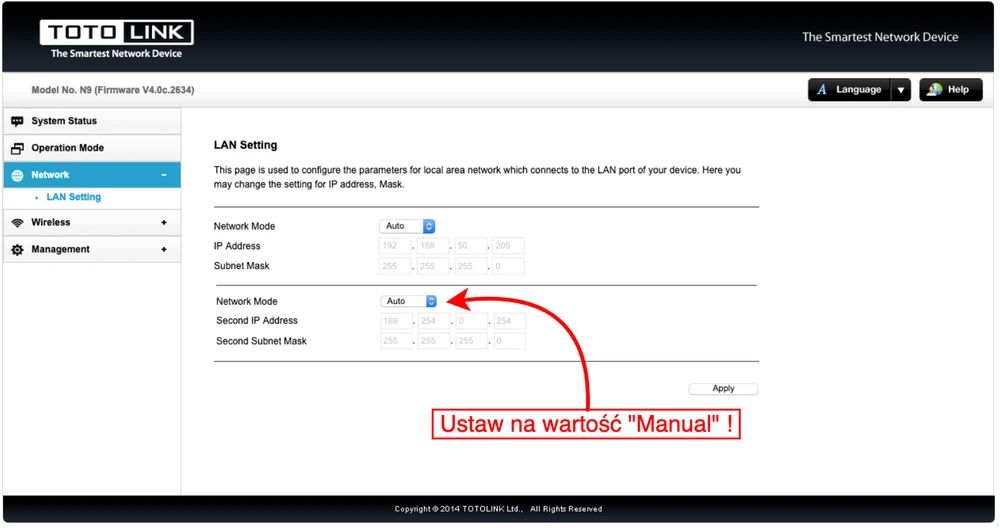
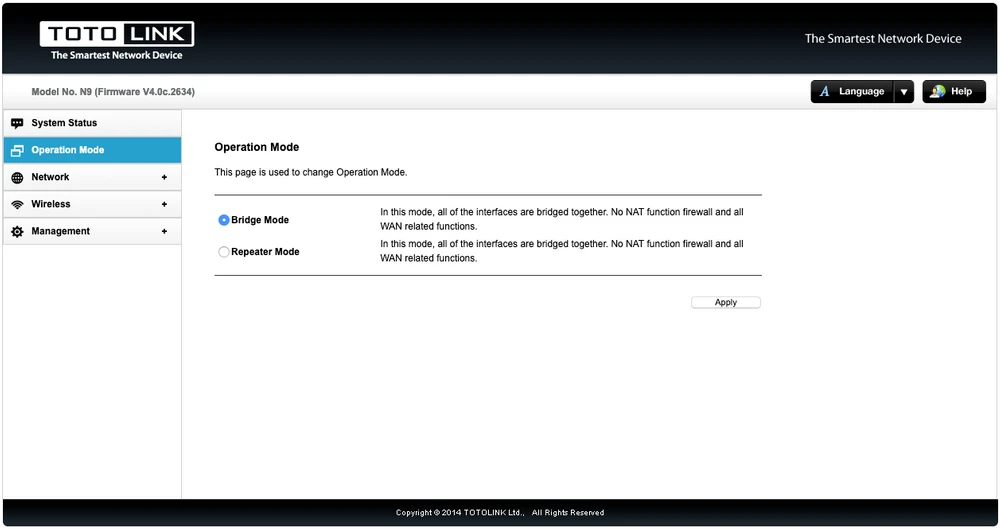
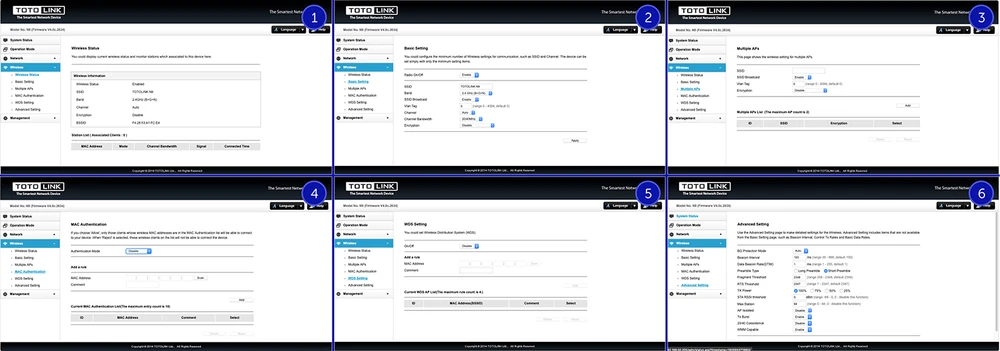
The N9 configuration page is intuitive and very simple. We won't find many options here, but there's nothing strange about it, it's just an access point, so it doesn't have as many features as a traditional router.


Totolink N9 performance test
For 2.4GHz connections, we've adopted a maximum channel width of 20MHz. The testing device was MacBook Pro A1502 equipped with built-in AirPort Extreme wireless card (Broadcom BCM4360 3x3, 1.3 Gbps PHY) working in 802.11a/b/g/n/ac standards.
Before the speed tests we verified the maximum performance of the LAN and iperf3 server.
The aforementioned laptop was connected to the switch with a 10/100/1000Mbps network card. We obtained the following maximum speeds for a single TCP stream:
Spectrum analyzer
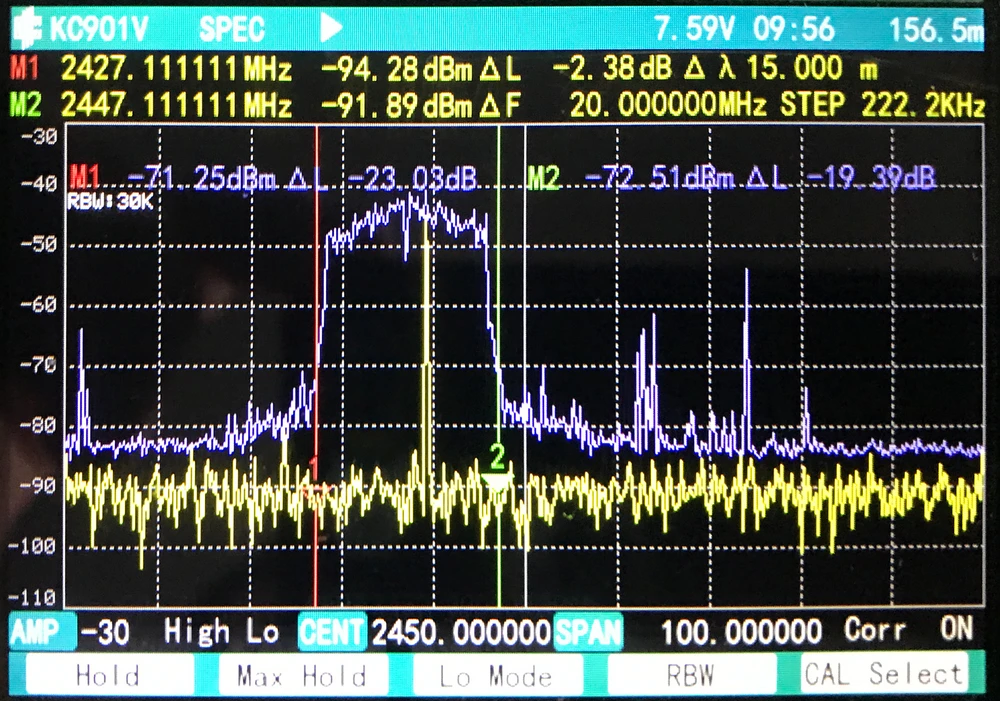
Signal map
We used the AirSurvey software to map the signal. To read the signal levels correctly, please pay attention to the color legend at the bottom of the picture. The acces point location is marked with an appropriate icon.Speed test
We performed speed tests with WiFiPerf software, and the speed test server was iperf3 software.- measuring point No. 1


- measuring point No. 2


- measuring point No. 3


- measuring point No. 4


- measuring point No. 5
- measuring point No. 6
Summary
- Power PoE in 802.3af standard.
- Ability to operate in repeater mode.
- Ability to set two IP settings.
- Ability to set on which vlan will be wireless traffic (dedicated network).
- Ability to set several wireless networks each on a different VLAN.
- WDS service (poor man's MESH).
- Ability to set the RSSI level of client stations that are accepted by the access point to improve the switching of client stations between acesspoint networks - a poor substitute for "roaming".
- A very strong signal, penetrating many obstacles.
- As with most cheap devices, the wall mount is designed so that only the screws from the set fit. From our experience we know that it's a bad idea and you have to use more solid wall plugs.
- No verification that we are uploading correct frimware for this model.
- No Polish language.
- In the classic GUI setting we didn't notice the possibility of setting the authorization of wireless clients' connections with e.g. Radius.
- There is no possibility to disable settings for the second IP number.
- No login to the remote LOG server.
- The network application has limited functionality and, apart from mass configuration changes, is rather useless.
FAQ
- a) Go to www.totolink.net.
- b) In the upper menu, click on the "SUPPORT" item
- c) Enter the model name in the search bar: N9 and click on the magnifying glass or press "Enter".
- d) In the results list we click on our model.
- e) We have gone to our model's website, here you will find the most important technical information of the model and the latest downloads.
- f) Click on the 'DOWNLOAD' menu and go to our model's download page.

Before downloading a file with the latest software (firmware), make sure that you have selected the correct download version, an incorrect software update may damage the device.
The hardware version number can be found on a sticker on the back of the model.
 For example, if your hardware version is V1.1 or V1.Y (= 1,2,3,4....), download V1, other versions are not for your device. In some cases, the hardware version designation may have other designations, such as letters.
 Remember not to make firmware updates via wireless connection.
Do not turn off the power while performing a firmware update. Updating for some models can take up to 5 minutes.
After the firmware update is completed due to new functionalities, we recommend resetting the device to factory default settings using the RESET , RST or RST / WPS button and reconfiguring the device. Press and hold the button and during this time connect the power supply to the device. Hold the button for about 10-15 seconds. In most models, the moment when the button can be released signals a change in the color of the diodes or lighting of the other diodes at the same time or sequentially
.g) In our case, one version of the equipment was available at the time of preparation of the following document. The downloaded file is saved on your computer.


Remember not to make firmware updates via wireless connection.
Do not turn off the power while performing a firmware update. Updating some models can take up to 5 minutes.